Set up your hotel: rooms and rates
The order to set up a new hotel in, from the property details through floors, room types, rooms, seasons and rate plans to policies and extras, before the first booking.
Before the front desk takes its first booking, the hotel needs its rooms and prices. Follow these steps in order; each one uses what the step before it created. Most hotels finish in an hour.
Before you begin
- The Hotel module is switched on for your company by your service provider.
- The branch the hotel belongs to exists, see Branches, and your payment methods are set up, see Payment Methods.
- You have a role with the hotel setup permissions. See Users & Roles.
Where to find it
All the setup screens are under Hotel → Setup. If you run more than one hotel, pick the hotel in the PMS Property box at the top of the side menu first.
1. Check the property details
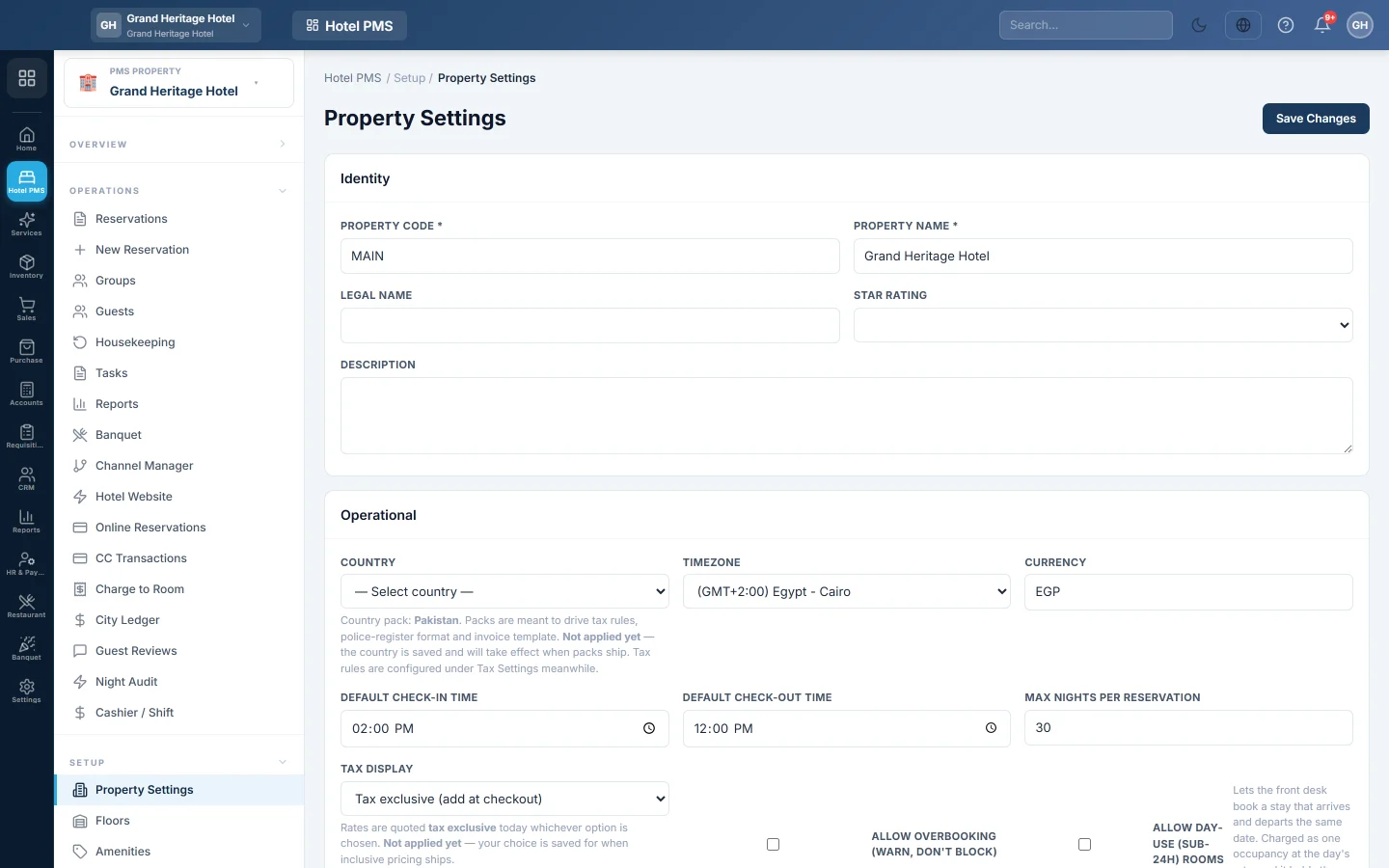
Open Property Settings. Check the name, currency and timezone, set the check-in and check-out times, and add the address and tax number for your folios. Click Save Changes.
2. Add floors
Open Floors and add each level, for example Ground Floor (level 0) and 1st Floor (level 1). Floors are optional but help on large hotels.
3. Add amenities
Open Amenities and add the room features you offer, such as WiFi, AC and TV.
4. Add room types
Open Room Types. Add each kind of room, for example Standard, Deluxe and Suite, with its beds, occupancy, default prices and amenities.
5. Add rooms
Open Rooms. Use Bulk Create for a run of rooms, for example 101 to 110 as Standard, or + Add Room for single rooms.
6. Add seasons
Open Seasons if your prices change in peak or holiday periods. Skip this step if you charge the same all year.
7. Create rate plans and fill their grids
Open Rate Plans. Start with one plan ticked Best Available Rate (public baseline). Click Rate Grid and add a row per room type, with an All year row and a row per season. Add other plans, such as corporate or bed and breakfast, after that.
8. Set your cancellation and no-show fees
Open Policies and add a default Cancellation and a default No-show policy, so the desk sees the right fee.
9. Add the extras you sell
Open Services & Extras and add things like airport pickup, laundry and spa treatments with their prices.
10. Take your first booking
Open the Front Desk (Tape Chart): your rooms are listed by type. Then make a reservation and check the guest in.
Common questions
Do I need seasons and rate plans before the first booking? Seasons, no. Every booking needs a rate plan, but its grid can start empty: nights without a grid row use the room type's own prices.
Which steps can I skip? Floors, amenities and seasons are optional. Room types, rooms and at least one rate plan are needed to take bookings.
Can I change things later? Yes. Changes to prices apply to new bookings; existing bookings keep their quoted rates.
Teşekkür ederiz. Hâlâ yardıma ihtiyacınız varsa info@eloerp.net adresine yazın.