Property Settings
Set the hotel's name, code, timezone, currency, check-in and check-out times, overbooking and day-use rules, and the address and tax number printed on folios.
Property Settings holds the basic facts about your hotel: its name, currency, timezone, standard check-in and check-out times, and the address and tax number that print on folios and confirmations.
Before you begin
- The Hotel module must be switched on for your company. Your service provider does this.
- Each branch has its own hotel property. If the branch has none yet, EloERP creates one when you first open this page, using the branch's name, address and phone. Add the branch first, see Branches.
- Your role needs the property permissions. See Users & Roles.
Where to find it
Open Hotel → Setup → Property Settings.
When your company runs more than one hotel, pick the hotel in the PMS Property box at the top of the side menu first. The page always edits the hotel picked there.
Fill in the property details
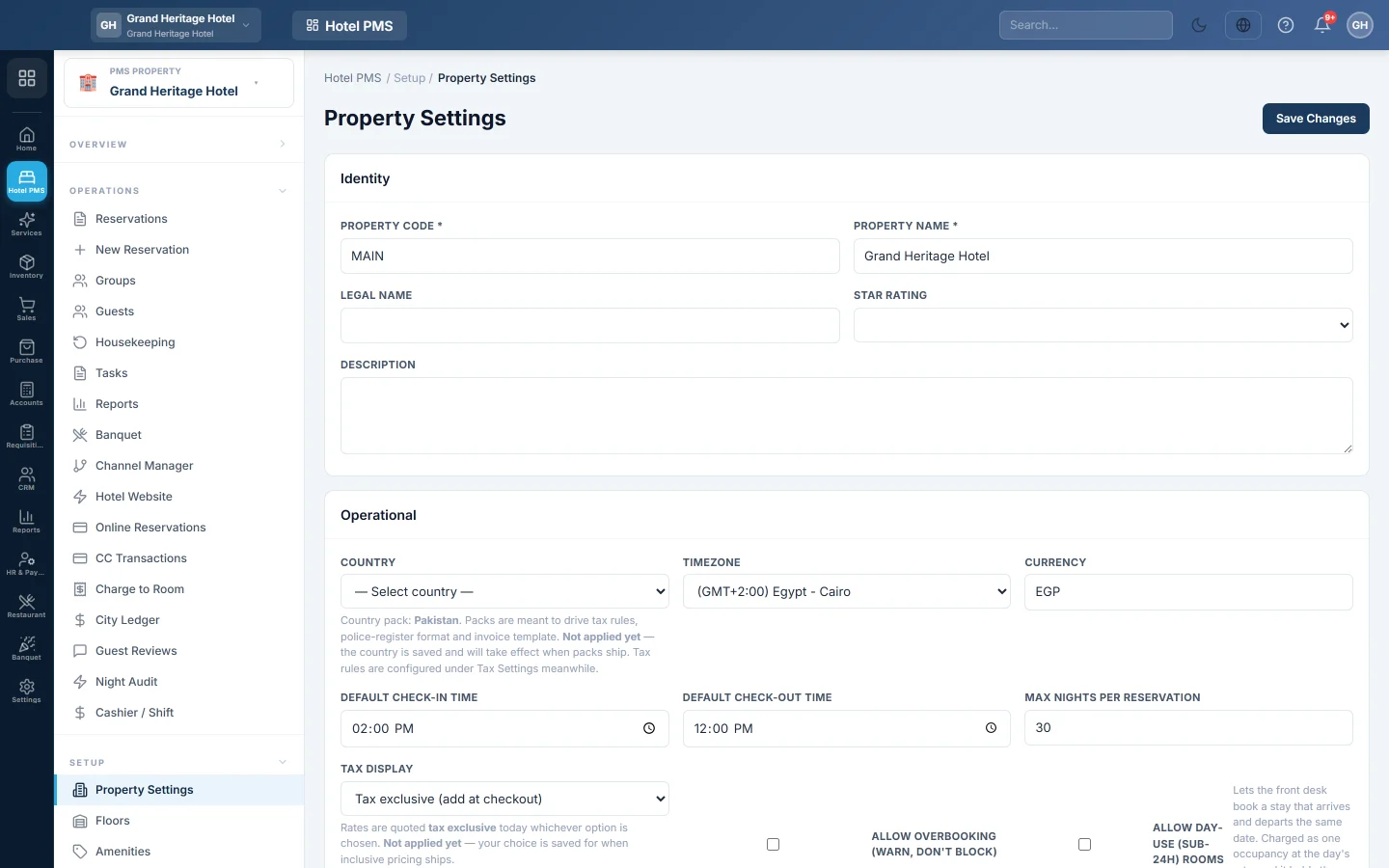
- Under Identity, check the Property Code and Property Name. Both are required. The code is a short name of up to 20 characters, for example MAIN.
- Add the Legal Name, the Star Rating and a short Description if you want them on your documents and website.
- Under Operational, pick the Country and the Timezone of the hotel. The timezone decides when the hotel's day starts and ends.
- Check the Currency. It is a three-letter code, for example PKR.
- Set the Default Check-in Time and Default Check-out Time. New hotels start at 14:00 and 12:00.
- Set Max Nights per Reservation, from 1 to 365.
- Under Contact & Tax, fill in the Address, City, State / Province, Phone, Email, Website and NTN / Tax Number.
- Enter the Bed tax % and the Sales tax (GST) % for your province. Leave a box blank if you do not know the rate yet; enter 0 if the hotel is exempt.
- Click Save Changes. A green Property saved. message confirms it.
Booking rules
- Allow overbooking (warn, don't block): when ticked, the desk is warned about a room clash but can still save the booking. Leave it off to stop double bookings.
- Allow day-use (sub-24h) rooms: lets the desk book a stay that arrives and leaves on the same date. It is charged as one night at that day's rate and holds the room for that date.
Guest online account
The Guest online account card at the bottom sets what your guests can do when they sign in to "My Account". Each switch is off until you tick it, and each hotel has its own:
| Switch | What it does |
|---|---|
| Guests earn loyalty points on stays | A settled stay earns points at your loyalty programme's rate. See Give guests loyalty points on hotel stays. |
| Guests can use their loyalty points at the front desk | The desk can take money off the guest's own folio for their points. See Use a guest's loyalty points on their bill. |
| Guests can check in online before they arrive | With Opens this many days before arrival and Ask for a photo of the guest's ID. See Let guests check in online before they arrive. |
| Guests can save their details and book again | Guests keep their details and room preferences, and get Book again. See Let guests save their details and book again. |
Guests see none of this until the Bookings card is on under Settings → Configuration → Customer Portal. The card warns you when it is off. See Let guests see, pay and cancel their bookings online.
The property currency
Hotel prices post to your books without conversion. So the property can only use your company's own currency, or the base currency on Currencies. To price a hotel in another currency, turn multi-currency on and add that currency on the Currencies page first. Otherwise saving shows a message that names the currency you must use.
Common questions
I changed the currency and the save failed. The property must use the company currency until multi-currency is on and the currency is added. Read the message under the page title; it names the allowed currency.
Where does the hotel name on my folios come from? From Property Name, Address, Phone and NTN / Tax Number on this page. The logo comes from the branch or company print settings, see Print Settings.
We run two hotels. How do I switch between them? Each hotel is its own property, normally one per branch. Pick the hotel in the PMS Property box in the side menu. See Group Console for a view across all of them.
Why does the hotel's date not match my computer's clock? The hotel's business date is today in the Timezone set here, not your computer's timezone. Set the timezone of the hotel's own city.
What should I set up next? Floors, room types and rooms, then rates. Follow Set up your hotel: rooms and rates.
Teşekkür ederiz. Hâlâ yardıma ihtiyacınız varsa info@eloerp.net adresine yazın.