Hotel Website
Build the hotel's public website and booking engine, with branding, photos, room photographs, dining, add-ons, promo codes, card offers, pages, currencies, online payment and your own domain, so guests book direct without commission.
Hotel Website builds your hotel's own public site: a home page, rooms, dining, gallery, about and contact pages, and a booking engine where guests pick dates, choose a room and pay. Bookings made there arrive in the hotel like any other reservation, with no commission to pay.
Before you begin
- Your room types and at least one Public rate plan exist. The site sells only public plans. See Rate Plans.
- To take payment online, set up a payment gateway from the Payments tab first.
- Your role needs the hotel website permissions. See Users & Roles.
Where to find it
Open Hotel → Operations → Hotel Website. Click View site to open the public site in a new tab. The badge next to it shows PUBLIC or UNLISTED.
Set up the basics
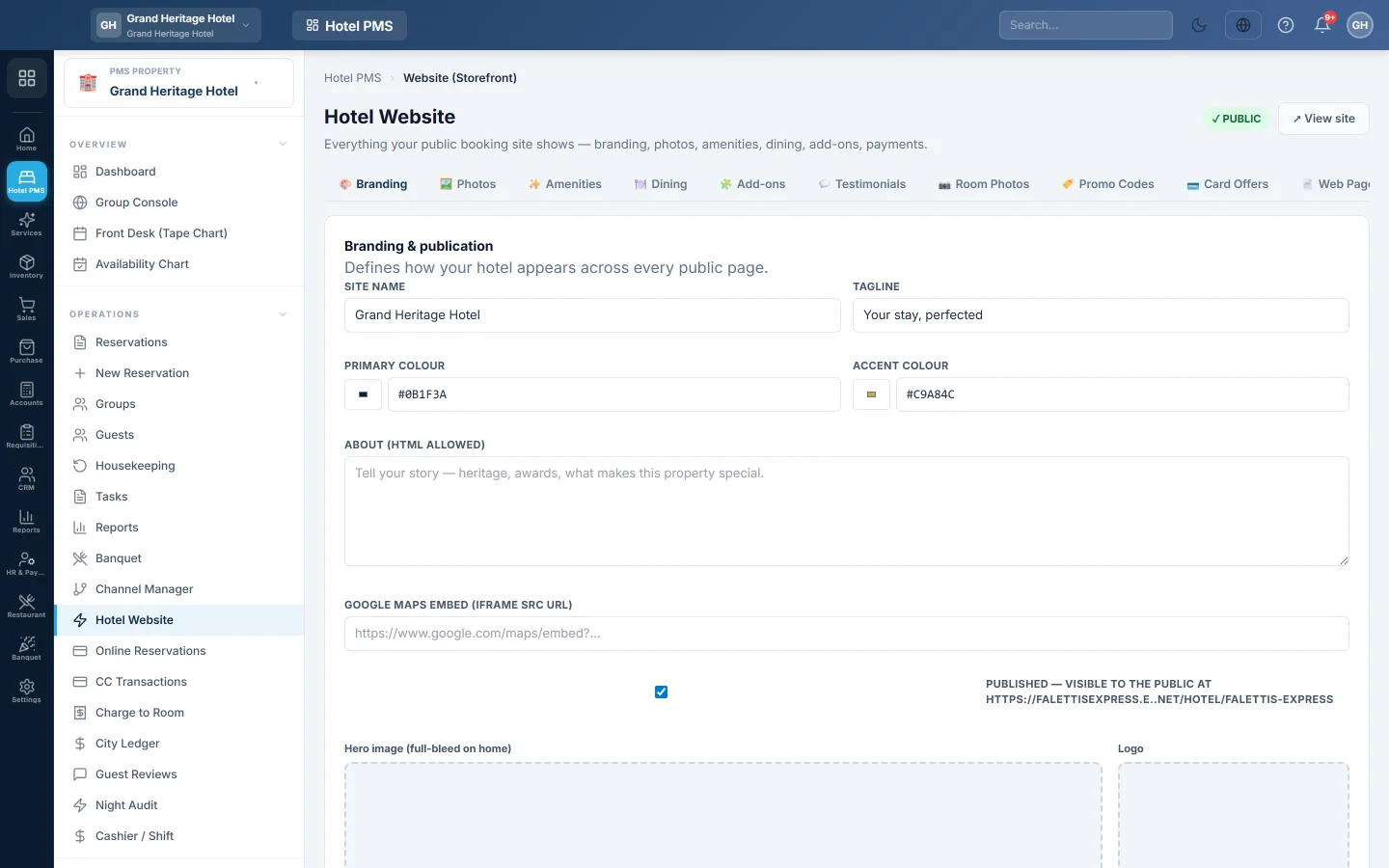
- On Branding, enter the Site name and Tagline, pick the Primary colour and Accent colour, and write the About (HTML allowed) text.
- Paste a Google Maps embed (iframe src URL) for the contact page.
- Upload the Hero image (full-bleed on home) and the Logo.
- Tick Published — visible to the public at your site address.
- Click Save changes.
Fill in the content
| Tab | What you add |
|---|---|
| Photos | The photo gallery, grouped as Exterior, Lobby, Dining, Event, Facility or Other. |
| Amenities | Highlights shown as icons on the home page, each with an Icon, Name and Description. |
| Dining | Your restaurants and bars, with Cuisine, Hours, Dress code and reservation contacts. |
| Add-ons | Extras offered while booking, such as breakfast, priced Flat, Per night, Per guest or Per guest per night. |
| Testimonials | Guest quotes; tick Published to show one. |
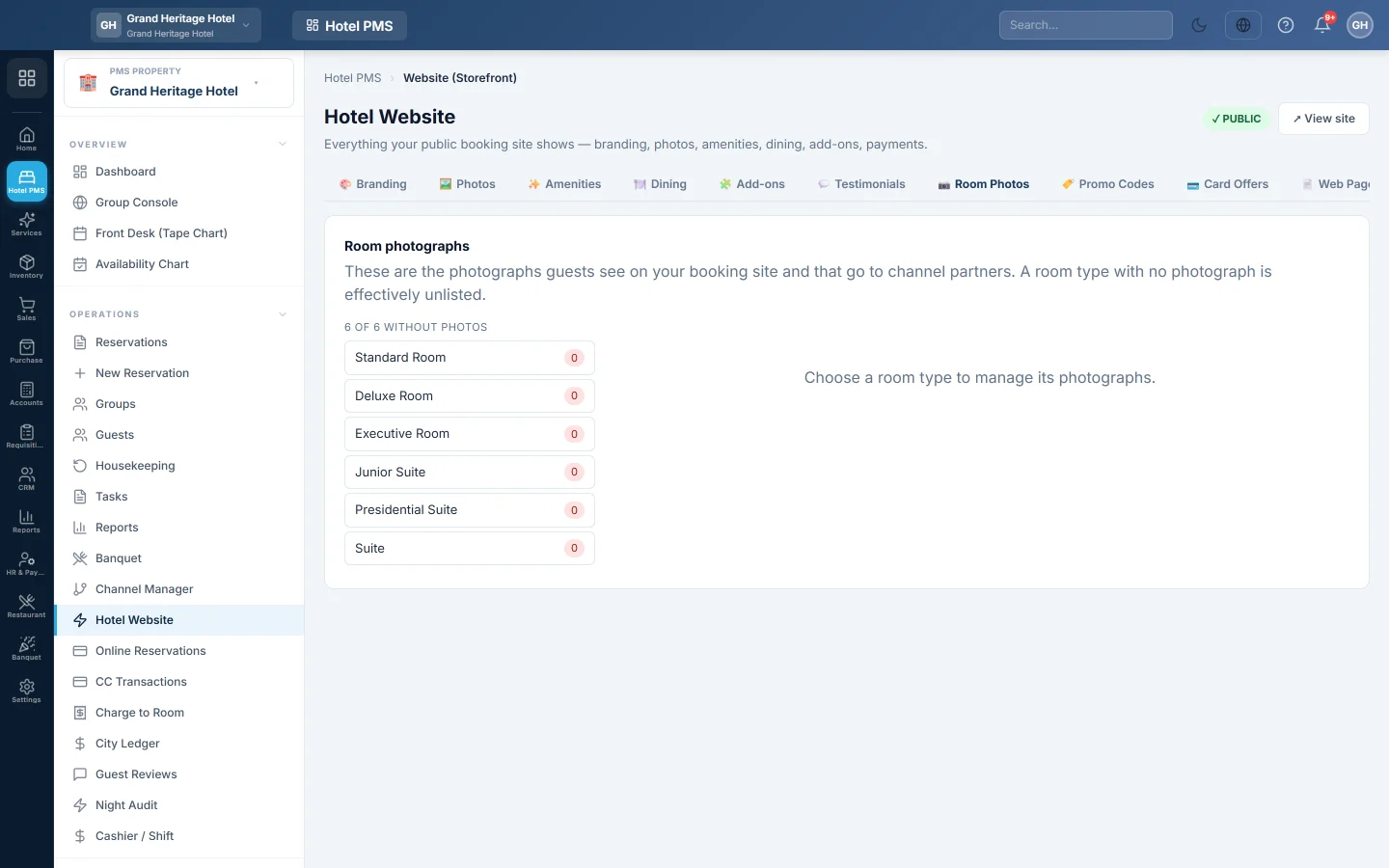
| Room Photos | The photographs of each room type. Mark one Main photo. A room type without photos is effectively hidden. |
| Web Pages | Your own pages, such as the cancellation policy; tick Show in menu to put one in the site menu. |
Discounts
- Promo Codes: click New code and set the Discount type (Percent or Flat amount), the Value, the Starts and Ends dates, Max uses and Min nights, then click Save code. Guests type the code while booking.
- Card Offers: bank card promotions matched on the card's first six digits (the BIN). Click New offer, enter the Offer name, Bank and BINs, the discount and its limits, then click Save offer. Use Test a card to check a BIN.
Money and address
- Currency: pick the Base currency and the Supported currencies (footer switcher), and keep their FX rates.
- Payments: follow the Settings → Payment Gateways link to switch on a gateway, such as a card or wallet provider, with its keys.
- Domain: enter your own address, for example book.yourhotel.com, click Save domain, add the DNS record shown, then click Verify now.
How a website booking arrives
A guest's booking arrives as a Tentative reservation. When the guest pays online, it becomes Confirmed and the payment is posted to the folio as a deposit. When the guest pays at the hotel, the desk opens the booking and clicks Confirm booking; see Make a reservation. Website bookings are listed on Online Reservations.
The guest gets one "request received" email for the booking, with the total they agreed to, extras and promo code included. A promo code discount stays on the booking and is posted to the folio as a Promo code discount line at check-in.
The cancellation terms guests see
The booking wizard's Cancellation policy box shows your hotel's real terms for the dates chosen, in plain words. They come from the rate plan the website sells and your default policy:
- A rate plan with Refundable unticked: This rate is non-refundable.
- Otherwise your default Cancellation policy on Policies, for example Free cancellation up to 48 hours before arrival. If you cancel less than 48 hours before arrival, the first night is charged.
- Otherwise the rate plan's Cancellation hours, for example Free cancellation up to 24 hours before arrival.
The guest's online account shows the same words. See Let guests see, pay and cancel their bookings online.
Manage my booking
When the Bookings card of the customer portal is on, your site shows Manage my booking in the footer and on the booking confirmation page. The guest signs in with the phone or email they booked with, and sees the booking, its bill and its terms. See Let guests see, pay and cancel their bookings online.
Common questions
A room type does not show on the site. It has no room photographs, or no public rate plan covers the dates. Add photos on Room Photos.
The site shows no rooms for my dates. Check the Availability Chart for stop-sells, and that a Public rate plan's sale dates include the arrival date.
Can I change the site's look further? The Advanced tab takes custom CSS for your site.
Do I still need a channel manager? Only to sell on travel agencies such as Booking.com. See Channel Manager.
A guest has an old link ending in /book. The old booking page is retired. Your address with /book now forwards to your hotel website, or to your home page when the website is not published. Share your hotel website's address instead.
The wizard shows terms I did not expect. Check the Refundable box and Cancellation hours on the website's rate plan, and your default policy on Policies. New rate plans start with 24 hours.
Thank you. If you still need help, write to info@eloerp.net.