Customer Portal
Give your customers their own "My Account" page where they sign in with a code and see their statement, orders, rewards, bookings and subscriptions, and choose what each customer may see.
The customer portal gives each of your customers a "My Account" page on your own address, at /customer. They sign in with a one-time code sent to their phone, with no password, and see only their own account with you. On this page you choose what they can see.
Before you begin
- The customer portal must be switched on for your company by your service provider. Until then this page says Not switched on, and Customer Portal and Portal Payments are not in the menu.
- Only a company administrator can open and change this page.
- Customers sign in with a code, so you need at least one way to send it: WhatsApp, SMS or email. See Notification Channels.
- A customer is recognised by the Phone, Mobile or Email saved on their customer record. Check these are the numbers your customers really use. See All Customers.
- To show a statement, the customer needs a ledger account (Create Ledger in Accounts).
Where to find it
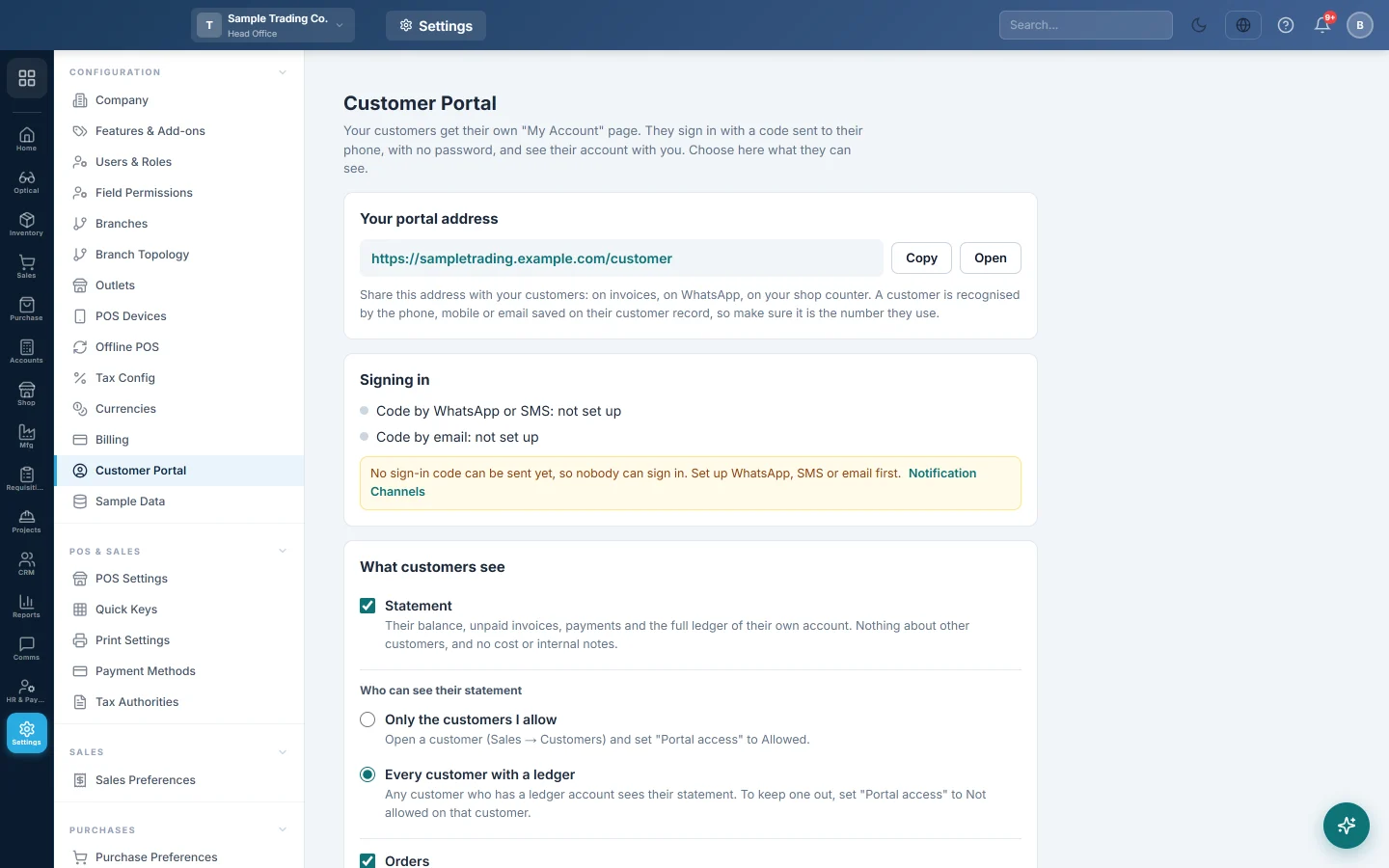
Open Settings → Configuration → Customer Portal.
Share your portal address
Under Your portal address you see the address to give your customers, for example alitraders.yourdomain.com/customer.
- Click Copy to copy it, or Open to see the portal yourself.
- Put it on your invoices, in your WhatsApp status and on your shop counter.
Check that customers can sign in
Signing in shows whether a code can be sent:
- Code by WhatsApp: ready or Code by SMS: ready: customers can sign in with their mobile number. A code goes by WhatsApp when it is set up, otherwise by SMS.
- Code by email: ready: customers can also sign in with their email.
Each code works for 10 minutes. If both lines say not set up, nobody can sign in yet. Click Notification Channels and set one up first.
Choose what customers see
Each part of "My Account" is a card with its own switch. Every card is off until you switch it on.
- Under What customers see, tick Statement to show each customer their balance, unpaid invoices, payments and full ledger. They never see other customers, your costs or your internal notes.
- Under Who can see their statement, choose one:
- Only the customers I allow: only customers whose Portal access is Allowed see their statement.
- Every customer with a ledger: every customer with a ledger account sees it, except those set to Not allowed.
- Tick the other cards you want. Each one appears only when your company has something to show in it:
- Subscriptions: plans, the next bill, subscription invoices and what is unpaid. Customers can ask to pause, cancel or resume. See Subscriptions in the customer portal.
- Bookings: hotel guests see their bookings, the bill and what is still to pay. Guests can cancel online lets them cancel within your cancellation terms.
- Orders: orders from your online store and your restaurant ordering page, where each one is now, and the bill.
- Loyalty & wallet: loyalty points and what they are worth, store credit and gift card balances.
- Optionally type a WhatsApp number (optional) with its country code, for example +92 300 1234567. The portal then shows customers a button to message you.
- Click Save.
To let customers pay from their statement, fill in the Payments section. See Let customers pay from their statement.
Allow or block one customer
- Open Sales → Customers → All Customers and click the pencil on the customer.
- In the Customer Portal box, set Portal access:
- Follow company setting uses your choice under Who can see their statement.
- Allowed shows this customer their statement.
- Not allowed keeps this customer out, whatever the company setting.
- Click Save Customer.
The same account on your other pages
A customer signs in once for all your customer pages: "My Account", your online store, trade ordering and your restaurant's online ordering link. Signed in on one, they are signed in on the others on the same phone.
Languages
The portal speaks the languages of the country in your company profile:
| Your company's country | Languages offered |
|---|---|
| Pakistan, India, or no country set | English and Urdu |
| An Arabic-speaking country, such as Saudi Arabia, the UAE or Egypt | English and Arabic |
| Any other country | English only, with no language button |
The portal opens in the language the customer chose before, else their phone's language, else English. Your invoice lines and names are shown as you wrote them.
Common questions
A customer says their number is not linked. The number they typed is not on any customer record. Add it as the Phone or Mobile on their record, with the same digits they use.
A customer signs in but sees "Nothing here yet". No card is switched on for them. Check that Statement is ticked and that their Portal access allows it, and that they have a ledger account.
One phone number is on two customer records. The customer sees both accounts and can move between them with Switch account.
Can a customer change anything in my books? No. They only read their own account. A payment they make waits for your staff, see Portal Payments. A subscription request waits for your staff too.
Can I send a customer their statement without them signing in? Yes. Use Send statement link on the customer. See Send a customer their statement link.
What does the customer see? See What your customer sees in the portal.
شكرًا لك. إذا كنت لا تزال بحاجة إلى مساعدة، راسلنا على info@eloerp.net.