Your online ordering link (/menu)
Give your restaurant one easy ordering address for takeaway and delivery, set its opening hours and minimum delivery order, and let guests sign in to keep their addresses and order again.
Your public ordering page is one easy address, your own address followed by /menu, for pickup and delivery orders. Put it on your social pages, flyers and map listing. It opens one of your takeaway or delivery QR codes, so guests order exactly as they do from that code.
Before you begin
- QR ordering is switched on for your company. See QR Setup.
- Your role needs Manage QR Tokens & Menus.
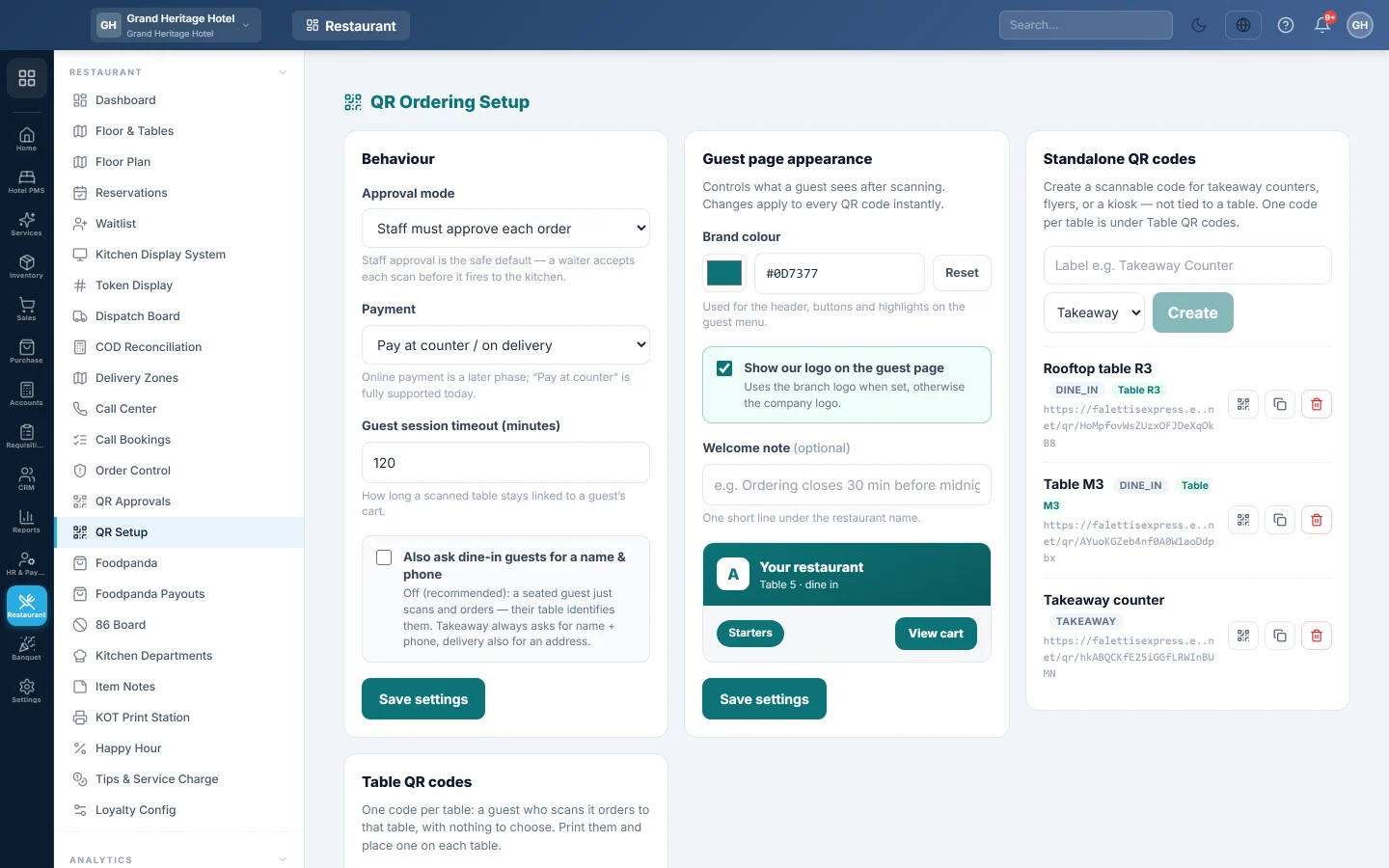
- You have a takeaway or delivery code under Standalone QR codes. A dine-in code cannot be the public menu.
- For guest sign-in: the customer portal is switched on for your company, and a WhatsApp or SMS channel can send codes. See Customer Portal.
Where to find it
Open Restaurant → Restaurant → QR Setup and go to the Public ordering page panel.
Switch the address on
The address is off until you choose a menu for it.
- Under Menu shown at this address, choose a takeaway or delivery code. None (the address is off) switches it off.
- Click Save settings.
- The address appears, for example alirestaurant.yourdomain.com/menu. Click Copy link to copy it, or Show QR code to print a code for it.
You can also click the globe button on a takeaway or delivery code in the Standalone QR codes list. It reads Use as our public menu, and the code is marked public menu.
Take orders only during opening hours
- Tick Take orders only during opening hours.
- For each day, tick the day to open it, and set the opening and closing times. Untick a day for Closed.
- Click Save settings.
Outside these hours guests can still read the menu and see when you open, for example We open tomorrow at 11:00 AM, but cannot place an order. A closing time earlier than the opening time runs past midnight, such as 18:00 to 02:00. Times follow your company time zone.
Set a minimum order for delivery
- Type the Minimum order for delivery (optional), for example Rs 1,000. Leave it empty for no minimum.
- Click Save settings.
The minimum counts the items only, before taxes and the delivery fee. It is used when the public menu is a delivery code. A guest below it sees how much more to add.
Guests who sign in
With the customer portal on, a guest ordering takeaway or delivery sees Ordered here before? and Sign in to fill in your details. Signing in is never required: guests can always order as before.
- The guest types their Mobile number and taps Send code.
- They type the code sent on WhatsApp or SMS.
- Their name and phone are filled in. For delivery, they pick a saved address under Deliver to, or A different address, and can tick Save this address for next time.
- Under Your recent orders, Order again puts a past order back in the cart. Dishes no longer on the menu are left out, and the guest is told which.
The guest's sign-in is the same as on your customer portal and online store. Their restaurant orders show on the Orders card of "My Account" when you switch that card on.
Where the orders go
Orders from the /menu address are ordinary QR orders. With Staff must approve each order, they wait on QR Approvals; otherwise they go straight to the kitchen.
Common questions
The /menu address does not open the menu. No menu is chosen under Menu shown at this address, or QR ordering is off for your company.
The menu list is empty. Create a takeaway or delivery code under Standalone QR codes first.
Guests do not see Sign in. Your company does not have the customer portal, no WhatsApp or SMS channel can send codes, or the guest is at a table. Sign-in is offered on takeaway and delivery only.
Can guests pay online on this page? Not yet. They pay at the counter or on delivery.
Thank you. If you still need help, write to info@eloerp.net.