Company
Your company's name, logo, contact details, registered address, base currency, time zone and date format, set once by the owner or an administrator.
The Company Profile page holds the details that describe your business as a whole: its name, logo, contact details, legal address and regional settings. Fill it in once, soon after you sign up.
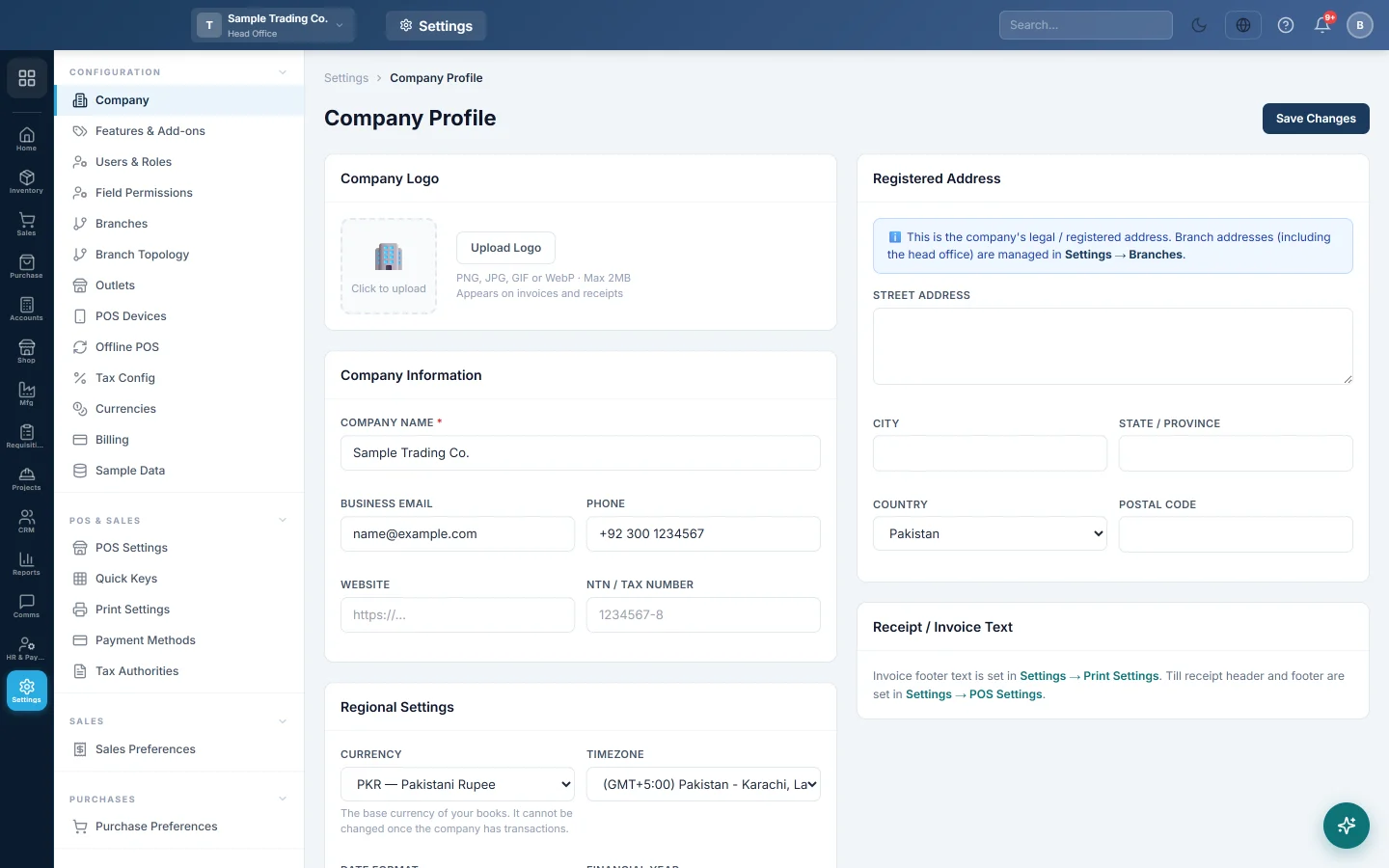
Before you begin
- You need a role with the Edit Company Profile permission to save changes. View Company Profile only opens the page.
- Branch details (branch name, address, phone and print options) are not kept here. They are on Branches.
- Have your logo ready as a PNG, JPG, GIF or WebP file of 2 MB or less.
Where to find it
Open Settings → Configuration → Company.
Change the company details
- Under Company Information, enter the Company Name. It is required.
- Fill in Business Email, Phone, Website and NTN / Tax Number.
- Under Registered Address, enter the Street Address, City, State / Province, Country and Postal Code.
- Click Save Changes.
Upload the logo
- Under Company Logo, click Upload Logo (or click the empty box).
- Choose the image file.
- Check the preview, then click Save Changes.
Printed documents use the branch's own logo when the branch has one. Otherwise they use this company logo.
Set the regional settings
- Under Regional Settings, choose the Currency. This is the base currency of your books.
- Choose the Timezone and the Date Format.
- Choose the Fiscal Year Start (Month).
- Choose the Default Report Date Range.
- Tick Show Hijri (Umm al-Qura) dates alongside Gregorian if you want the Islamic date shown too.
- Click Save Changes.
| Option | What it changes in daily work |
|---|---|
| Currency | The base currency every amount is posted in. Its symbol shows across the screens straight after you save. It cannot be changed once the company has transactions. |
| Timezone | The time used for dates and times. A branch can set its own time zone under Settings → Branches. |
| Date Format | How dates are shown, for example 11/03/2026 or 11 Mar 2026. A branch can set its own format too. |
| Fiscal Year Start (Month) | The month your financial year begins. Financial years themselves are kept under Financial Years. |
| Default Report Date Range | The period every date-ranged report opens with (Inventory, Sales, Purchase and Accounts), in every branch. For example Last 30 Days or This Month. |
| Show Hijri dates | Adds the Islamic calendar date next to the Gregorian date on the dashboard and on printed invoices. |
Receipt and invoice text
The Receipt / Invoice Text card has a Receipt Header and a Receipt Footer, up to 500 characters each.
Common questions
The currency would not change. Why? The company already has transactions. The base currency cannot move once any voucher is posted. Set it right on a new company before you enter data.
I changed the address but the invoice still shows the old one. Invoices print the branch's details. Change the address of that branch under Settings → Branches.
My SVG logo was refused. Only PNG, JPG, GIF and WebP images are accepted, up to 2 MB. Save the logo as a PNG and upload it again.
Can each branch have its own logo? Yes. Set it on the branch under Settings → Branches. Branches without their own logo print the company logo.
Does the report date range stop people choosing other dates? No. It only sets the period a report opens with. Anyone can still pick other dates on the report.
شكرًا لك. إذا كنت لا تزال بحاجة إلى مساعدة، راسلنا على info@eloerp.net.