Branches
Add and edit your branches, with each branch's address, tax number, POS mode, print name and logo, books currency, time zone and date format.
A branch is one location of your business: a shop, a clinic, a warehouse or an office. Each branch keeps its own stock, documents and cash, while the chart of accounts stays shared across the company.
Before you begin
- You need a role that can open and edit Branches.
- How many branches you can add depends on your plan. When the limit is reached, ask your service provider to raise it.
- To decide whether a branch shares the head office's products and settings, see Branch Topology.
Where to find it
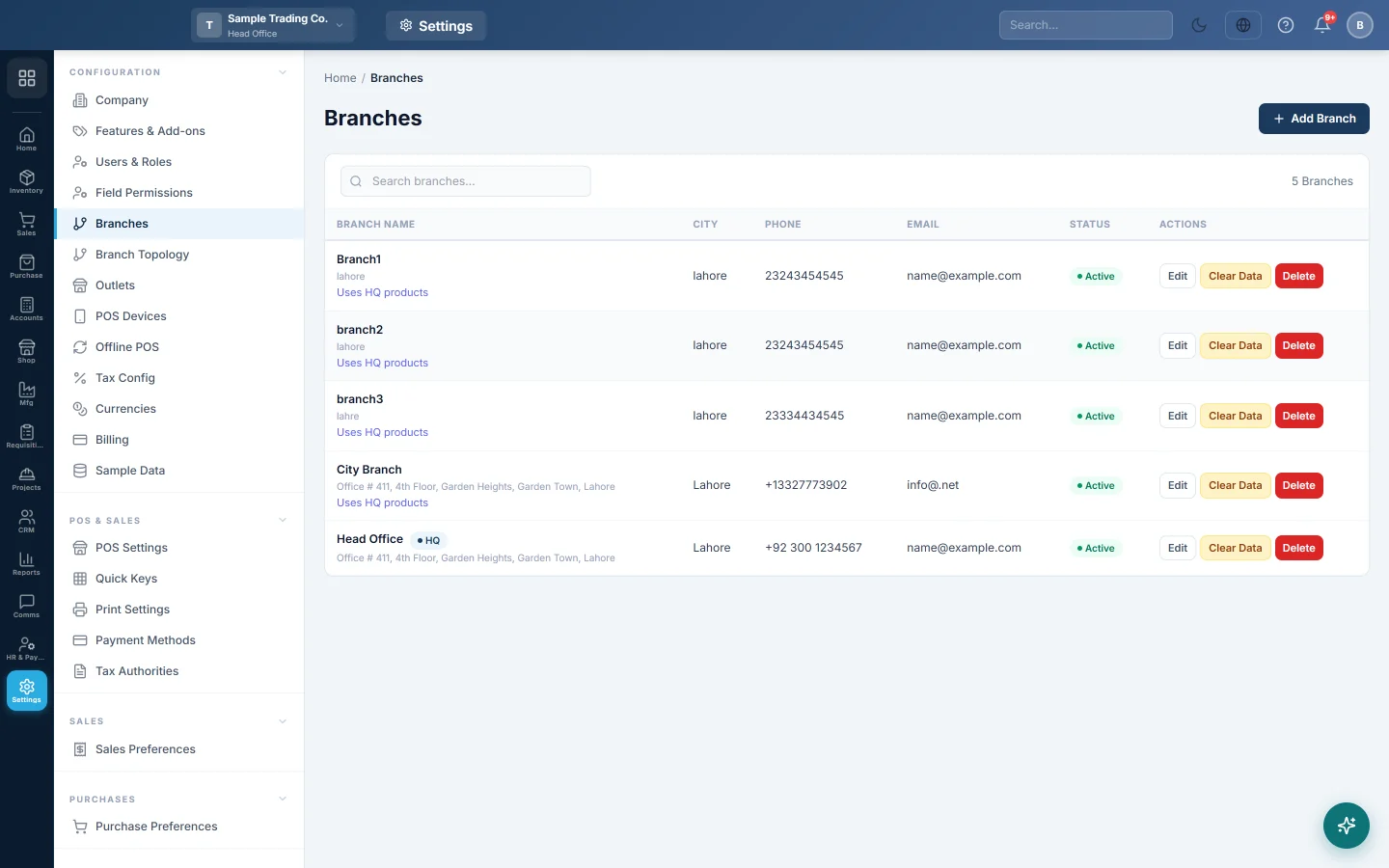
Open Settings → Configuration → Branches.
Add a branch
- Click Add Branch.
- Type the Branch Name, for example Mall Branch.
- Fill in the Address, City, Phone and Email.
- Type the branch's NTN / Tax Number if it has its own. Tick Show NTN on Sale Invoice / Receipts to print it in the invoice header.
- Under Product Catalog, choose Own Products or Use Head Office Products.
- Choose the POS Mode: Retail POS, Restaurant POS or Both (Retail + Restaurant).
- Fill in the print settings and the date and time settings (below).
- Under Package & Features (for this branch), choose the branch's Package and tick its Optional Features and Add-ons, if your plan offers them.
- Click Add Branch.
Set what prints for the branch
| Field | What it changes |
|---|---|
| Print Name | The name on this branch's invoices and receipts. Leave it blank to use the branch name. |
| Branch Logo | The logo this branch prints. Without one, the company logo is used. |
| Show logo on printouts | When unticked, the Print Name prints as text instead of the logo. |
| Paper Size | The paper this branch prints on: A4, A5, Thermal 80mm or Thermal 58mm. |
More print options, per form and per branch, are in Print Settings.
Set the branch's currency, time and dates
Under Date & Time Display:
- Choose the Books currency if the branch keeps its books in another currency. It is fixed after the branch's first transaction.
- Choose the Country, or leave it to use the company's.
- Choose the Timezone, Date Format and Time Format, or leave — Use company default —.
- Click Update (or Add Branch for a new one).
A branch abroad can run on its own clock and currency. Company reports translate its figures into the company currency.
Choose a product catalog
| Choice | What it means |
|---|---|
| Own Products | The branch keeps its own product list. Products created here are not visible to other branches. |
| Use Head Office Products | The branch uses the head office's products, read-only, and cannot create its own. Stock is still kept per branch. |
The list marks a branch that shares the head office's products with Uses HQ products.
Delete a branch
- Click Delete on the branch.
- Confirm.
A branch that already has sale invoices, purchase invoices, vouchers or stock cannot be deleted. Set its Status to Inactive instead.
Clear a branch's data
Clear Data removes a branch's transactions but keeps its master data. Use it to wipe test entries before you go live.
- Click Clear Data on the branch.
- Read the Will be deleted and Will be kept lists.
- Type your password under Enter your password to confirm.
- Click Clear Branch Data.
Invoices, returns, orders, vouchers, stock movements, POS registers, payroll records and logs are deleted. Products, customers, suppliers, warehouses, the chart of accounts, taxes, users and settings are kept; stock levels go back to zero.
Common questions
The page says the branch limit is reached. Your plan allows a set number of branches. Ask your service provider to upgrade the plan or raise the limit.
My new branch's invoices show the wrong time. Edit the branch and set its Timezone, or leave it on the company default if it is in the same country.
Can I change a branch's currency later? Only before its first transaction. After that the Books currency is fixed.
Does a new branch need its own chart of accounts? No. Ledgers are shared by the whole company. Each entry records its branch, so you can still report per branch.
How do people get into the new branch? Give their user access to the branch in Users & Roles. They then switch to it from the top bar.
شكرًا لك. إذا كنت لا تزال بحاجة إلى مساعدة، راسلنا على info@eloerp.net.