Check a guest in
Check an arriving guest in, or check in a walk-in on the spot, so the stay's room nights and meals post to the folio and the room shows as occupied.
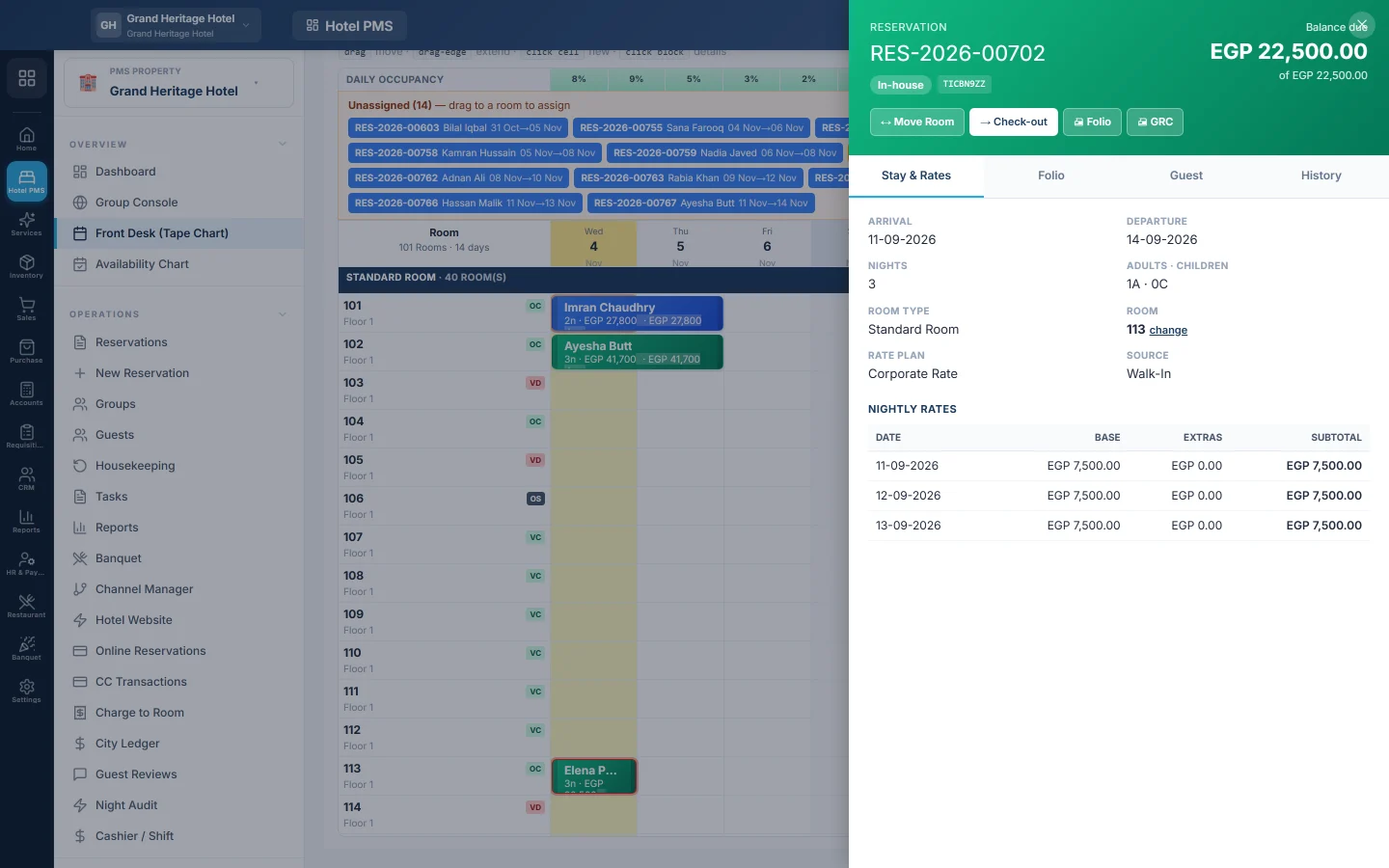
Check-in marks the guest as in the house. EloERP posts the stay's room nights, tax, service charge and meals to the folio, and the room turns occupied on the tape chart.
Before you begin
- The booking is Confirmed, has a room assigned, and its arrival date is today or earlier.
- Your role has the check-in permission. See Users & Roles.
Where to find it
Open Hotel → Overview → Front Desk (Tape Chart), or Hotel → Operations → Reservations and pick Expected arrivals under Quick scope.
Check in a booked guest
- Find the booking on the tape chart and click its bar, or open it from the list.
- If it has no room, click Assign Room, pick a room and click Save. On the chart you can also drag it from Unassigned onto a room.
- Check the guest's details on the Guest tab. Add their ID document if your hotel needs it.
- Click Check-in.
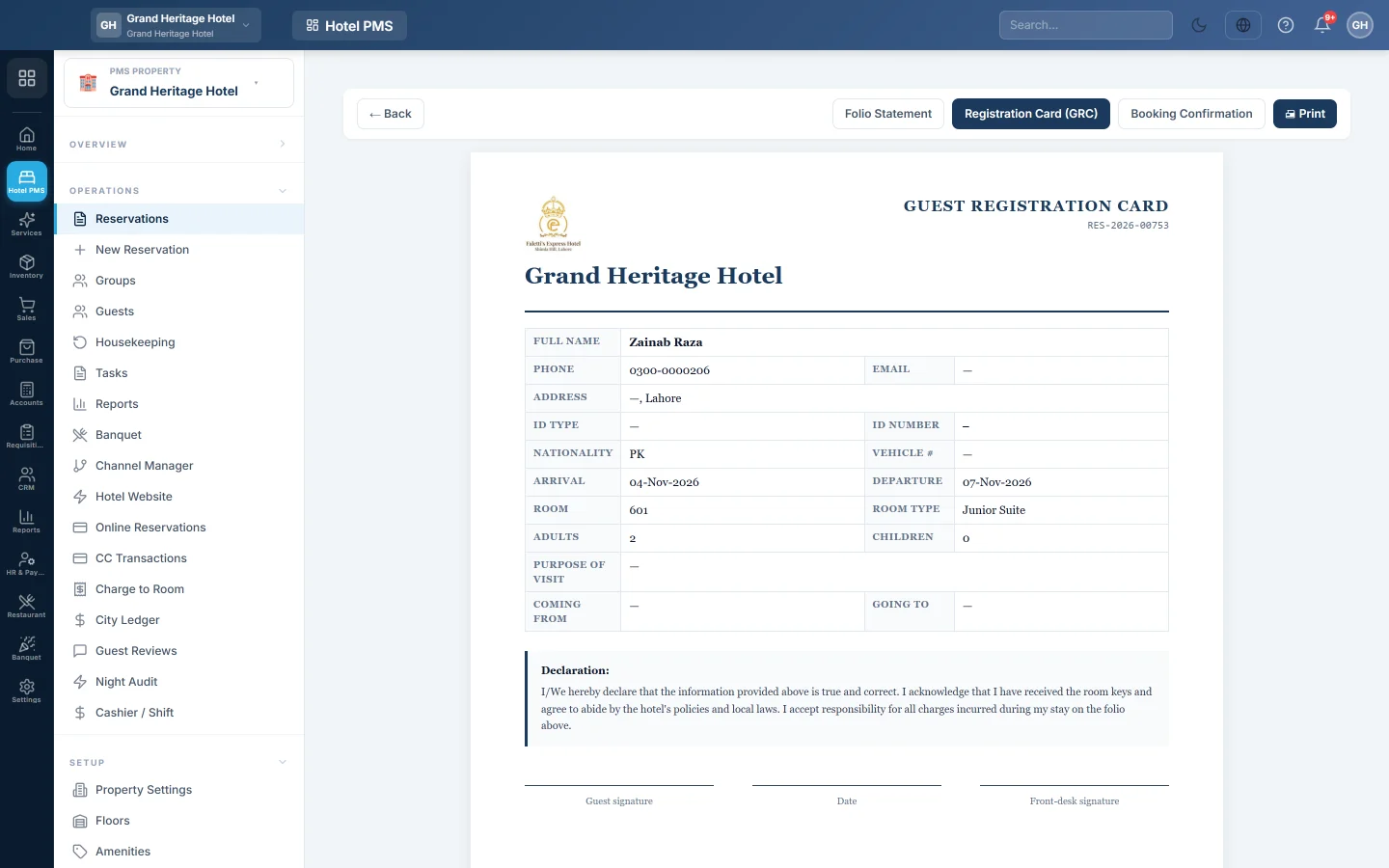
- Print the registration card: right-click the bar and click GRC, or click GRC on the reservation page. Ask the guest to sign it.
The bar turns green (In-house) and the folio now holds every night of the stay.
Check in a walk-in guest
- On the tape chart, click Walk-in (or press W).
- Fill in the nights, adults, Room Type, a Room and the Rate Plan.
- Pick or add the guest.
- Take the Deposit paid now if the guest pays in advance.
- Click Create & Check-in.
A guest checking in now must be given a real room. Without one, the window asks you to pick a room.
What happens in the books
Check-in posts the charges to the folio only; nothing goes to your accounts yet. The room nights become revenue when the night audit closes each day, and the bill moves to cash or the company account when you settle it. See Check out and settle a folio.
Common questions
Check-in is greyed out or missing. The booking is not Confirmed, has no room, or arrives on a later date. For a tentative booking, click Confirm booking first; see Make a reservation.
The message says Arrival date is in the future — cannot check in yet. Change the arrival date to today first: click Edit, change Arrival and click Update.
The guest arrived early and wants another room. Assign or change the room before you click Check-in. After check-in, use Move room, see Move a guest to another room.
Can I check a guest into a dirty room? EloERP does not stop you. Check the room's housekeeping dot on the tape chart, or the Housekeeping board, before you hand over the key.
Gracias. Si todavía necesita ayuda, escriba a info@eloerp.net.