Rate Plans
Create the prices you sell rooms at, such as the Best Available Rate, corporate and agent rates and meal plans, and fill in each plan's rate grid by room type, season and day of the week.
A rate plan is a price list for your rooms, for example the Best Available Rate, a corporate rate or a bed-and-breakfast package. Each plan has a Rate Grid with prices per room type, season and day of the week.
Before you begin
- Add your room types and seasons first. See Room Types and Seasons.
- Your role needs the rate plan permissions. See Users & Roles.
Where to find it
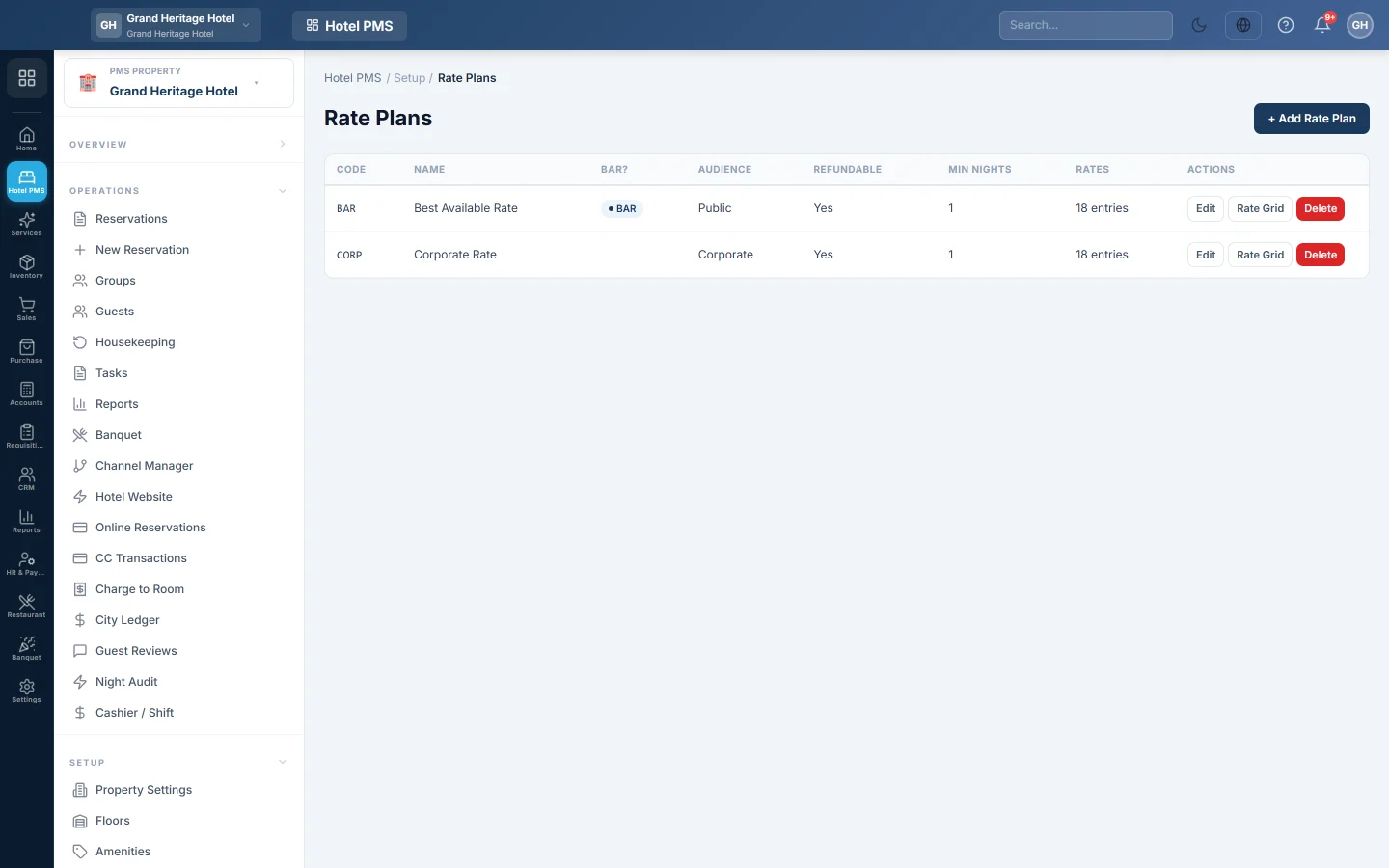
Open Hotel → Setup → Rate Plans.
Add a rate plan
- Click + Add Rate Plan.
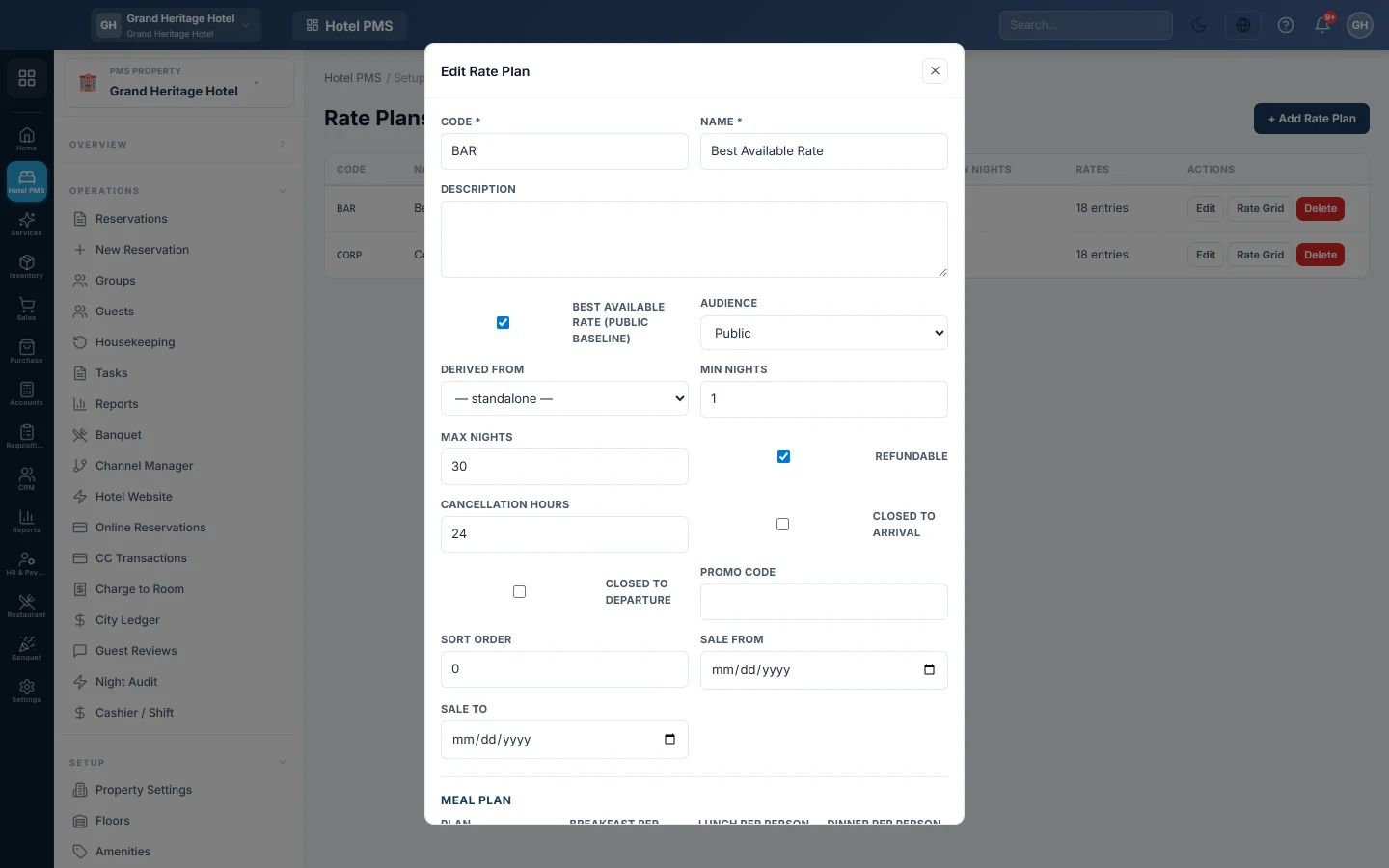
- Enter a Code, for example BAR or CORP, and a Name, for example Best Available Rate.
- Tick Best Available Rate (public baseline) for your main public price. Other plans can be derived from it.
- Pick the Audience: Public, Corporate, Travel Agent, Member or Promo / Campaign. Only Public plans are offered on your hotel website.
- To make a discounted plan, pick the BAR plan in Derived From, choose a Derivation (% off or Fixed discount) and enter the Value, for example 10 for 10% off.
- For a website plan sold only for a while, set Sale From and Sale To.
- Under Meal plan, pick the Plan: Room Only, Bed & Breakfast, Half Board (BB + dinner), Full Board or All Inclusive.
- Enter the price per person per night for each included meal: Breakfast, Lunch and Dinner.
- Click Save.
Fill in the rate grid
- Click Rate Grid on the plan.
- Click + Add row.
- Pick the Room Type and the Season. All year is the fallback for nights outside every season.
- In Days, enter which weekdays the row covers: 127 for all days, 31 for Monday to Friday, 96 for Saturday and Sunday.
- Enter the Single and Double prices, and the Extra Adult and Extra Child charges.
- Add a row for each room type and season you sell, then click Save Rate Grid.
A message confirms how many entries were saved. Saving replaces the whole grid of that plan.
How a night is priced
For each night, EloERP picks the season, then the grid row for that room type. It prefers a row for that season and weekday, then that season for all days, then All year. A derived plan with no row of its own takes the parent's price and applies the discount. If nothing matches, the room type's own prices are used.
One adult pays Single, two or more pay Double. Adults above the room type's base adults and every child add the extra charges.
Meals are added per guest (adults and children) per night for the meals the plan includes. They are posted to the folio as food and beverage charges when the guest checks in.
Refundable and Cancellation hours
These two decide the cancellation terms guests read on your Hotel Website and in their online account:
- With Refundable unticked, the plan is non-refundable. Guests read This rate is non-refundable. and cannot cancel online.
- With Refundable ticked and no default cancellation policy on Policies, guests get free cancellation until Cancellation hours before the arrival day. After that, they must contact you.
- When you have a default cancellation policy, its rules are shown instead of the hours.
Changes and your online channels
When the hotel is connected to online channels, saving a rate grid sends the new prices to them for the dates that changed. See Channel Manager.
Common questions
Why is Derived From empty? Only plans ticked Best Available Rate (public baseline) can be parents. Tick it on your main plan first.
A plan does not appear on my website. The website offers only Public plans whose Sale From and Sale To dates include the guest's arrival date.
Does changing the grid change existing bookings? No. A booking keeps its quoted nightly rates unless you change its dates, room type or rate plan.
The meal fields say Rs but my hotel uses another currency. The labels always say Rs. Enter the amount in your property's currency.
Can I change the price of one booking only? Yes. Change the rate on the reservation itself, see New Reservation.
Terima kasih. Jika masih butuh bantuan, kirim email ke info@eloerp.net.