New Reservation
The full booking form, with the stay, room and rate quote, the guest, source and notes, billing and transfers, and the deposit taken now.
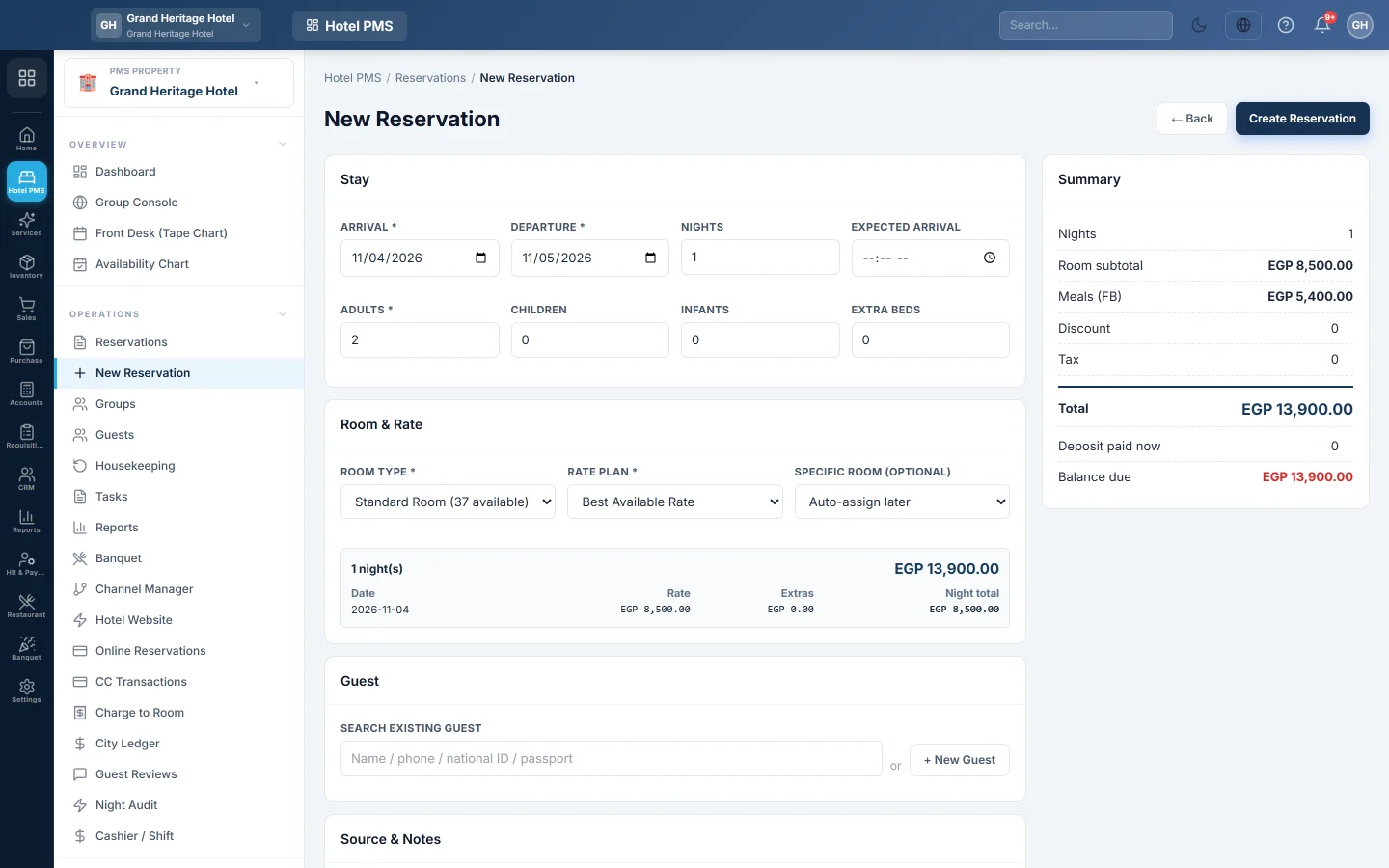
The New Reservation form takes a booking with every detail: the stay, the room and rate, the guest, where the booking came from, notes, billing and transfers. The right-hand Summary shows the total and the balance as you type.
Before you begin
- Your room types, rooms and at least one rate plan exist. See Room Types and Rate Plans.
- Your role needs the permission to create reservations. See Users & Roles.
- To take a deposit, your payment methods are set up. See Payment Methods.
Where to find it
Open Hotel → Operations → New Reservation, or click + New Reservation on Reservations. For a quick booking from the chart, click a free night on the Front Desk (Tape Chart).
Fill in the stay
- Under Stay, pick the Arrival and Departure dates. Nights fills in.
- Optionally set the Expected arrival time.
- Enter Adults, Children, Infants and Extra beds.
Pick the room and rate
- Pick the Room Type. Each type shows how many rooms are available for those dates.
- Pick the Rate Plan.
- Pick a Specific Room (optional), or leave Auto-assign later and assign a room before check-in.
- Check the quote: each night's Rate, Extras and Night total, and the total for the stay.
Pick or add the guest
- Under Search existing guest, type a name, phone, national ID or passport number and click the guest.
- For a new guest, click + New Guest, fill in at least the Name, then click Save & Use.
- If This guest may already be on file. appears, click Use this guest on the right one, or No — create a separate record.
- Optionally add Accompanying guests, names only.
Tick Create accounting ledger only for company, bill-to-company or regular guests who will owe you money.
Source, notes and extras
- Under Source & Notes, pick the Source, for example Direct, Phone or Booking.com, and the Market segment. For an agent booking, search the Travel agent box and pick the agent; Agent Commission Terms reads it.
- Meal plan and Newspaper feed the desk's daily service lists. The meals charged come from the rate plan.
- Use Guest notes (shown on reg card), Special requests, Internal notes (staff only) and Check-in notes (read at arrival) for the right audience.
- Booking, marketing & controls holds the VIP level, the Online / OTA reference and tick boxes such as Complimentary stay, Do not disclose and Hide room rate on the registration card.
- Billing, settlement & folios holds the Settlement type, the Discount %, the BTC reference / PO no. and names for up to three folios. A Discount % comes off each night's room and extras, and fills the Discount amount in the summary.
- Transfers & travel arranges a pick-up or drop-off and records where the guest comes from and goes next.
Check the total, take a deposit and save
- In the Summary, check the room subtotal, extras and meals. Type a Discount and the Tax amount if they apply. While a Discount % is set, the Discount box is worked out from it and cannot be typed.
- If the guest pays now, enter the Deposit paid now and pick how in Deposit paid by.
- Click Create Reservation.
The booking opens, confirmed, with a reservation number such as RES-2026-00042. The deposit is posted to the guest's folio as a payment. When the guest has an email address, a booking confirmation is emailed.
Edit a booking
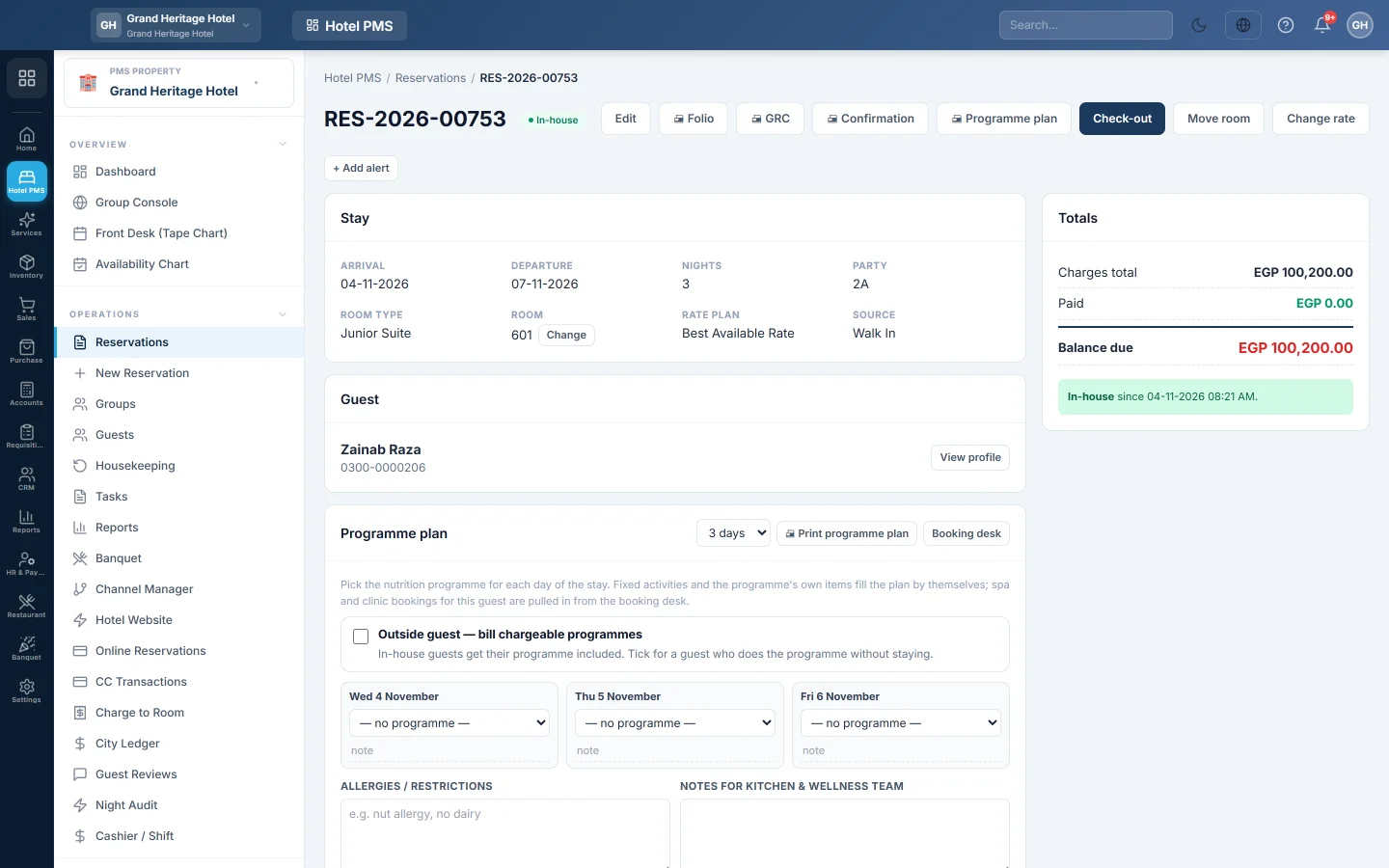
Open the booking and click Edit. Change what you need and click Update. New dates, a new room type or a new rate plan price the stay again. Deposit paid now cannot be changed here; take more money from the folio.
Common questions
A message says the room type is overbooked. The booking was saved, but more rooms of that type are sold than you have. This only happens when overbooking is allowed in Property Settings. Move a booking or upgrade a guest.
Why is the Rate Plan list empty? No rate plan exists for this hotel. Add one on Rate Plans.
The quote says Pick dates, room type & rate plan to see the rate. One of the three is missing.
How do I give one guest a special price? Set a Discount %, type a Discount amount in the summary, or, after saving, use Change rate on the booking. A typed amount is posted at check-in as a minus Discount line on the folio.
Can I change the Discount % after check-in? No. Once the room nights are on the folio, a new Discount % is refused. Post a correcting line on the folio instead.
How is tax added? Type the tax amount in Tax in the summary. It is posted to the folio at check-in.
What next? On the day of arrival, check the guest in.
Terima kasih. Jika masih butuh bantuan, kirim email ke info@eloerp.net.