Financial Reports
A one-page money summary for a period (sales, purchases, cash in and out, what customers owe and what you owe) with links to the full financial statements.
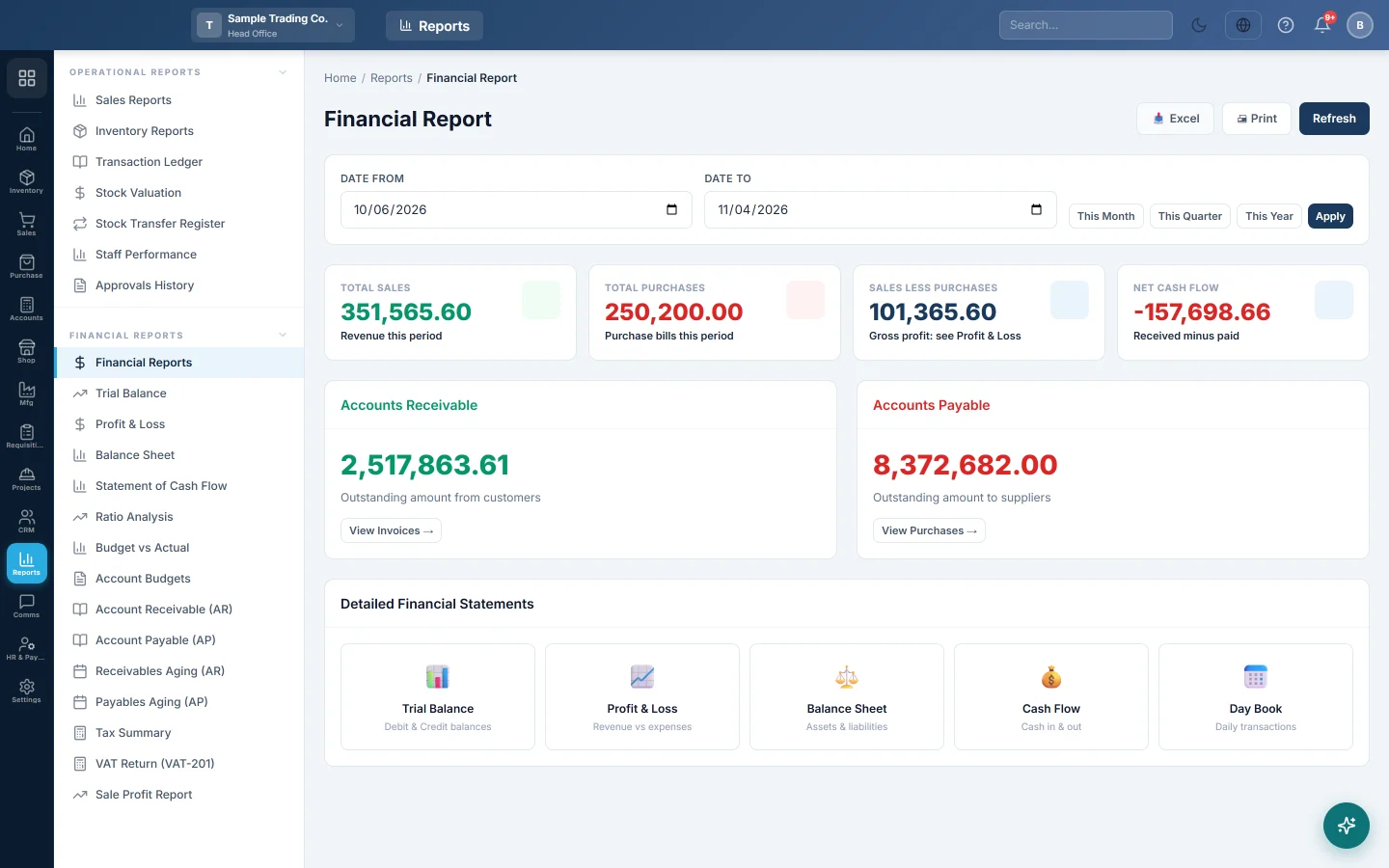
The Financial Report gives the owner a one-page view of a period: what you sold, what you bought, the cash that came in and went out, and what is still owed both ways. From here you open the full statements your accountant works with.
Before you begin
- The figures come from sale invoices, purchase invoices and the payments recorded against them. Drafts and cancelled documents are left out.
- Your role needs View Financial Reports (Top-level) under Settings → Users & Roles.
- The dates it opens with come from Default Report Date Range under Settings → Company.
Where to find it
Open Reports → Financial Reports → Financial Reports.
Choose the period
- Click This Month, This Quarter or This Year. The figures update at once.
- Or set Date From and Date To yourself and click Apply.
Click Refresh at the top to reload after new entries.
Read the summary
| Card | What it shows |
|---|---|
| Total Sales | All posted sale invoices dated in the period, in your base currency. |
| Total Purchases | All posted purchase invoices dated in the period. |
| Gross Profit | Total Sales minus Total Purchases. Shows Profitable or Loss under the figure. |
| Net Cash Flow | Payments received against sale invoices, minus payments made against purchase invoices, in the period. |
Read receivables and payables
- Accounts Receivable: the unpaid balance of every posted sale invoice, whatever its date. Click View Invoices to open the sale invoices list.
- Accounts Payable: the unpaid balance of every posted purchase invoice, whatever its date. Click View Purchases to open the purchase invoices list.
These two do not follow the dates you chose. They always show what is open today.
Open the full statements
Under Detailed Financial Statements, click a tile:
- Trial Balance: see Trial Balance.
- Profit & Loss: see Profit & Loss.
- Balance Sheet: see Balance Sheet.
- Cash Flow: see Statement of Cash Flow.
- Day Book: see Day Book.
Print or export
Click Print or Excel. The output lists eight lines: Total Sales, Total Purchases, Gross Profit, Total Received (Cash In), Total Paid Out (Cash Out), Net Cash Flow, Accounts Receivable and Accounts Payable, with the period at the top.
Common questions
Gross Profit shows a loss in a month I made money. You probably bought more stock than you sold that month. This card does not use cost of goods sold. Check Profit & Loss for the real result.
Accounts Receivable differs from the customer ledgers. This card adds up unpaid invoices only. The customer ledgers also count advances, opening balances and other entries, so the two can differ.
Net Cash Flow does not match my cash book. It counts only payments linked to sale and purchase invoices. Expenses, salaries, loans and other vouchers are not in it. Use the Statement of Cash Flow or the Day Book for all cash.
Head office figures are higher than the dashboard. At head office this report adds up every branch. The dashboard may be showing one branch only. In other branches the report shows that branch.
Are sale returns taken off Total Sales? No. Returns are not subtracted here; see the Sale Return Report for them.
Vielen Dank. Wenn Sie weitere Hilfe brauchen, schreiben Sie an info@eloerp.net.