Approvals History
An audit list of the sale, purchase and requisition documents that were approved, by whom, when and how long the approval took.
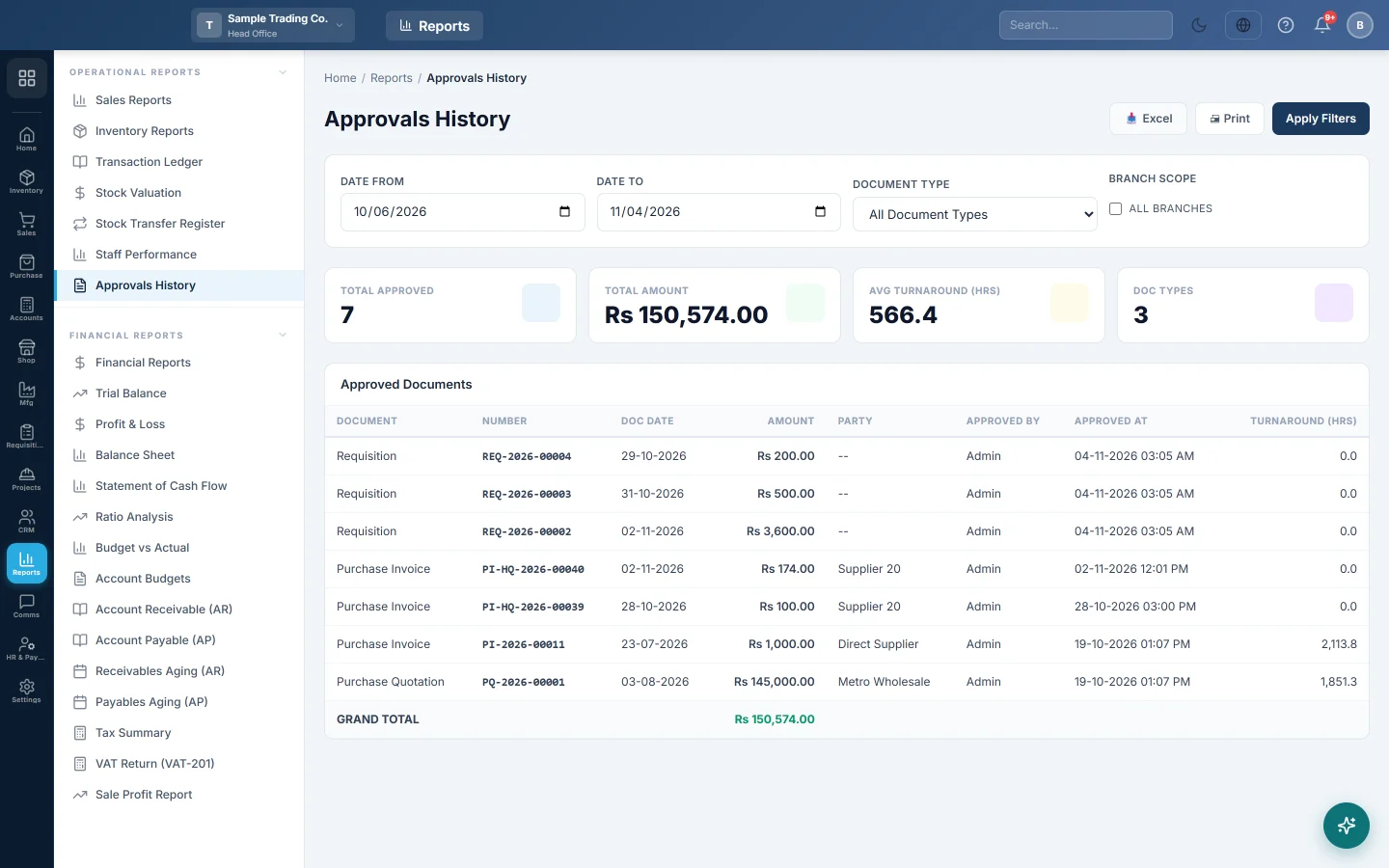
Approvals History lists the documents that have already been approved: who approved each one, when, and how many hours it waited. Use it to audit your approval workflow and to spot approvals that take too long.
Before you begin
- Approvals must be switched on. Set an approval threshold under Sales Preferences or Purchase Preferences. Requisitions are included when requisitions are switched on for your company.
- You see only the document types your role is allowed to approve. A user who may approve purchase orders but not sale invoices sees purchase orders only.
- Documents still waiting are not here. They are under Pending Approvals in Sales and Pending Approvals in Purchases.
Where to find it
Open Reports → Operational Reports → Approvals History.
Run the report
- Set Date From and Date To. These are approval dates, not document dates.
- Choose a Document Type, or leave All Document Types.
- Tick All branches to include every branch. Leave it clear to see the branch in the top bar only.
- Click Apply Filters.
The types you can choose are Sale Invoice, Sale Order, Sale Quotation, Sale Return, Delivery Note, Purchase Invoice, Purchase Order, Purchase Quotation, Purchase Return, GRN and Requisition.
Read the table
| Column | What it means |
|---|---|
| Document | The kind of document. |
| Number | Its number. |
| Doc Date | The date on the document. |
| Amount | The document total. For a requisition, its estimated total. |
| Party | The customer or supplier. Blank for requisitions. |
| Approved By | The user who approved it. |
| Approved At | The date and time of the approval. |
| Turnaround (hrs) | Hours from when the document was created to when it was approved. |
The newest approvals come first. GRAND TOTAL adds up the Amount column.
Read the summary cards
- Total Approved: how many documents were approved in the period.
- Total Amount: their amounts added together, across all document types.
- Avg Turnaround (hrs): the average wait before approval.
- Doc Types: how many different document types appear.
Print or export
Click Print for a landscape printout or Excel for a spreadsheet. Both show the approval dates, the document type and the branch scope you chose.
Common questions
The report is empty. Either nothing was approved in those dates, approvals are not switched on, or your role cannot approve any document type. Widen the dates first, then check the preferences and your role.
A document I approved is missing. Check the dates: the report filters on the approval date. If the document is in another branch, tick All branches.
Why is the turnaround so long? It counts from the moment the document was first saved, including nights and weekends. A draft saved on Friday and approved on Monday shows about 72 hours.
Total Amount mixes quotations and invoices. Yes. Choose one Document Type for a total that means something on its own.
Can I approve from here? No, this report is read-only. Approve waiting documents from Pending Approvals in Sales or Purchases.
Vielen Dank. Wenn Sie weitere Hilfe brauchen, schreiben Sie an info@eloerp.net.