Invoices
Enter the supplier's bill so it adds to stock, records what you owe and takes any payment you made with it.
A purchase invoice is the supplier's bill in EloERP. Confirming it records what you owe the supplier and, unless a GRN handles the goods, adds the items to stock.
Before you begin
- The supplier exists, see All Suppliers. For a walk-in purchase paid on the spot, pick Cash instead.
- The products exist, see All Products, and you have at least one warehouse, see Warehouses.
- Your role needs the purchase invoice permissions; recording payments needs the purchase payment permission. See Users & Roles.
- Taxes you tick on the bill come from Tax Config. The places a down payment can come from are your Payment Methods.
Where to find it
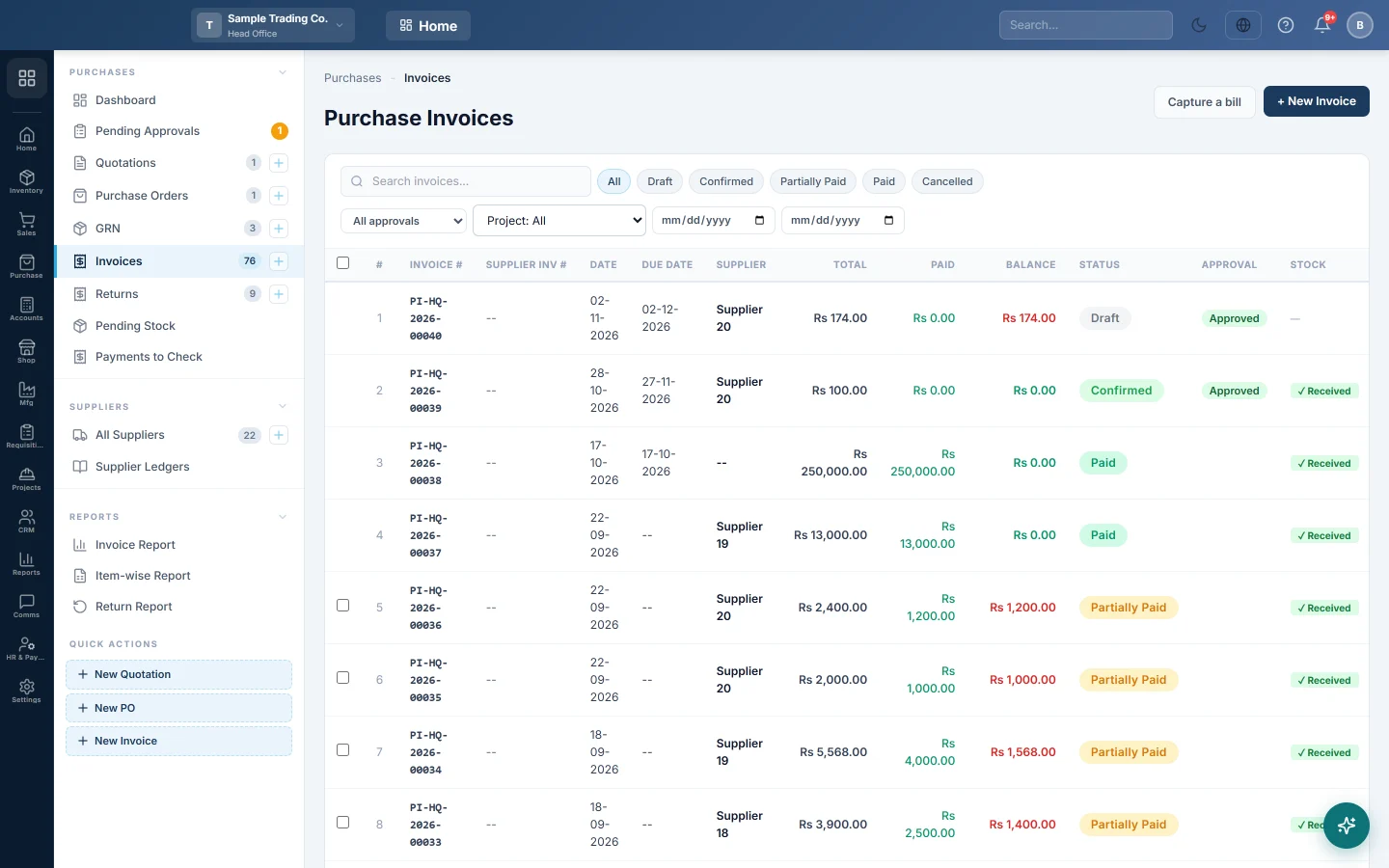
Open Purchases → Purchases → Invoices. The side menu also has a New Invoice quick action.
Order, GRN and invoice: which do you need?
There are three ways to bring a purchase in:
- Invoice only. The goods and the bill arrive together. Enter the invoice with RECEIVE STOCK on. This is the usual way for shops.
- Order → GRN → invoice. You send a purchase order, receive the goods on a GRN, then turn the GRN into the invoice with → Inv.
- Invoice first, goods later. Enter the invoice with RECEIVE STOCK off. When the goods arrive, receive them on a GRN against that invoice. The invoice then shows in Pending Stock until it is fully received.
Skip the GRN when the goods arrive with the bill and nobody needs to check them in separately. Use a GRN when the store checks deliveries before accounts sees the bill, or when one order arrives in several deliveries.
Enter an invoice
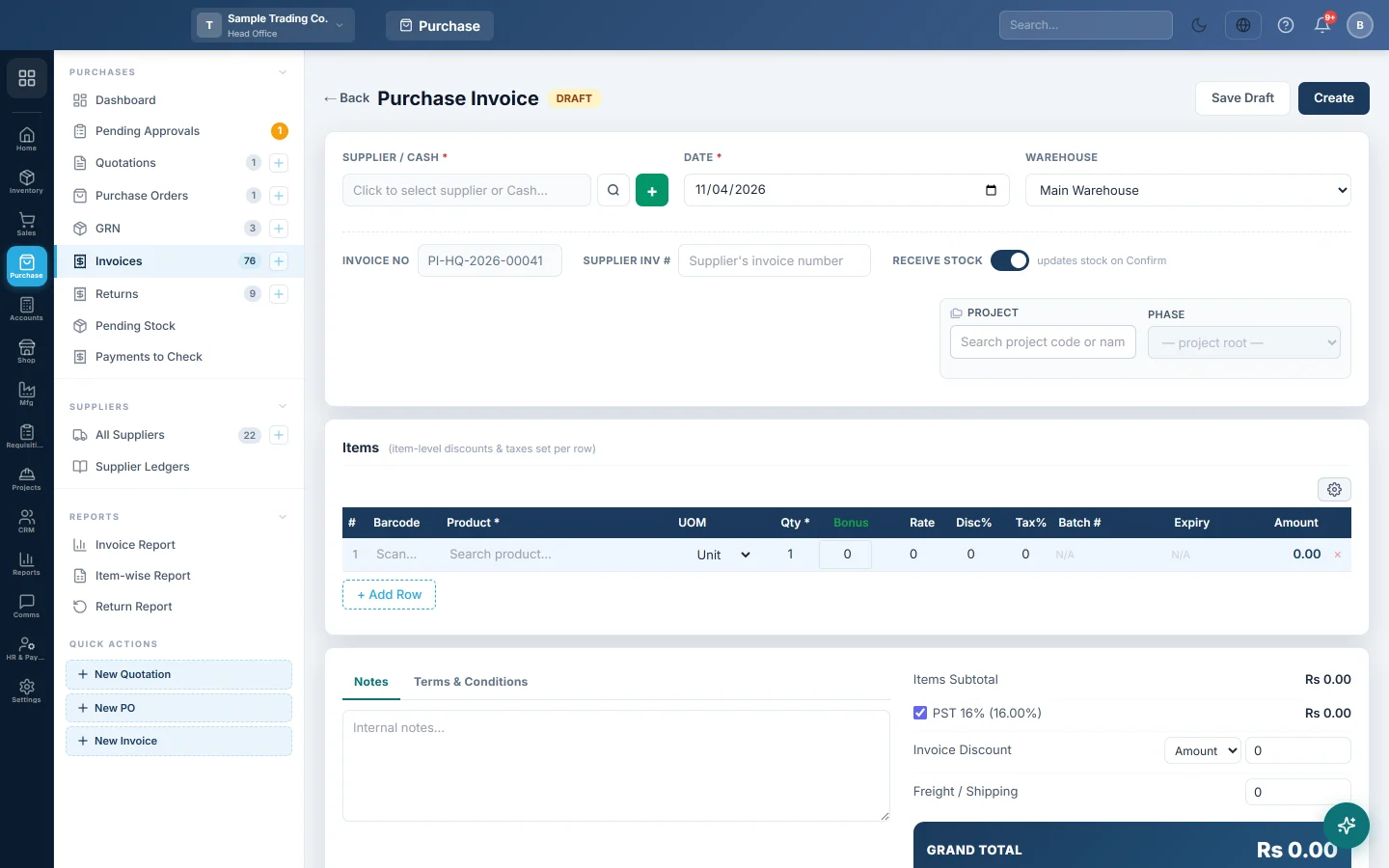
- Click + New Invoice.
- Click the SUPPLIER / CASH box and pick the supplier, or Cash for a cash purchase. The + button adds a new supplier without leaving the page.
- Check the DATE and pick the WAREHOUSE the goods go into.
- Type the bill number printed by the supplier in SUPPLIER INV #. The INVOICE NO is filled in by EloERP when you save.
- Leave RECEIVE STOCK on if the goods are with you. Turn it off if they will come later on a GRN.
- In Items, search for each product and enter its quantity and Rate. Discount and tax are set per row.
- Below the items, tick the bill taxes that apply, and fill in Invoice Discount and Freight / Shipping if the bill has them.
- If you paid something now, enter it in Down Payment and choose where it came from in Paid from. Tick Full to pay the whole GRAND TOTAL.
- Click Create to save and confirm in one step, or Save Draft to finish later.
Confirm a draft
A draft does nothing to stock or the books. To post it:
- Open the draft from the list.
- If you changed anything, click Update first. Confirm Invoice stays greyed out while there are unsaved changes.
- Click Confirm Invoice.
If the supplier has a credit limit and this bill goes over it, EloERP warns you or blocks the confirm. Which one depends on Supplier Credit Limit in Purchase Preferences.
Invoices that need approval
When an invoice total is at or above the Purchase Invoice approval threshold in Purchase Preferences, a yellow Approval required banner appears. An approver clicks Approve on the invoice, or approves it on Pending Approvals. Then Confirm Invoice works.
Pay a supplier bill
- Open a confirmed or part-paid invoice.
- Click Add Payment.
- Enter the Amount, Payment Date and Payment Method, and a Reference such as a cheque number.
- Click Record Payment.
To pay several bills at once, tick them in the list and click the Pay button that appears above it, for example Pay 3 invoice(s). Only confirmed bills with a balance can be ticked.
Cancel, delete or return
- Cancel Invoice (orange button in the list) reverses the invoice's stock and entries and keeps it as cancelled. A fully paid invoice cannot be cancelled until its payments are reversed.
- Delete on a draft removes it. On a posted invoice it opens Delete permanently: you see what leaves each ledger, give a reason and your password. A copy is kept in Deleted entries.
- While a GRN is linked to the invoice, the delete button shows a lock. Cancel or delete the GRN first.
- Goods going back to the supplier? Use Create Return in the list, see Returns.
What happens in the books
When you confirm, EloERP posts a purchase invoice voucher:
- The goods value (after line discounts) is debited to Inventory when this invoice receives the stock.
- When a GRN handles the stock instead, the goods value is debited to Goods Received Not Invoiced. The GRN's own entry moved it into Inventory, so the two cancel out.
- Taxes are debited to your input tax account, freight to Freight Inward, and the invoice discount is credited to Purchase Discount.
- The supplier's ledger is credited with the GRAND TOTAL. For a cash purchase, Cash is credited instead.
A down payment or a later payment posts a separate payment: the supplier's ledger is debited and the cash or bank account you paid from is credited. If the invoice is tagged to a project, its total is added to that project's cost.
Common questions
I clicked Create and the invoice is still a draft. Confirming failed after the save, for example because approval is needed or a credit limit blocked it. Read the message or the banner, fix it, then click Confirm Invoice.
Can I change a confirmed invoice? Yes. Edit it and click Update. EloERP reverses the old entries and posts the new ones. RECEIVE STOCK cannot be changed once confirmed.
The Stock column says Pending. The invoice was confirmed with RECEIVE STOCK off and no GRN has received the goods yet. See Pending Stock.
I converted a PO and the invoice has a tax I did not expect. Invoices made from an order or a GRN start with your active purchase bill taxes ticked. Untick any that do not apply before you confirm.
Where is the due date? It is worked out from the supplier's Payment Terms (days). A cash purchase is due on the invoice date.
What does Make it Private do? Company admins can tick it to hide the invoice from every other role in lists, reports and prints.
Terima kasih. Jika masih butuh bantuan, kirim email ke info@eloerp.net.