Warehouses
Add, rename, move or remove the warehouses, stores and shop floors that hold your stock, and see how much each one holds.
A warehouse is any place you keep stock: a godown, a back store, the shop floor or a kitchen store. Every purchase, sale, transfer and count is recorded against a warehouse, so set them up before you enter stock.
Before you begin
- Your branches must exist. See Branches.
- To add, edit or delete a warehouse your role needs the Warehouses rights under Settings → Users & Roles. See Users & Roles.
- Only head office chooses which branch a warehouse belongs to. In any other branch, a new warehouse always goes to your own branch.
- A warehouse can be Shared (all branches) only when the warehouses switch is set to shared under Branch Topology.
Where to find it
Open Stock → Warehouse → Warehouses. The same screen is also under Settings → Inventory → Warehouses.
Read the warehouse cards
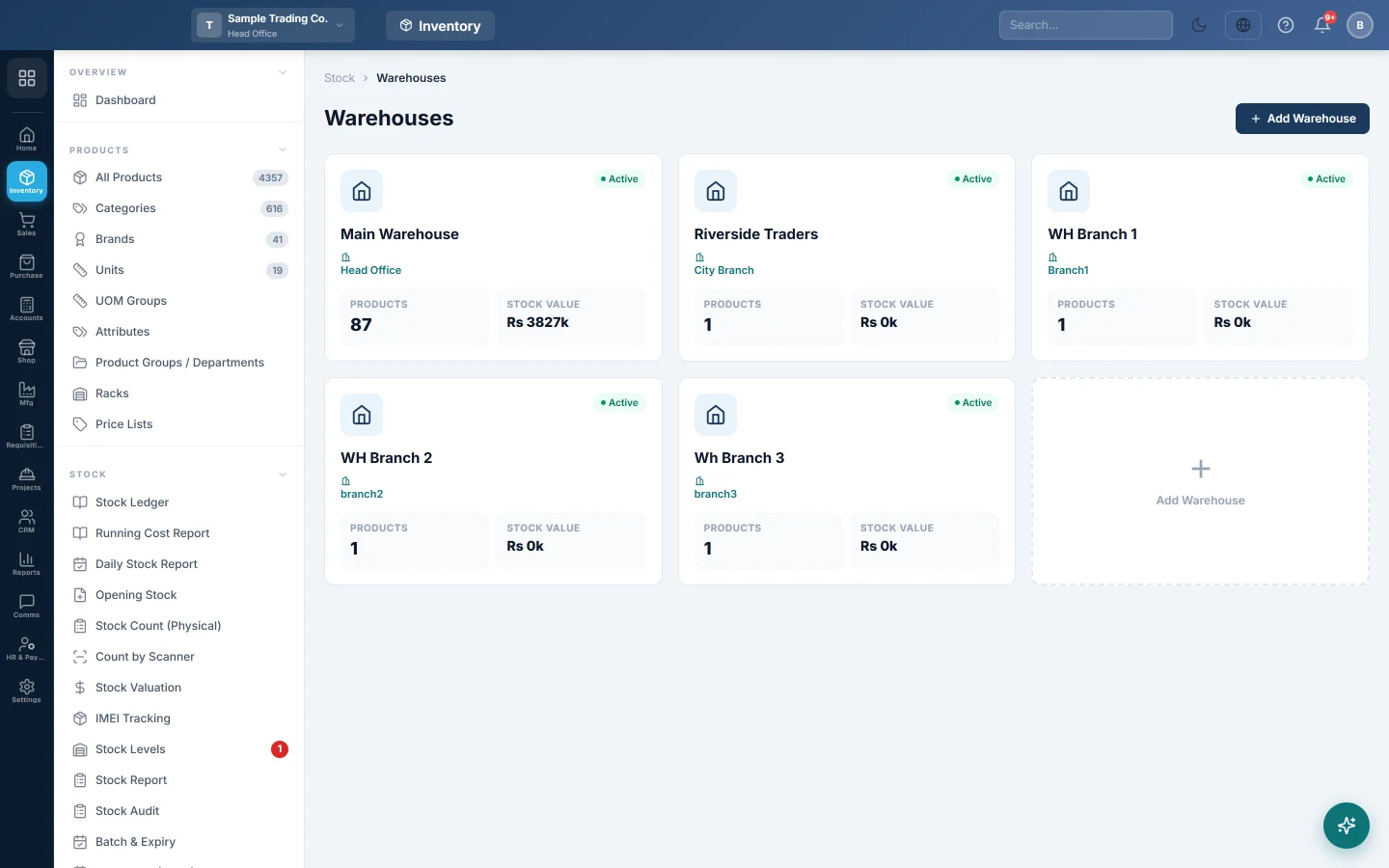
Each warehouse has a card showing:
| Part | What it shows |
|---|---|
| Name and address | The Warehouse Name and Location / Address you entered. |
| Badge | Active or Inactive. |
| Branch | The branch the warehouse belongs to. No branch assigned (in amber) means it has no branch. |
| Products | How many products have stock in it right now. Products sold down to zero are not counted. |
| Stock Value | The quantity on hand at each product's cost price, rounded to thousands (for example Rs 125k). |
Head office sees the warehouses of every branch. Other branches see their own warehouses and any shared ones; a user limited to certain warehouses sees only those.
Add a warehouse
- Click Add Warehouse at the top right, or the dashed Add Warehouse card.
- Type the Warehouse Name, for example Main Warehouse or Shop Floor.
- Leave Status as Active.
- Choose the Branch. Outside head office this field is locked to your own branch.
- Type the Location / Address if you want it on the card.
- Click Create Warehouse.
The new card appears straight away and the warehouse is offered in purchases, sales, transfers and counts.
Edit or deactivate a warehouse
- Click the warehouse's card.
- Change the Warehouse Name, Location / Address or Status.
- Click Update.
Set Status to Inactive for a warehouse you no longer use but whose history you want to keep.
Move a warehouse to another branch
Do this only when a warehouse was set up under the wrong branch. You must be working in head office.
- Click the warehouse's card.
- Choose the correct Branch.
- Click Update.
- Read the message and click OK to confirm.
The move is refused while the warehouse still has draft or pending invoices, delivery notes or GRNs in its old branch. Confirm or cancel them first.
Delete a warehouse
- Click the warehouse's card.
- Click Delete.
- Click OK to confirm.
A warehouse that still holds stock cannot be deleted. Move the stock out with a stock transfer first.
What happens in the stock
Creating, renaming or deactivating a warehouse posts nothing. Stock enters a warehouse through purchases, opening stock, stock adjustments and transfers. Moving a warehouse to another branch moves its stock records to that branch; no voucher is posted.
Common questions
The Branch field is greyed out. You are not working in head office. Switch to the head office branch in the top bar to pick another branch.
I do not see the Shared (all branches) option. It appears only in head office, and only when the warehouses switch is set to shared under Settings → Configuration → Branch Topology.
I cannot delete a warehouse. It still holds stock. Open Stock Levels, filter by that warehouse and transfer what is left to another warehouse.
The Stock Value on the card differs from the stock valuation report. The card uses each product's cost price and rounds to thousands. Stock Valuation uses the average cost of the stock you actually bought.
A colleague cannot see a warehouse I can see. Their user may be limited to certain warehouses, or the warehouse belongs to another branch. Check their user under Settings → Users & Roles.
Thank you. If you still need help, write to info@eloerp.net.