All Customers
Add, find, edit, import and export your customers, and give each one a ledger (khata), an opening balance, a credit limit, a price tier and an area.
All Customers is your customer list. Add a customer once and pick them on invoices, orders, returns and receipts. Give them a ledger (khata) to sell to them on credit or on installments.
Before you begin
- Your role needs the customer permissions (view, create, edit, delete), see Users & Roles.
- To group customers, make your areas and routes in Areas & Routes, and your groups and categories in Customer Groups & Categories. You can also add them from the customer form.
- Price tiers come from Price Lists.
Where to find it
Open Sales → Customers → All Customers.
Add a customer
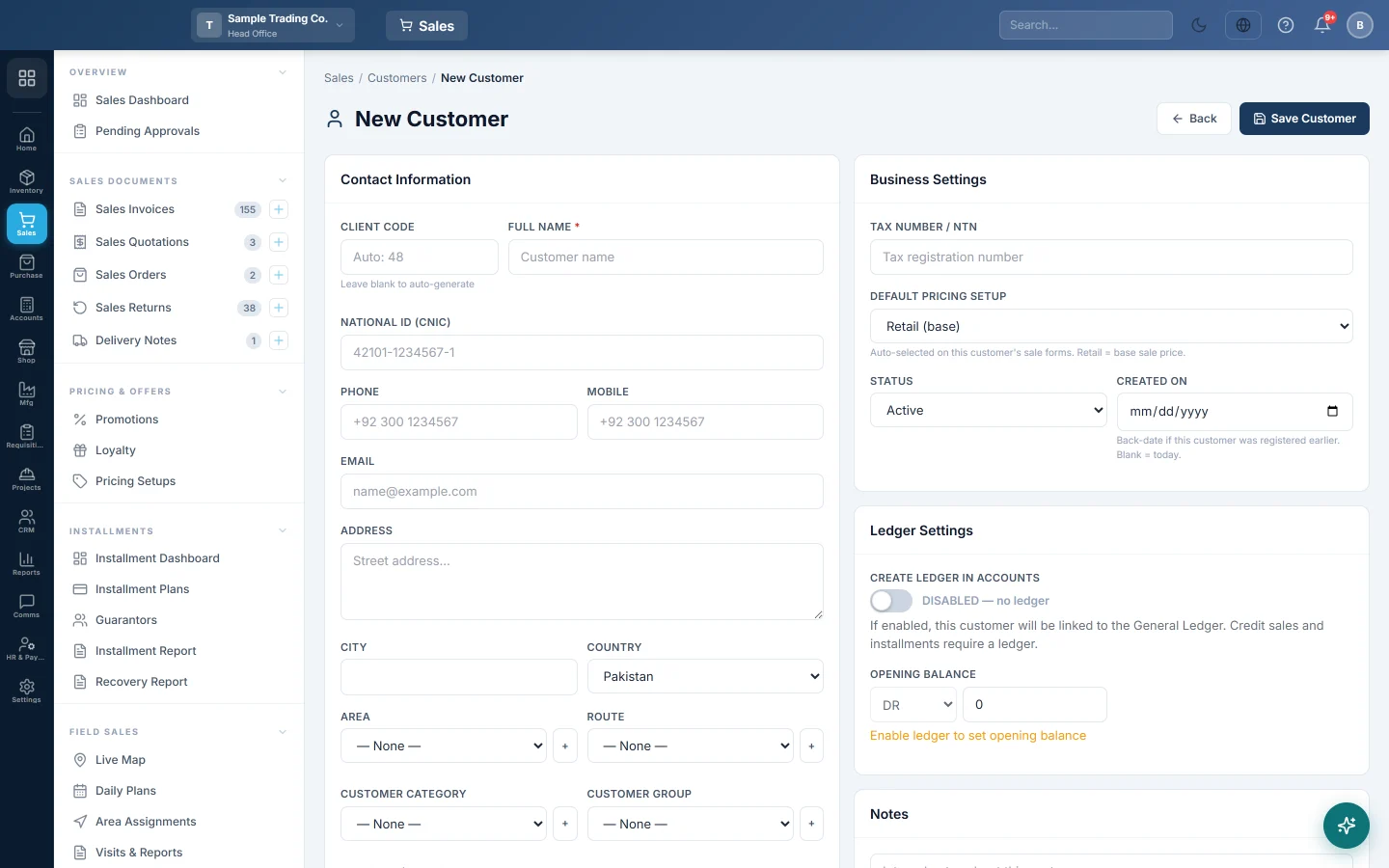
- Click Add Customer.
- Under Contact Information, type the Full Name. Leave Client Code blank and EloERP numbers the customer for you.
- Fill in what you have: National ID (CNIC), Phone, Mobile, Email, Address, City and Country.
- Pick an Area and Route, and a Customer Category and Customer Group if you use them. The + next to each adds a new one without leaving the form.
- Under Business Settings, enter the Tax Number / NTN. With FBR switched on you also see FBR NTN / CNIC, FBR Registration, Province (FBR) and FBR Business Name.
- Set a Credit Limit if you sell on credit. 0 means no limit.
- Choose a Default Pricing Setup to open this customer's sales at a price tier. Retail (base) uses the normal sale price.
- Under Ledger Settings, switch Create Ledger in Accounts on if you will sell to them on credit or on installments.
- If they already owe you money, enter it in Opening Balance with DR, and the date in As of. Use CR if they paid you in advance.
- Optionally add a Profile Picture, the CNIC Front Side, the CNIC Back Side and a Cheque Image under Photo & Documents. See Customer photo, CNIC and cheque images.
- Click Save Customer.
Portal access and trade ordering
Two more boxes appear on the form only when your company uses the feature:
- Customer Portal, with Portal access, when your company has the customer portal. Allowed lets this customer see their statement in "My Account", Not allowed keeps them out, and Follow company setting uses the rule in Customer Portal.
- Online Store, with Trade ordering, when your online store has trade ordering on. Allowed lets this customer order on account at their own prices. See Wholesale trade ordering.
The customer signs in with the Phone, Mobile or Email on this form, so keep them current.
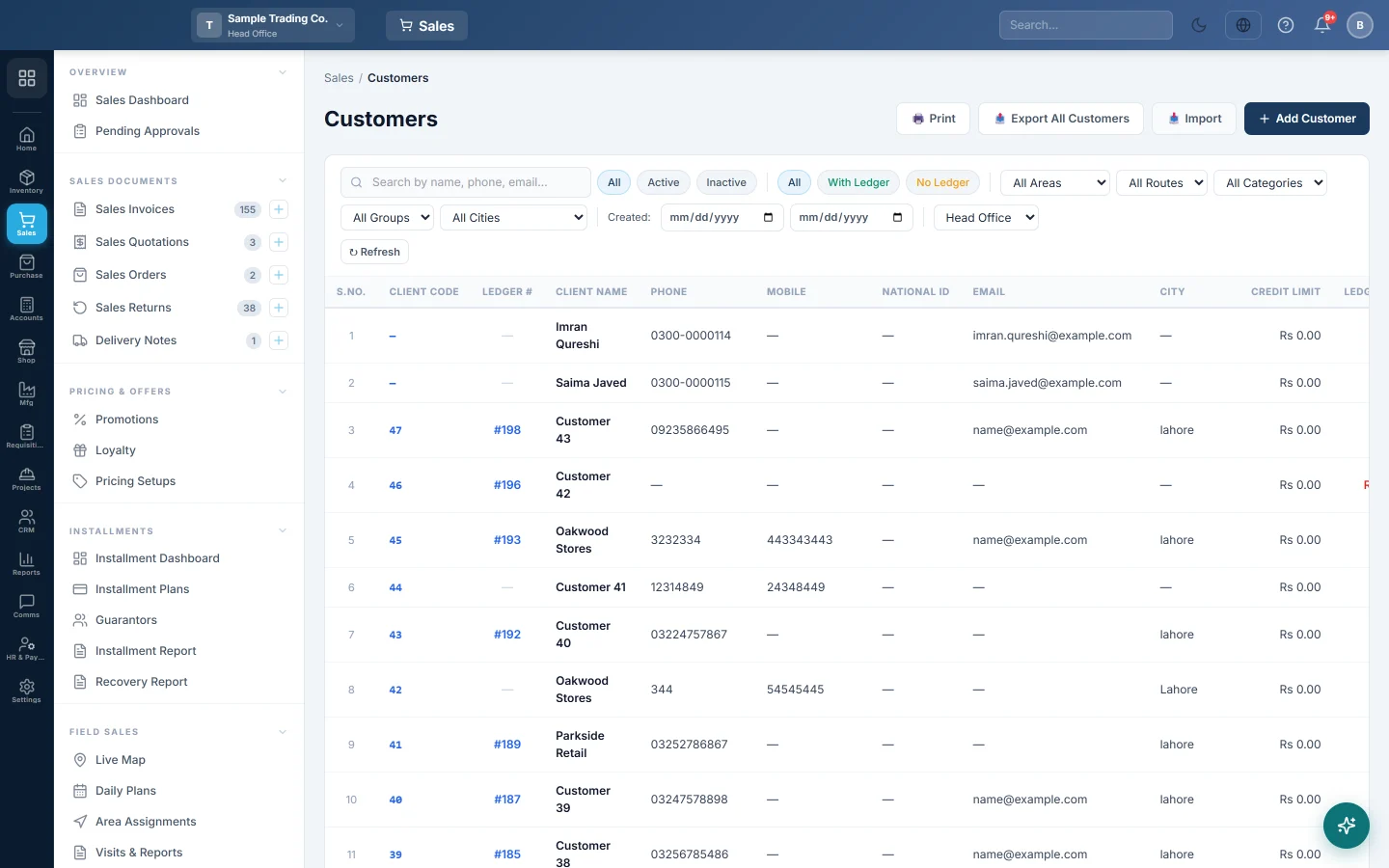
Find a customer
- Type a name, phone or email in Search by name, phone, email....
- Click Active or Inactive, and With Ledger or No Ledger.
- Narrow by All Areas, All Routes, All Categories, All Groups or All Cities.
- Set the two Created: dates to see customers added in a period. Clear removes them.
- At head office, choose a branch or All Branches.
Click a customer's name or Client Code to open their profile. Click the Ledger # to open their statement (khata).
Edit a customer
- Click the pencil (Edit) on the row.
- Change the fields and click Save Customer.
The edit form also has Customer Pricing: search a product, type this customer's own price and click Save Prices. On a sale, the customer price wins over the tier, and the tier over the base price.
Import, export and print
- Import opens the import wizard. Click Download template (CSV), fill it in, drop the file and click Next: Check Data →. Fix the errors, or tick Skip the rows with errors and import the rest, then click Import.
- Export All Customers downloads a CSV of the customers.
- Print prints every customer that matches your filters, not just the page on screen.
Delete or deactivate
Click the bin (Delete) and confirm. A customer with sale invoices, receipts, returns or any ledger entries cannot be deleted. Edit them and set Status to Inactive instead.
What happens in the books
Switching on Create Ledger in Accounts creates the customer's own account under Accounts Receivable. An opening balance posts an opening voucher on the As of date: DR debits the customer's account (they owe you), and the other side goes to the Opening Offset Account, normally your opening balance equity account.
Common questions
Why can I not choose Credit or Instalment on an invoice for this customer? The customer has no ledger. Edit them and switch on Create Ledger in Accounts.
The save says the code or email is already taken. Two customers cannot share a Client Code or an Email. Leave the code blank to get the next free one.
Where is the Credit Limit field? It shows only when the credit feature is on, see Features & Add-ons.
The customer is also my supplier. EloERP marks the row ⇄ Supplier, and both records share one account. See Customer Ledgers for the combined statement.
How do I see everything a customer bought and paid? Open their profile, or their statement from Customer Ledgers.
Terima kasih. Jika masih butuh bantuan, kirim email ke info@eloerp.net.