What your customer sees in the portal
A walk through "My Account" as your customer sees it, from signing in with a code to their statement, invoices, payments, orders, rewards and profile, so you can explain it to them.
This article walks through "My Account" from your customer's side, so you can explain it on the phone or at the counter. Your customer opens your portal address, for example alitraders.yourdomain.com/customer, on their phone or computer.
Before you begin
- The portal is switched on and set up in Customer Portal. Your customer sees only the cards you switched on.
- Your customer's phone, mobile or email is on their customer record.
Signing in
- Your customer types their Mobile number and taps Send code. With email set up, they can tap Use email instead.
- A 6-digit code arrives on WhatsApp, or by SMS, or by email.
- They type the code and tap Sign in.
There is no password. A code works for 10 minutes, and Send a new code sends another. If the number is on no customer record, your customer sees Your number is not linked yet and is asked to contact you.
The language button at the top switches between the languages offered for your country, for example English and اردو.
Home
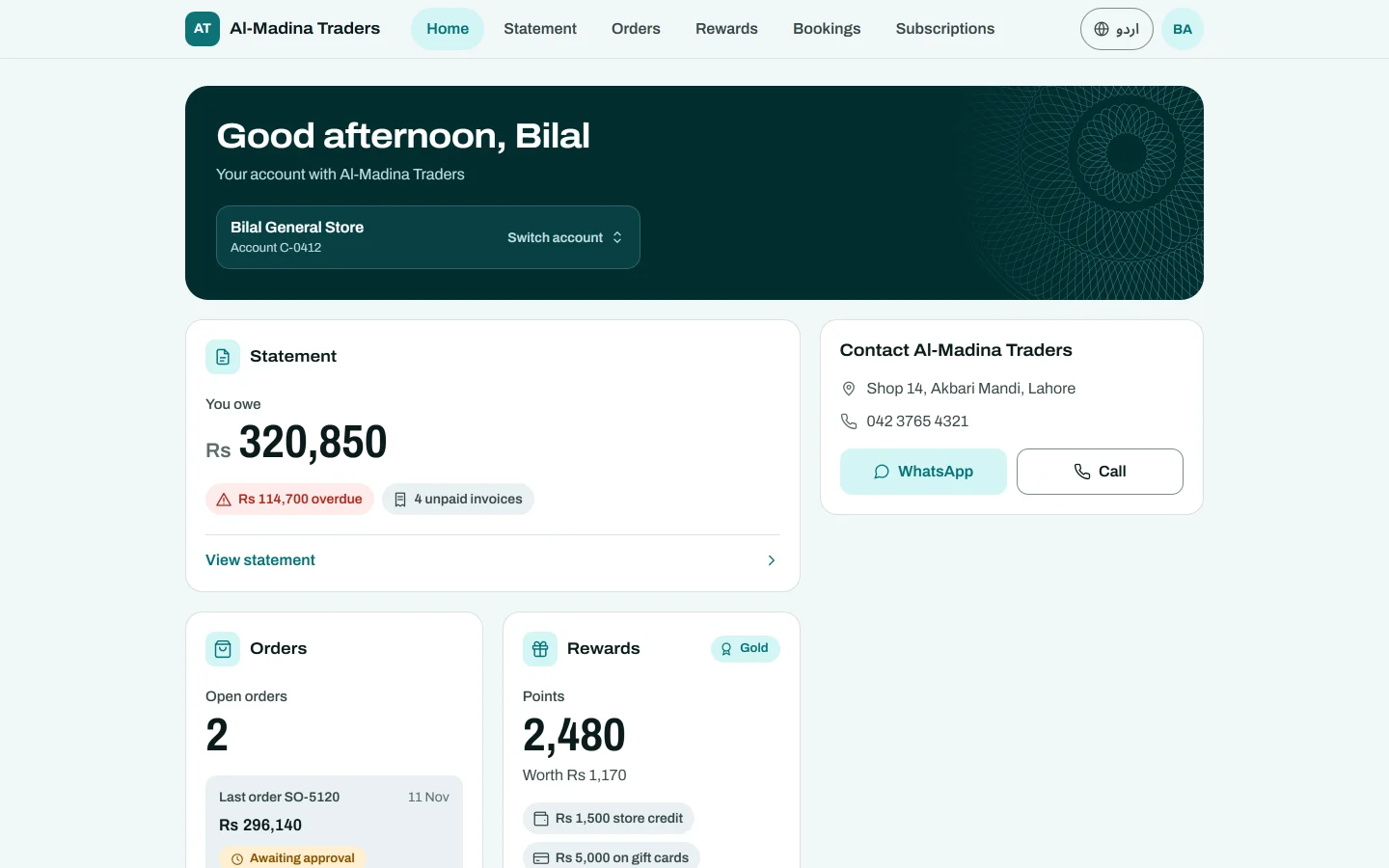
Home greets your customer by name and shows Your account with and your company's name. Then it shows one card for each part you switched on:
- the Statement card: You owe, In your favour or All settled, any amount overdue, and how many invoices are unpaid;
- Subscriptions, Orders, Bookings and Rewards cards, each with a short summary.
At the bottom, Contact Ali Traders offers Call and WhatsApp buttons to reach you. A customer whose number is on two of your customer records taps Switch account to change between them.
Statement and invoices
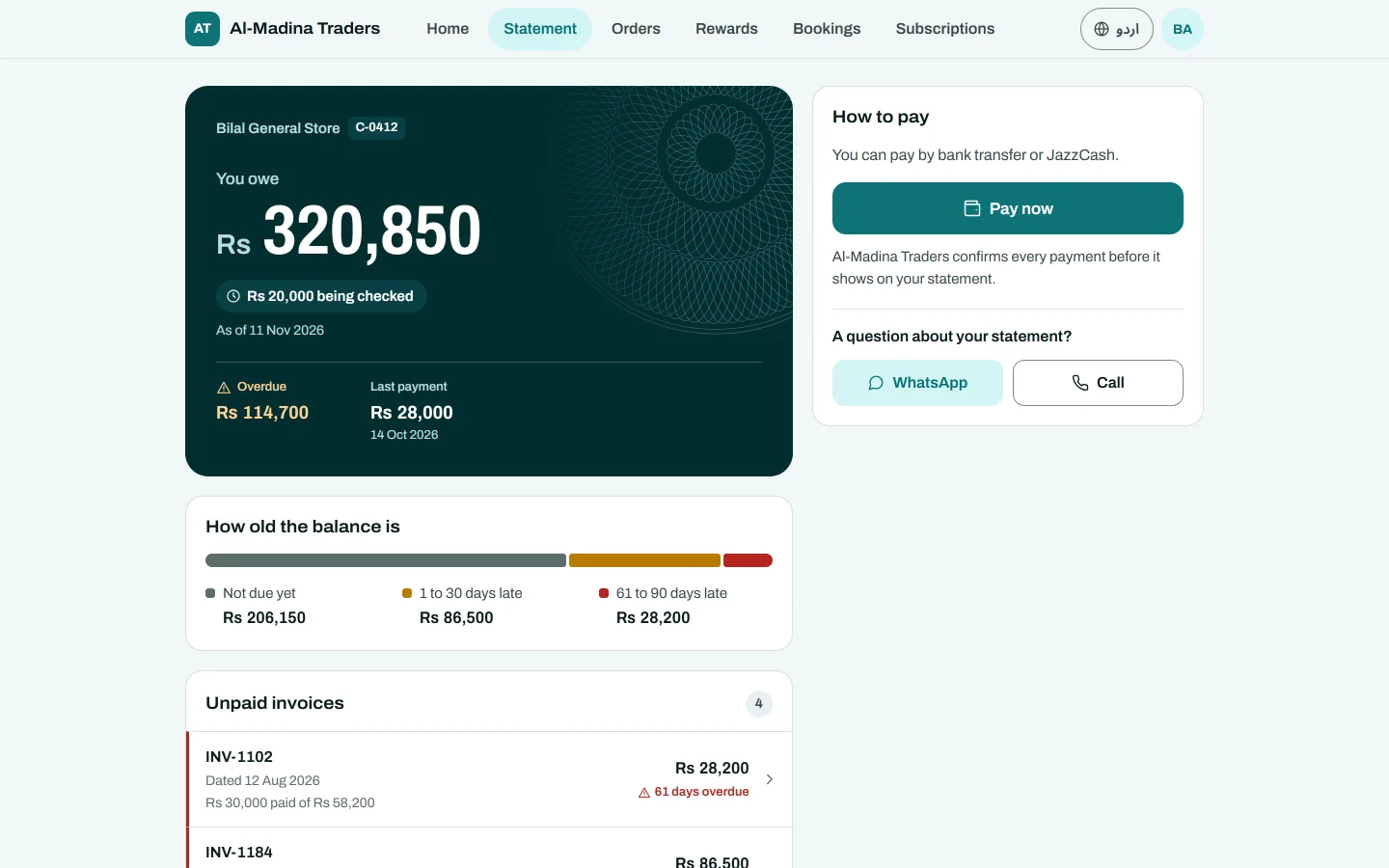
The Statement page shows:
- the balance As of today, and the Last payment;
- How old the balance is: Not due yet, 1 to 30 days late and so on up to Over 90 days late;
- Unpaid invoices, oldest first, each with its due date, days overdue and what is part paid;
- All activity: every invoice, payment and return with a running balance, for Last 30 days, Last 3 months, This year, All time or Choose dates.
Tapping an invoice opens it with its lines, totals, Payments on this invoice and Balance due. Print or save as PDF saves a copy.
Paying
With payments switched on, your customer taps Pay now on the statement, or Pay this invoice on an invoice.
- They choose This invoice, the Full balance or Another amount.
- They choose how to pay: Bank transfer, or one of your online gateways.
- For a transfer, they copy your bank details, pay from their bank, add a photo of the receipt and tap I have paid, send receipt. For a gateway, they pay on its page and come back.
The payment shows as Being checked under Your payments until your staff confirm it. Then it shows Confirmed, or Not accepted with your reason. See Portal Payments.
Orders
The Orders page lists orders from your online store, your restaurant ordering page and trade orders. Each order opens with:
- Progress: the steps, such as Ordered, Confirmed, Shipped, Out for delivery and Delivered, or In the kitchen and Ready for a food order;
- the Items, delivery charge and total, and what is Paid or To pay;
- for a parcel, the Tracking number.
A trade order shows Awaiting approval until you approve it. See Wholesale trade ordering.
Rewards and wallet
The Rewards and wallet page shows Your points and what they are worth, the customer's level and how much more they need to spend for the next one, stamp cards and Points history. Under Wallet it shows Store credit and Gift cards with their balances and expiry dates. These are the same figures your till uses.
Subscriptions and bookings
Customers on a plan see their Subscriptions. See Subscriptions in the customer portal. Hotel guests see their Bookings, with the bill and any balance to pay.
Profile
Profile shows Signed in with and the number, lets your customer change Your name, lists Your accounts, and sets the Language and Appearance (Same as phone, Light or Dark). Sign out ends the session on that phone.
A statement link
A customer who opens a statement link sees Private statement for and their name, with the same statement, invoices and Pay now, without signing in. Sign in to see everything takes them to the full portal.
Common questions
The customer sees "Nothing here yet". No card is switched on for their account, or their statement is not allowed. Check Customer Portal and their Portal access.
The code never arrives. Check your WhatsApp or SMS channel in Notification Channels. The customer can tap Send a new code after a short wait.
Can the customer see my other customers or my costs? No. They see only their own account, without costs or internal notes.
Does the customer need an app? No. The portal opens in any phone browser.
Terima kasih. Jika masih butuh bantuan, kirim email ke info@eloerp.net.