Customer photo, CNIC and cheque images
Keep a customer's profile picture, both sides of their CNIC and a cheque image on the customer record, by upload or camera, and view or download them from the profile.
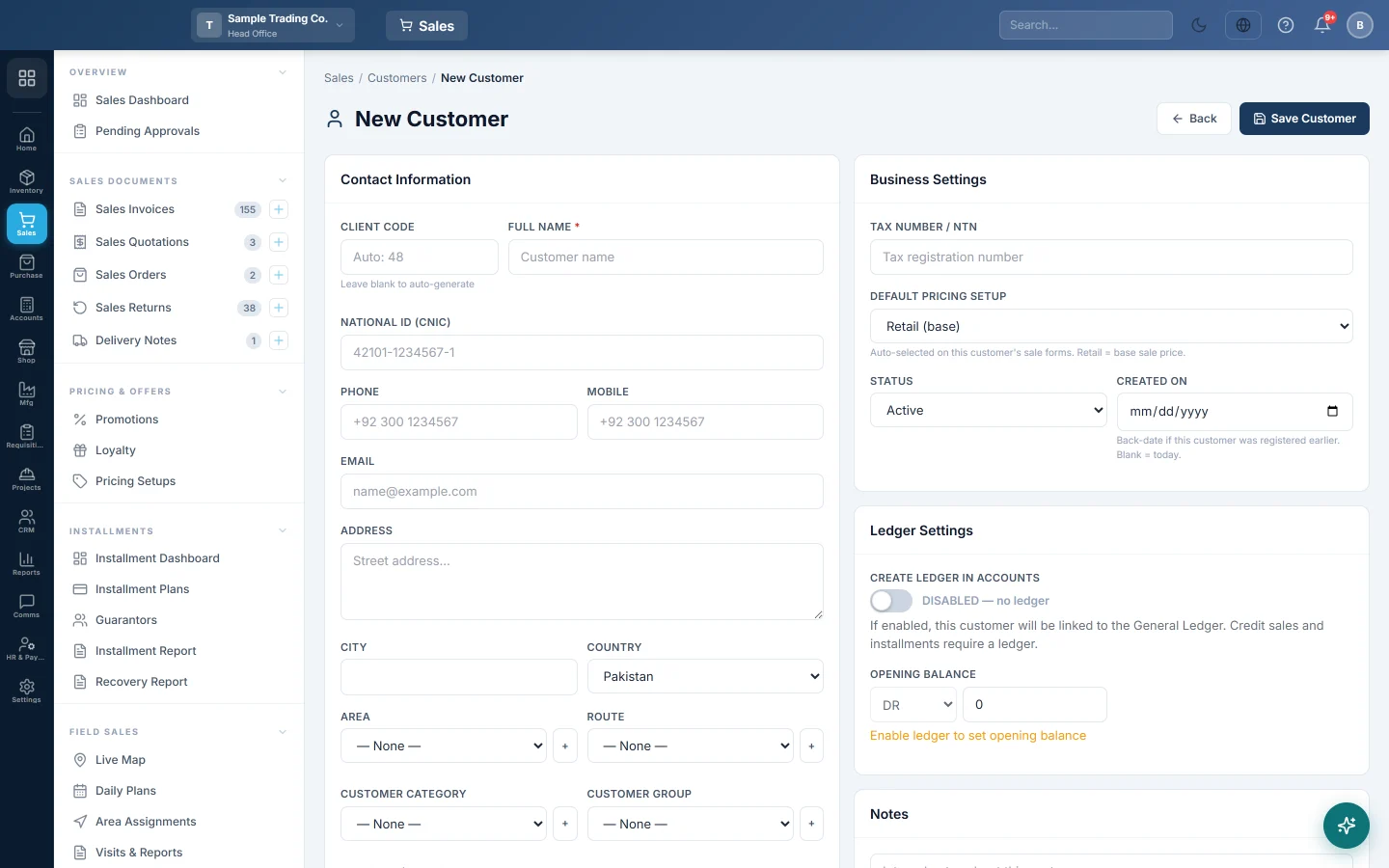
The customer form has a Photo & Documents box for four images: a Profile Picture, the CNIC Front Side, the CNIC Back Side and a Cheque Image. Keep them for customers who buy on credit or on installments, so the papers are on the record and not in a drawer.
Before you begin
- Your role can create or edit customers. See Users & Roles.
- Your company is not on trial. While it is, the box shows You are not allowed to upload any file during the trial. and the Upload and Camera buttons are off.
- To use Camera, the browser must be allowed to use the camera.
There is no switch to turn on. The box is on every customer form.
Where to find it
Open Sales → Customers → All Customers, then click Add Customer, or the pencil on a customer. The Photo & Documents box is near the bottom of the form.
Add the images
- Under each slot, click Upload and choose a JPG, PNG or WebP image, or click Camera.
- With Camera, hold the card or cheque in front of the camera and click Capture. The profile picture uses the front camera; the papers use the back camera on a phone.
- Click an image to see it full size. Click ✕ under a slot to remove its image.
- Click Save Customer. The images are saved only with the customer.
Images are made smaller before they are sent: the photo to a small picture, and the papers to a size where the CNIC number and cheque details stay readable. An image over 15 MB is refused.
View or download them
- Open the customer's profile: click their name in All Customers.
- The profile picture shows as the customer's picture at the top.
- The Photo & Documents box on the Overview tab shows each image that was uploaded.
- Click an image to see it full size, then click Download to save it.
To change an image, click Edit Customer and upload a new one.
Who keeps the files
The images are kept with your company's data. They are never shown in the customer portal. If your company is deleted, all its files are deleted with it.
Common questions
The Upload button is greyed out. Your company is on trial. Uploads open once your plan is active. You can still remove an image.
The camera does not open. The browser has no camera permission, or the computer has no camera. The box says Camera unavailable — use Upload instead.
Can I upload a PDF of the CNIC? No. Take a photo, or save the scan as a JPG or PNG.
Where else is the photo used? It is the same customer picture that adding a customer at the till saves, and that the installment screens show.
Terima kasih. Jika masih butuh bantuan, kirim email ke info@eloerp.net.