Sales Returns
Take goods back from a customer, against the invoice they were sold on or on their own, so stock comes back and the customer is refunded or credited.
A sale return records goods a customer brings back. Confirming it puts the goods back in stock and either refunds the customer or credits their account.
Before you begin
- For a return against a bill, the sale invoice is confirmed. See Sales Invoices.
- Your role needs the sale return permissions. Return without invoice (manual) needs its own permission. See Users & Roles.
- Refunds are paid through your Payment Methods.
- Whether a return confirms as soon as it is saved depends on Auto-confirm Sale Returns on save in Sales Preferences.
Where to find it
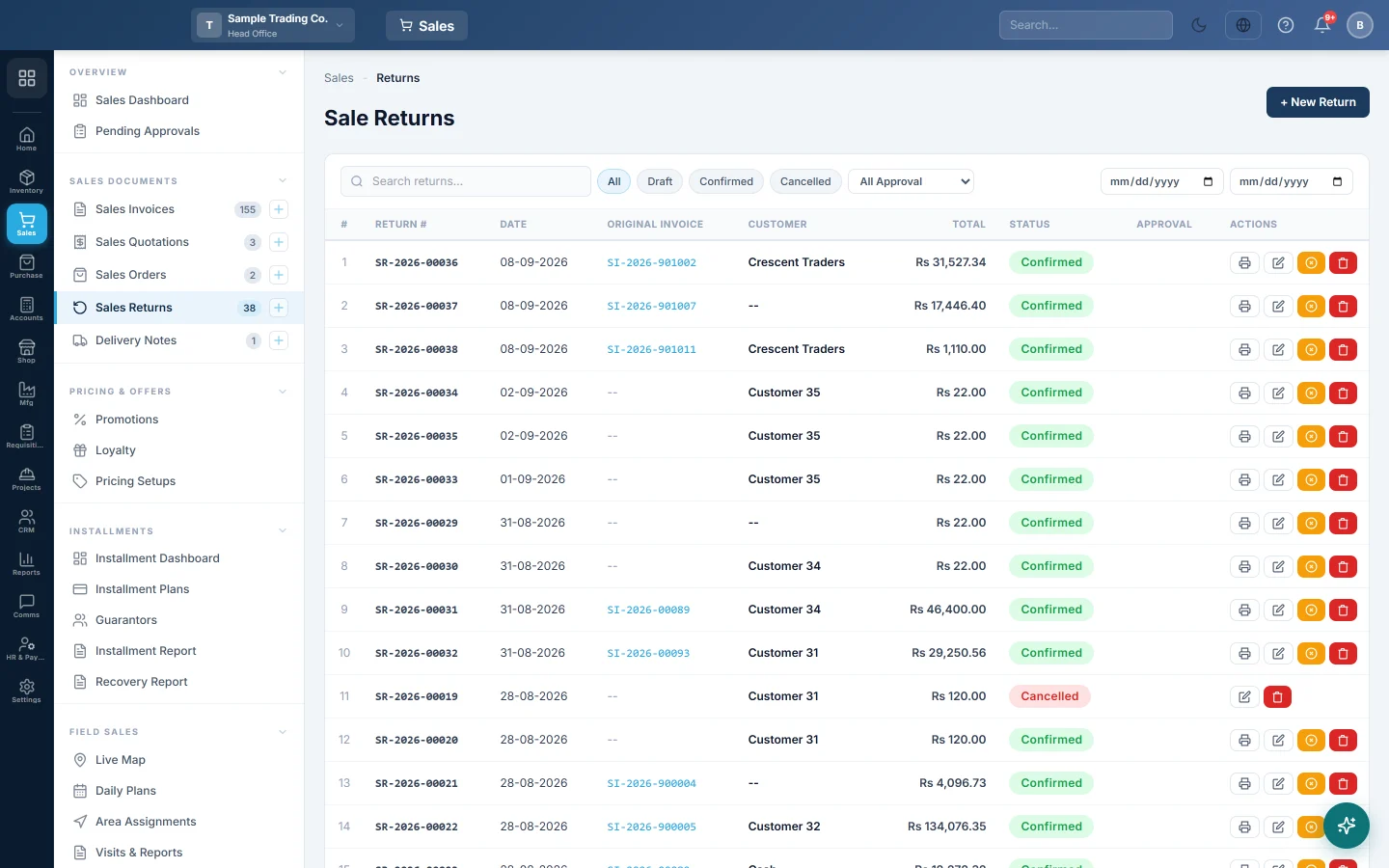
Open Sales → Sales Documents → Sales Returns. You can also click Return on a confirmed invoice, or the return button on its row in the invoice list.
Return goods against an invoice
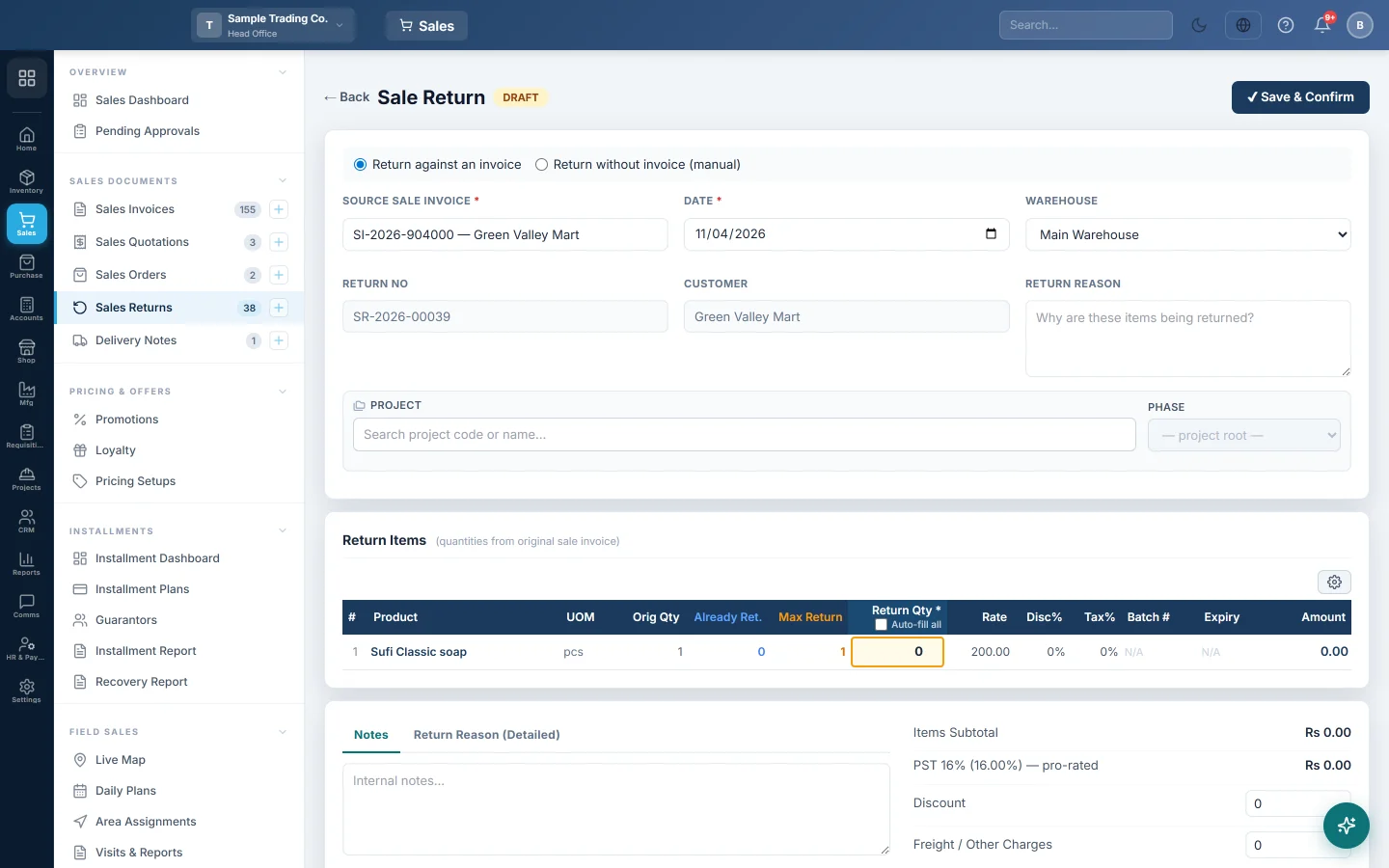
- Click + New Return. Leave Return against an invoice selected.
- In SOURCE SALE INVOICE, type the invoice number or customer name and pick the invoice.
- The lines fill in with Orig Qty, Already Ret. and Max Return. Type the quantity coming back in Return Qty on each line.
- Check the WAREHOUSE the goods go back into and write the RETURN REASON.
- Check the totals. Tax, discount and charges from the invoice are shared out in proportion; change Discount or Freight / Other Charges if needed.
- Choose the Refund Method and check the refund amount (see below).
- Click ✔ Create, or Save Draft to finish later. With auto-confirm on, the button is ✔ Save & Confirm and there is no draft.
Refund or credit the customer
The amount box under the totals decides where the money goes:
| Customer | What happens |
|---|---|
| Walk-in or cash customer | Cash Refund Amount follows the RETURN TOTAL, and all of it is paid back through the Refund Method. |
| Customer with a ledger, Return Credit Amount left at 0 | No cash is paid out. The whole total is credited to the customer's ledger. This is the default. |
| Customer with a ledger, a smaller amount typed | That part is refunded now through the Refund Method; the rest stays as a credit on the ledger. |
| Customer with a ledger, the full total typed | The whole amount is refunded through the Refund Method. |
Use a credit on the ledger when the customer will buy again, or owes you on other invoices.
Return goods without an invoice
Use this when the original bill cannot be found, or the sale was made before you started using EloERP.
- Click + New Return and select Return without invoice (manual).
- Pick the CUSTOMER and the WAREHOUSE.
- Add the products coming back, with their quantities and rates.
- Choose the refund as above and click ✔ Create.
Confirm a draft return
- Open the draft from the list.
- If you changed anything, click Update first.
- Click ✔ Confirm Return.
In the list, the tick on a draft's row does the same. If the return is at or above the Sale Return approval threshold in Sales Preferences, an approver clicks ✔ Approve first, here or on Pending Approvals.
Correct or cancel a return
- Correct it. Open the confirmed return, change it and click 🔄 Update & Re-post. The old entries and stock are reversed and the new ones posted. This is not allowed once the return was sent to FBR.
- Cancel it. Click ✖ Cancel Return. Its entries are reversed and the stock goes out again.
- Remove it from the books. Use Delete permanently in the list. A copy is kept in Deleted entries.
What happens in the books
Confirming a return posts a sale return voucher, the reverse of the invoice:
- Sales Returns is debited with the goods value, and the tax is debited back to the tax account it was charged to.
- When the return is credited to the customer, their ledger is credited with the RETURN TOTAL. A part refunded now posts a second voucher: the customer's ledger is debited and the refund method's cash or bank account is credited.
- When the whole total is refunded, or the customer is a walk-in, the refund method's cash or bank account is credited directly.
- A second entry moves the cost back: Inventory is debited and Cost of Goods Sold credited.
Common questions
Can I return more than I sold? No. Each line stops at Max Return, the invoice quantity less what is already returned.
The customer wants a different item instead. Make the return with the refund as a credit on their ledger, then make a new invoice for the new item.
Is this the same as a credit note? A return moves stock. For a price correction with no goods moving, use a Credit Note (CN).
The invoice was sent to FBR. Post the matching credit note with Post Credit Note to FBR on the confirmed return, or from FBR POS Integration. FBR accepts credit notes only for registered buyers.
Where do I see all returns? Use the Sale Return Report.
Obrigado. Se ainda precisar de ajuda, escreva para info@eloerp.net.