Sales Invoices
Make cash, credit and installment sale invoices, take payments against them, and correct, cancel or return them.
A sales invoice is the bill you give a customer. Confirming it takes the goods out of stock and posts the sale to the customer's ledger, or to cash for a walk-in sale.
Before you begin
- The products exist with a sale price, see All Products, and you have a warehouse, see Warehouses.
- For a credit sale, the customer exists and has a ledger. See All Customers.
- Payment methods such as Cash and Bank are set up. See Payment Methods.
- The Credit and Instalment types appear only when those features are on in Features & Add-ons.
- Your role needs the sale invoice permissions; taking payments needs the receive payment permission. See Users & Roles.
Where to find it
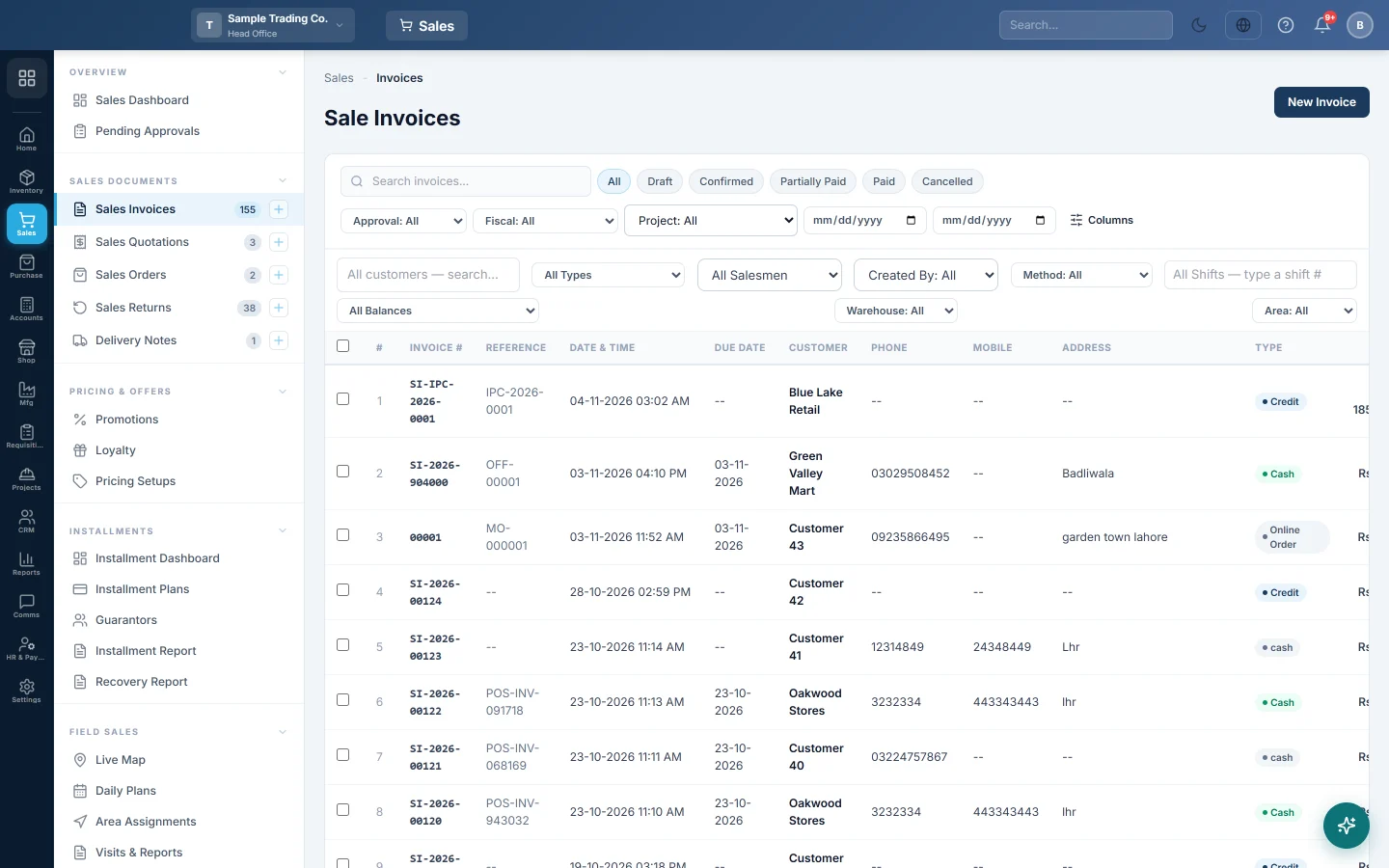
Open Sales → Sales Documents → Sales Invoices. The side menu also has a New Invoice quick action.
Make an invoice
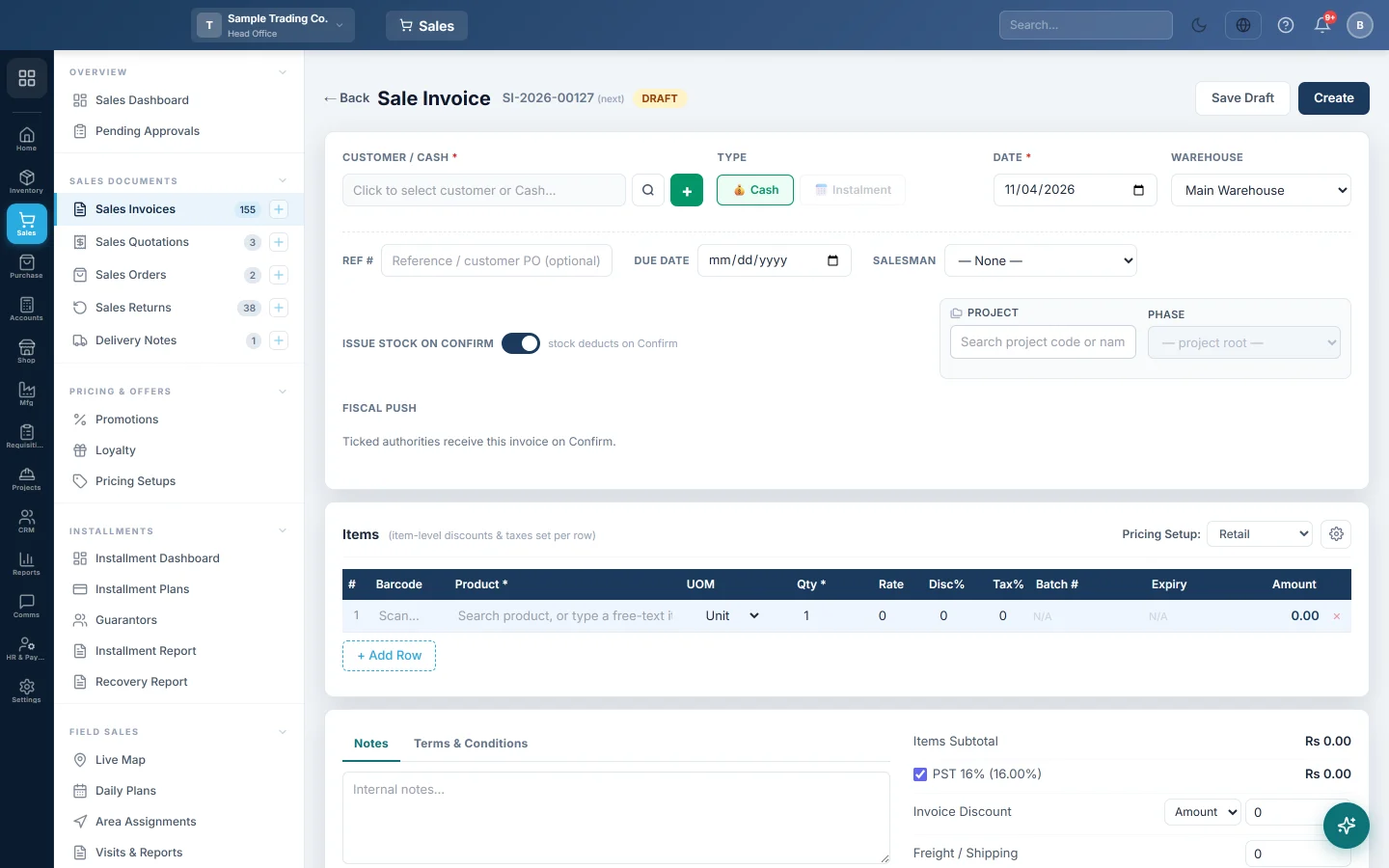
- Click + New Invoice.
- Click the CUSTOMER / CASH box and pick the customer, or Cash Sale for a walk-in customer. The + button adds a new customer without leaving the page.
- Under TYPE, choose Cash, Credit or Instalment.
- Check the DATE and the WAREHOUSE the goods leave from.
- Optionally fill in REF #, for example the customer's PO number, and pick the SALESMAN.
- In Items, search for each product or scan its barcode, and enter the quantity. Discount and tax are set per row.
- Below the items, fill in Invoice Discount, Freight / Shipping or Round-off if they apply, and check the GRAND TOTAL.
- Choose the Payment Method and type what the customer pays now in Down Payment. Tick Full to pay the whole total.
- Click Create to save and confirm in one step, or Save Draft to finish later.
For an installment sale, click Create Installment Plan before Create. See Installment Plans.
Issue the stock later
ISSUE STOCK ON CONFIRM is on by default. Turn it off when the goods leave later, for example from a warehouse after loading. The confirmed invoice then shows a Delivery Note button. See Delivery Notes.
Confirm a draft
- Open the draft from the list.
- If you changed anything, click Update first. Confirm Invoice stays greyed out while there are unsaved changes.
- Click Confirm Invoice.
When the invoice total is at or above the Sale Invoice approval threshold in Sales Preferences, a banner says it must be approved. An approver clicks Approve on the invoice, or approves it on Pending Approvals. Then Confirm Invoice works.
Take a payment
- Open a confirmed invoice that still has a balance.
- Click Add Payment.
- Enter the Amount, Payment Date and Payment Method, and a Reference such as a slip number.
- Click Record Payment.
To take one payment against several invoices, tick them in the list and click Receive {n} invoice(s). Only confirmed invoices with a balance count. For a cheque, use the invoice's own Add Payment so it reaches the cheque register.
Installment invoices are paid through their plan, not Add Payment.
Find invoices
Use the search box and the status chips, such as Draft, Confirmed, Paid and Cancelled. The second row filters by customer, type, salesman, Created By, payment method, shift, balance, warehouse and area. Approval finds invoices waiting for approval. The column chooser shows the customer's phone, mobile or address.
Correct, charge more, cancel or delete
- Correct a confirmed invoice. Open it, change the items or amounts and click Update & Re-post. EloERP reverses the old entries and stock and posts the new ones. This is not allowed once the invoice has delivery notes, returns, payments or was sent to FBR; use a return instead.
- Charge more. Click + Debit Note on a confirmed invoice for a charge left off or a price corrected upward. Give a REASON. It posts like an invoice to the same customer and prints as a Debit Note.
- Copy. The duplicate button in the list makes a new draft with the same lines. It does nothing to stock or the books until you confirm it.
- Cancel. The orange cancel button asks for a reason, then reverses the invoice's stock and entries and keeps it as cancelled. Cancel any active delivery note first.
- Delete. On a draft, delete removes it. On a posted invoice it opens Delete permanently: you see what leaves each ledger and give a reason. A copy is kept in Deleted entries.
- Goods came back? Click Return on the invoice, or the return button in the list. See Sales Returns.
What happens in the books
When you confirm, EloERP posts a sale invoice voucher:
- The customer's ledger is debited with the GRAND TOTAL. For a cash sale, the cash or bank account of the payment method is debited instead.
- Sales Revenue is credited with the goods value before discount, and the discount is debited to Discount Allowed.
- Tax is credited to its own tax account, or to Sales Tax Payable. Freight is credited to Shipping Income, and a round-off goes to Rounding Difference.
A second voucher moves the cost: Cost of Goods Sold is debited and Inventory is credited, at average cost. When a delivery note issues the stock, the delivery note posts this instead. Service items have no cost entry.
A down payment or a later payment posts a receipt: cash or bank is debited and the customer's ledger is credited.
Common questions
The Credit button is greyed out. You picked Cash Sale, or the customer has no ledger. Turn on the customer's ledger on All Customers, then pick them again.
I clicked Create and the invoice is still a draft. Confirming failed after the save, usually because it needs approval. Read the banner, get it approved, then click Confirm Invoice.
The delete button shows a lock. An active delivery note is linked to the invoice. Cancel the delivery note first.
The Paid column shows two amounts. The invoice has a down payment and later payments. Hover over it to see each part.
Can I see the profit on an invoice? Users allowed to see costs get a Profit Summary with revenue, cost of goods and margin per line. For many invoices, see Profitability Report.
How do I send an invoice to FBR? Tick FBR under FISCAL PUSH before you confirm, or click Push to FBR on the confirmed invoice. See FBR POS Integration.
Obrigado. Se ainda precisar de ajuda, escreva para info@eloerp.net.