Sales Orders
Record what a customer has ordered, get it approved, then turn it into the sale invoice when you deliver or bill.
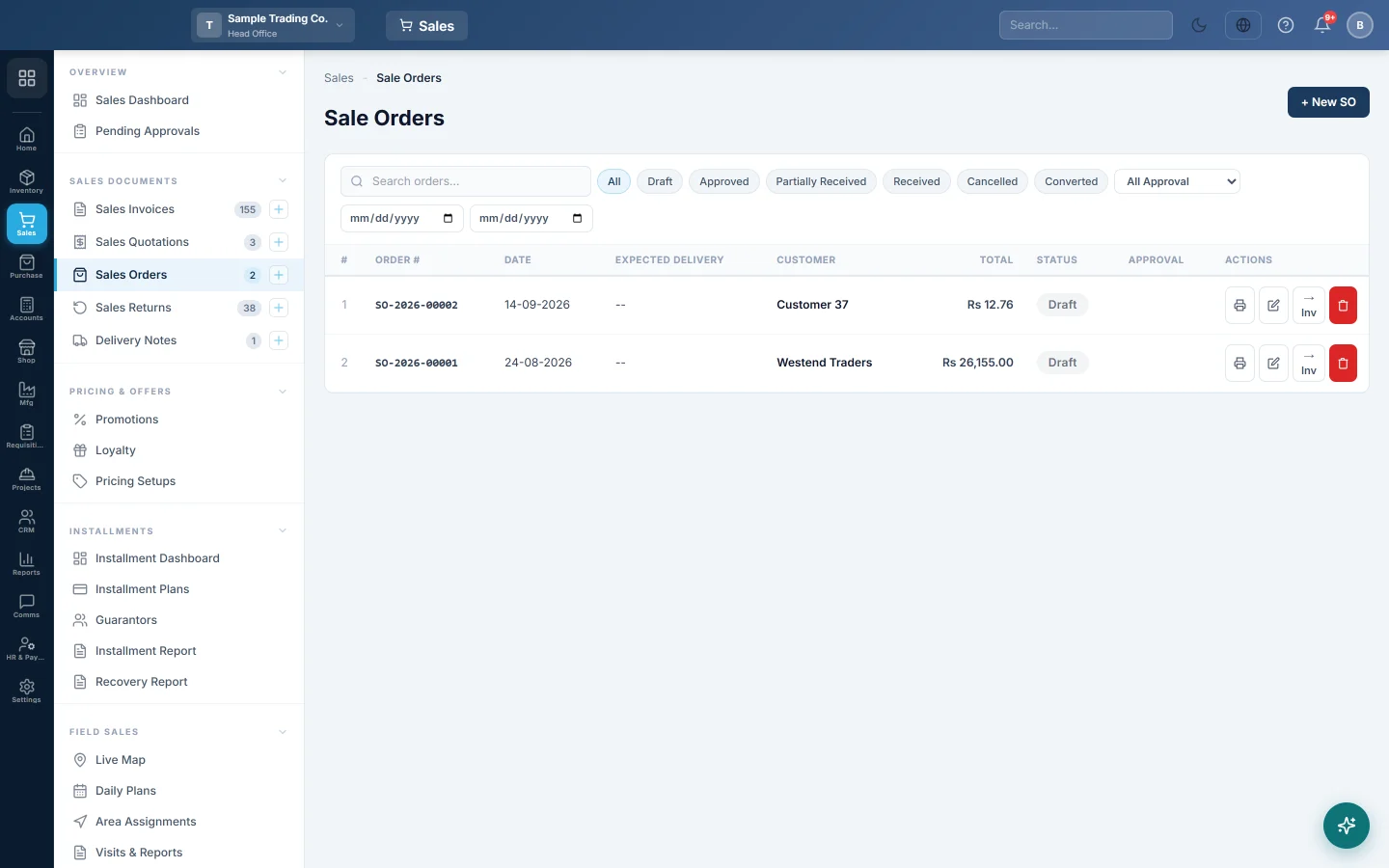
A sales order records what a customer has asked for before you deliver or bill it. It changes nothing in stock or the books. When you are ready, you convert it into a sale invoice with the same lines.
Before you begin
- The customer exists. See All Customers.
- The products exist with a sale price. See All Products.
- Your role needs the sale order permissions. Approving needs the order approve permission and converting needs the order convert permission. See Users & Roles.
Where to find it
Open Sales → Sales Documents → Sales Orders.
Enter an order
- Click + New SO.
- Click the CUSTOMER box and pick the customer. The + button adds a new one. Their Balance and Pricing show below.
- Check the DATE and set the EXPECTED DELIVERY date.
- Pick the WAREHOUSE the goods will come from.
- Optionally fill in PAYMENT TERMS, for example 50% advance, and the DELIVERY ADDRESS.
- In Items, add each product with its quantity. Pick a Pricing Setup if this customer buys at wholesale or another price list.
- Add a Discount or Freight / Shipping below the items if they apply.
- Click Save Draft, or Save & Print to print it for the customer.
To start from a quotation instead, open the quotation and click Convert to Order. See Sales Quotations.
Approve the order
An order at or above the Sale Order approval threshold in Sales Preferences must be approved before it can become an invoice. So must every order a customer placed from your online store.
- Open the draft order.
- If you changed anything, click Update first.
- Click ✔ Approve. The status becomes Approved.
Orders at or above the threshold also appear on Pending Approvals. With Maker-checker (segregation of duties) on, the person who entered the order cannot approve it.
Orders from your online store
With trade ordering on, the customers you allow place orders on account in your online store. Each one arrives here as a draft Sales Order:
- The list shows an Online tag next to the customer, and Pending approval, whatever the order's total.
- The order's note starts Online trade order (placed by the customer in the online store), then the customer's PO, the delivery address and their note. OVER CREDIT LIMIT or ACCOUNT ON HOLD in the note tells you to check before you approve.
- The people who approve sales orders get a bell message, New trade order.
Check the lines, click ✔ Approve, then convert it when you deliver. Converting before approval is refused. Choose Pending approval in the approval filter to see every order still waiting, including online orders below the threshold.
Convert it to an invoice
- Open the approved order.
- Click 📄 Convert to Invoice. In the list, the same button is → Inv.
- EloERP opens the new invoice as a draft, with the customer, warehouse and lines copied.
- Check it, take any payment, and confirm it. See Sales Invoices.
The order is marked Converted and can no longer be changed.
Cancel or delete
- ✗ Cancel Order on an approved order marks it Cancelled. A converted order cannot be cancelled.
- Delete removes a draft order for good.
Common questions
Does an order reserve or move stock? No. Stock leaves only when the invoice, or its delivery note, is confirmed.
The Approve button is missing. Your role does not have the order approve permission. Ask someone who has it.
Approve shows an error about maker-checker. You entered the order yourself. Another approver must approve it.
The customer paid an advance with the order. Record it as a Receipt Voucher (RV) against the customer. It sits on their ledger until the invoice is posted.
Conversion says items are no longer saleable. A product on the order has since been switched off for sale. Remove or replace that line and convert again.
Obrigado. Se ainda precisar de ajuda, escreva para info@eloerp.net.