Equipment
Send machines to the site, log their hours, idle time, breakdowns and fuel each day, charge owned machines to the project and make hire bills for hired ones.
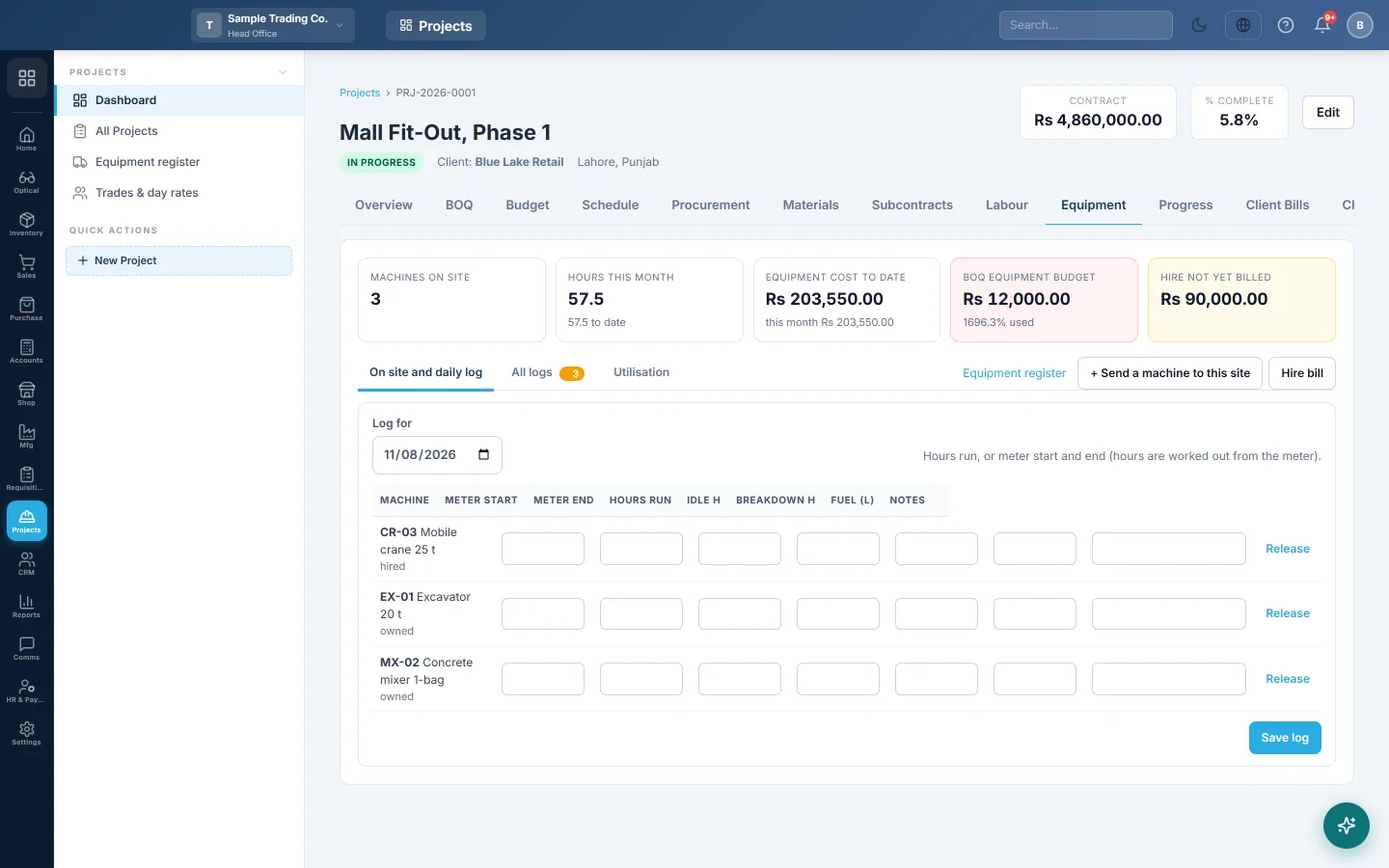
The Equipment tab shows the machines on this site and keeps their daily log. Approved logs charge owned machines to the project, and hired machines' hours turn into a draft hire bill.
Before you begin
- The machines are in the Equipment register, with their rates.
- A hired machine needs its supplier set in the register. See All Suppliers.
- Your role needs View Site Equipment Logs and Create Site Equipment Logs. Edit Site Equipment Logs lets you send or release machines. Approve Equipment Log / Make Hire Bill lets you approve, reopen and bill. See Users & Roles.
Where to find it
Open Projects → Projects → All Projects, click the project, then open the Equipment tab.
Send a machine to this site
- Click + Send a machine to this site.
- Pick the Machine and the From date.
- Click Send to site.
A machine marked on another site leaves that site the day before. A retired machine cannot be sent. To take a machine off the site, click Release on its row.
Log the day
- Open On site and daily log.
- Set Log for to the day.
- For each machine, type Hours run, or Meter start and Meter end. Hours are worked out from the meter.
- Type Idle h, Breakdown h, Fuel (L) and any Notes.
- Click Save log.
Each machine's row is saved as a draft. Saving the same day again updates its draft.
Approve logs
- Open All logs. The badge shows how many drafts are waiting.
- Tick the logs to approve and click Approve picked, or click Approve all drafts.
- To correct an approved log, click Reopen. Its charge to the project is taken back.
A log that is on a hire bill cannot be reopened. Cancel or delete that purchase invoice first. Only a draft log can be deleted.
Make a hire bill
- Click Hire bill. It shows when a hired machine is on site or has logs.
- Pick the Hired machine, and the From and To dates.
- Click Make draft purchase invoice.
- Open the draft when asked, check it against the supplier's own bill, and confirm it in Purchases.
The bill uses the approved, unbilled hours in the period at the machine's hire rate. It is tagged to this project. See Invoices.
How a log is costed
- Owned machine: hours run × the register's charge per hour. A charge of 0 records hours only.
- Hired per hour: hours run × hire rate.
- Hired per day: the day rate for each day with hours run.
- Hired per month: the month rate ÷ 26 for each day with hours run.
See use and cost
- Machines on site, Hours this month and hours to date.
- Equipment cost to date and this month, from approved logs.
- BOQ equipment budget: quantity × equipment rate on every BOQ line, and the % used.
- Hire not yet billed: approved hours on hired machines with no hire bill.
- Utilisation: for each machine, days, run, idle and breakdown hours, utilisation (run ÷ all hours), fuel per hour and cost.
What happens in the books
- Owned machine with a charge rate: approving the log posts a journal voucher. Project Equipment Cost is debited and Equipment Recovery is credited. Company-wide the two cancel out; the project carries the cost.
- Owned machine with no rate: nothing is posted.
- Hired machine: nothing is posted on approval. The hours are a commitment until the hire bill is posted. The posted purchase invoice credits the supplier and counts as project cost.
Common questions
Why is the Hire bill button missing? No hired machine is on this site or has logs here.
Why does Equipment cost to date differ from the Financials tab? This tab counts approved hours of hired machines at once. Financials shows them as a commitment until the hire bill is posted.
Why is a machine missing from the daily log? Only machines on this site show. Send it here with + Send a machine to this site.
Where do I set the rates? In the Equipment register. A draft log takes the new rate when you save it again; approved logs keep theirs.
Teşekkür ederiz. Hâlâ yardıma ihtiyacınız varsa info@eloerp.net adresine yazın.