All Projects
Set up each project or contract with its client, value, budget and contract terms, and open its workspace for the BOQ, materials, subcontracts and client bills.
All Projects lists every project or contract you run. Each project has a workspace that gathers its budget, materials, subcontractors, client bills and every cost tagged to it.
Before you begin
- The client exists as a customer. See All Customers.
- Your role needs the projects permissions. See Users & Roles.
Where to find it
Open Projects → Projects → All Projects. The side menu also has a New Project quick action.
Add a project
- Click New Project.
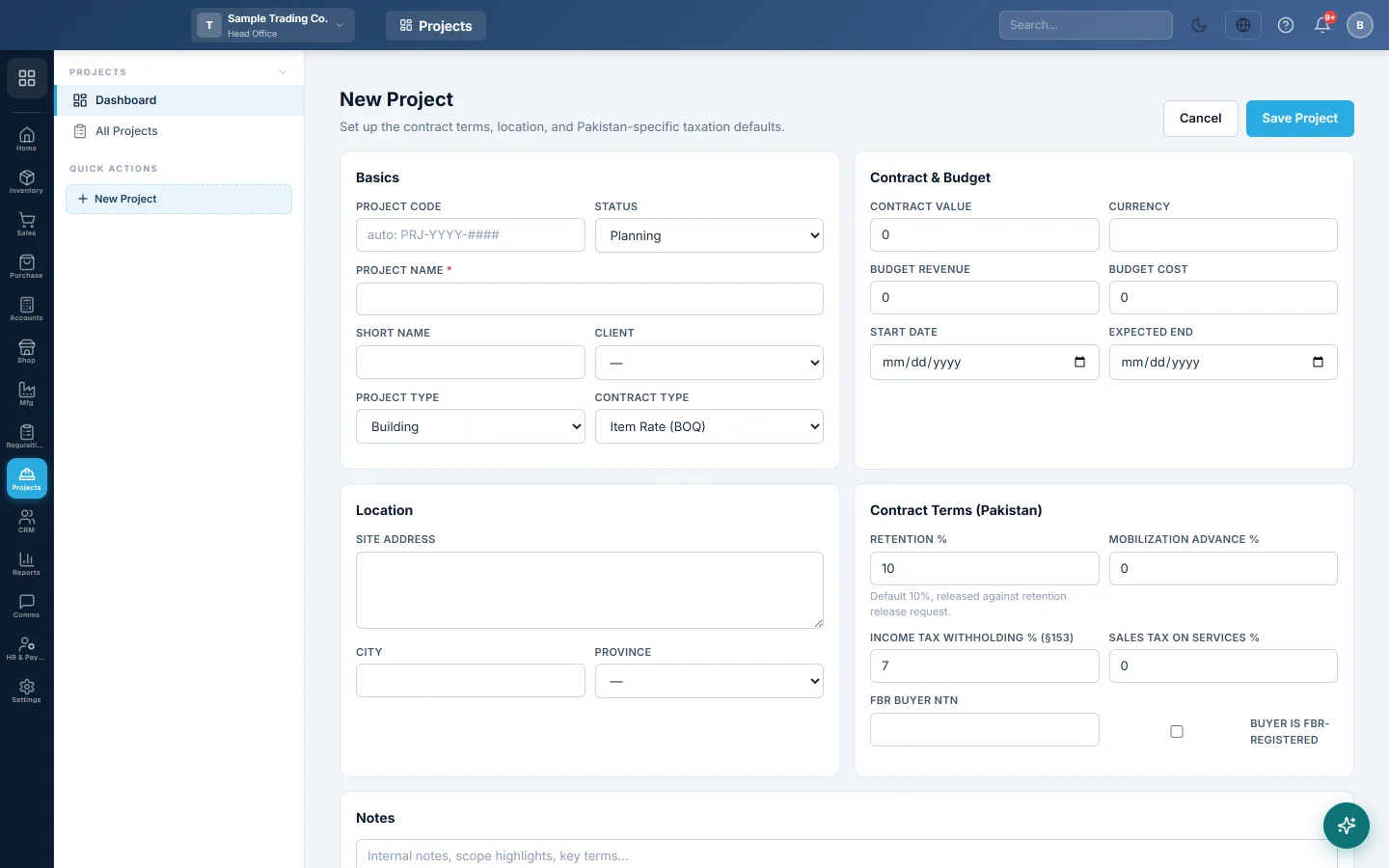
- Under Basics, leave Project Code empty to get the next number, such as PRJ-2026-0001, or type your own.
- Type the Project Name, for example Head Office Extension, and pick the Client.
- Choose the Status, the Project Type (such as Building or Road) and the Contract Type (such as Lump Sum or Item Rate (BOQ)).
- Under Contract & Budget, type the Contract Value, Budget Revenue, Budget Cost, Start Date and Expected End.
- Under Location, type the Site Address, City and Province.
- Under Contract Terms (Pakistan), set the Retention % (10% by default), Mobilization Advance %, Income Tax Withholding % (§153) and Sales Tax on Services %, and the client's FBR Buyer NTN.
- Click Save Project.
Find projects
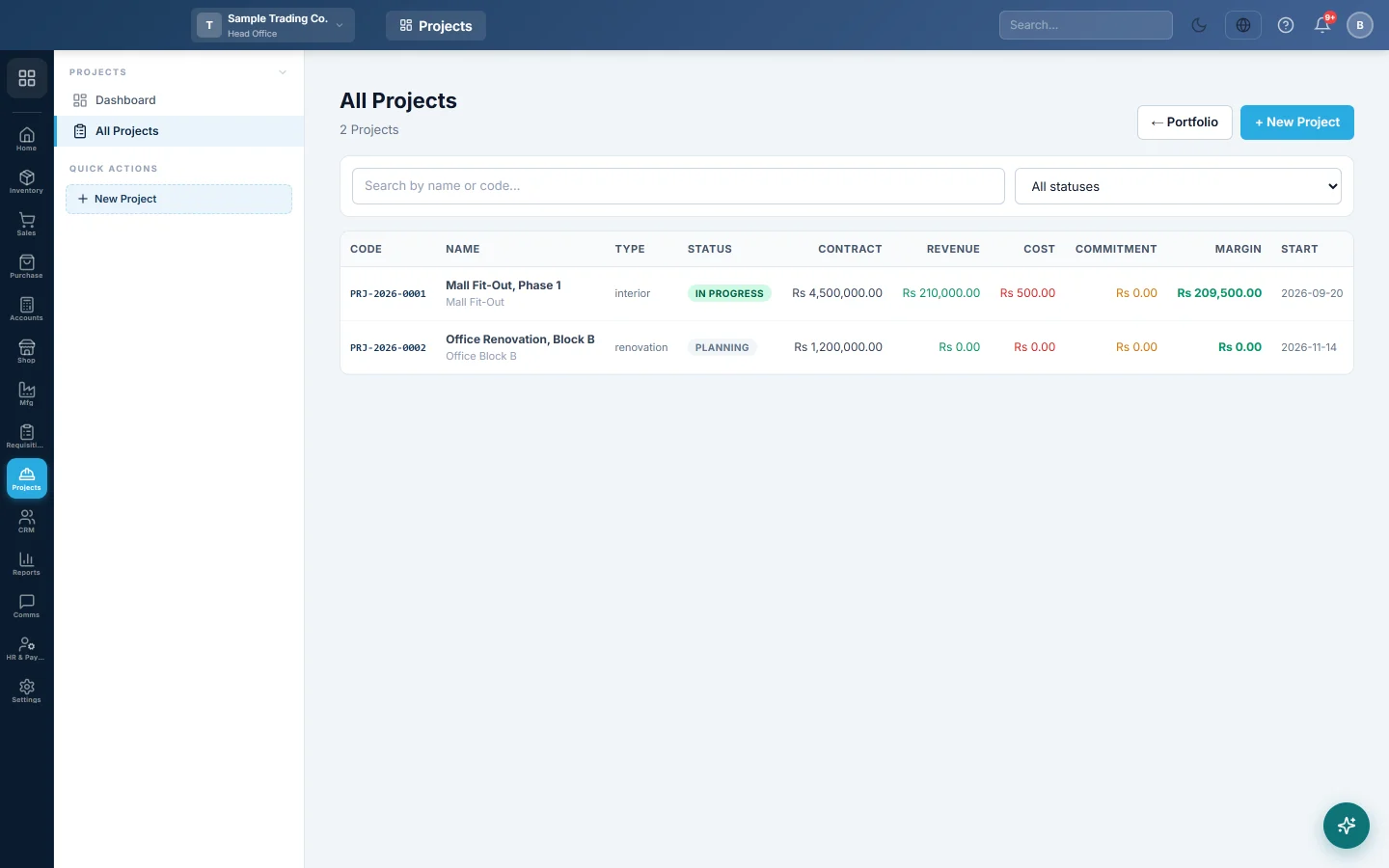
Search by name or code, or pick a status in All statuses. Each row shows the Contract, Revenue, Cost, Commitment (ordered but not yet received) and Margin. Click a row to open the project.
Work in the project workspace
The top shows the client, contract value and % Complete. The tabs are:
| Tab | What it is for |
|---|---|
| Overview | Contract value, revenue and cost to date, open commitments, margin, forecast, recent transactions, phases and team. |
| BOQ | The bill of quantities: items, quantities and rates, by phase. It sets the budget. |
| Budget | BOQ budget against actual cost. |
| Schedule | The phases and sub-phases of the work, with dates, status and weight. |
| Procurement | Requisitions, purchase orders, GRNs and purchase invoices tagged to the project, with what is paid and outstanding. |
| Materials | Material indents for the site, and materials issued to or returned from it. |
| Subcontracts | Subcontractor work orders and their running bills. |
| Labour | Daily labour sheets for own staff, daily-wage workers and contractor gangs, and paying the wages owed. |
| Equipment | Machines on site, their daily log of hours and fuel, and hire bills for hired machines. |
| Progress | Daily progress reports; approved ones set the BOQ quantities done and the % complete. |
| Client Bills | Running bills (IPC) to the client, with retention and tax withheld; a certified IPC links to its sale invoice. |
| Change Orders | Variations to the contract, with client approval, and the BOQ versions they produce. |
| Documents | Drawings, contracts, permits, letters and site photos, with revisions. |
| Financials | The project's profit and loss by bucket, forecast to complete, cash, receivables and payables. |
| Settings | Recompute Cost Ledger, and a link to edit the contract terms. |
Tag costs and income to a project
On purchases, sale invoices and vouchers, pick the project in the Project field, and optionally its Phase or BOQ Item. The amount then counts in the project's cost or revenue. The field shows once the projects feature is on.
Common questions
A purchase does not show on the project. The Project field was empty when it was saved. Edit the document and pick the project.
Can I change the contract terms later? Yes. Click Edit on the project.
What does Commitment mean? Purchase orders and subcontracts placed for the project but not yet received or billed. Forecast Total on the Overview adds them to the cost to date.
Teşekkür ederiz. Hâlâ yardıma ihtiyacınız varsa info@eloerp.net adresine yazın.