Send order confirmation links
Send each new COD customer a link to confirm, correct the address or cancel, so only genuine orders reach the courier.
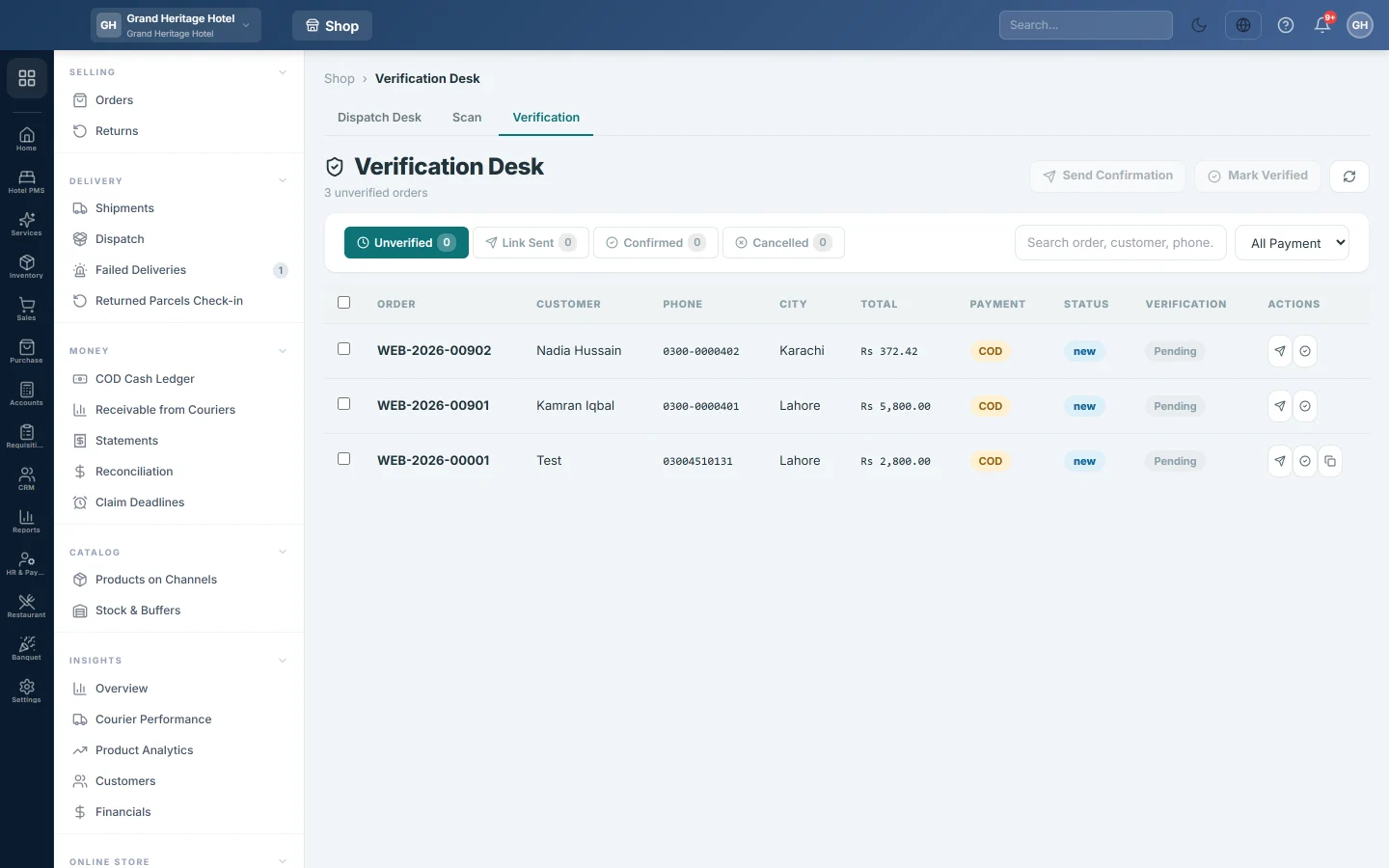
Many COD parcels come back because the order was never real or the address was wrong. The Verification tab of Dispatch sends each customer a link to confirm, correct their address or cancel, before you spend money on a courier.
Before you begin
- To send links automatically, set up an active WhatsApp, SMS or email channel on Notification Channels. WhatsApp is used first, then SMS, then email.
- That channel needs an active message template for the order verification event. Without one, EloERP still makes the links for you to send by hand, and nothing is charged.
- To confirm one order by phone instead, see Verify a new order before booking.
Where to find it
Open Online shop → Delivery → Dispatch and click the Verification tab. The page heading reads Verification Desk.
Send the links
- On Unverified, tick the orders. Narrow by COD or Prepaid if needed.
- Click Send Confirmation.
- Read Confirmation Links. The note says whether the links went out through your channel. If not, copy each link and send it on WhatsApp yourself.
The orders move to Link Sent. Each row also has its own send button, and a copy button once a link exists.
What the customer sees
The link opens a page with the order's items, total and delivery address. The customer can:
- Click Confirm My Order. The order is marked verified and, if it was new, confirmed.
- Correct the address under Need to change your address?, then confirm.
- Click Cancel Order. The order is cancelled.
Confirmed orders move to Confirmed and wait on Ready to Book on the Dispatch Desk. Cancelled ones move to Cancelled.
Confirm by phone
- Call the customer.
- Tick the order and click Mark Verified, or click the tick button on the row.
Common questions
The links were not sent. No active channel with a verification template was found. The note under Confirmation Links says why. Copy the links and send them yourself.
A customer corrected the address. Where do I see it? On the order. The new address replaces the first line of the delivery address.
Do I need to verify prepaid orders? No, but you can. The payment filter separates them.
What next? Book the confirmed orders. See Turn an online order into an invoice.
Gracias. Si todavía necesita ayuda, escriba a info@eloerp.net.