Dispatch
Verify COD orders, book them with a courier in bulk, print the load sheet and scan parcels out to the courier or back in when they return.
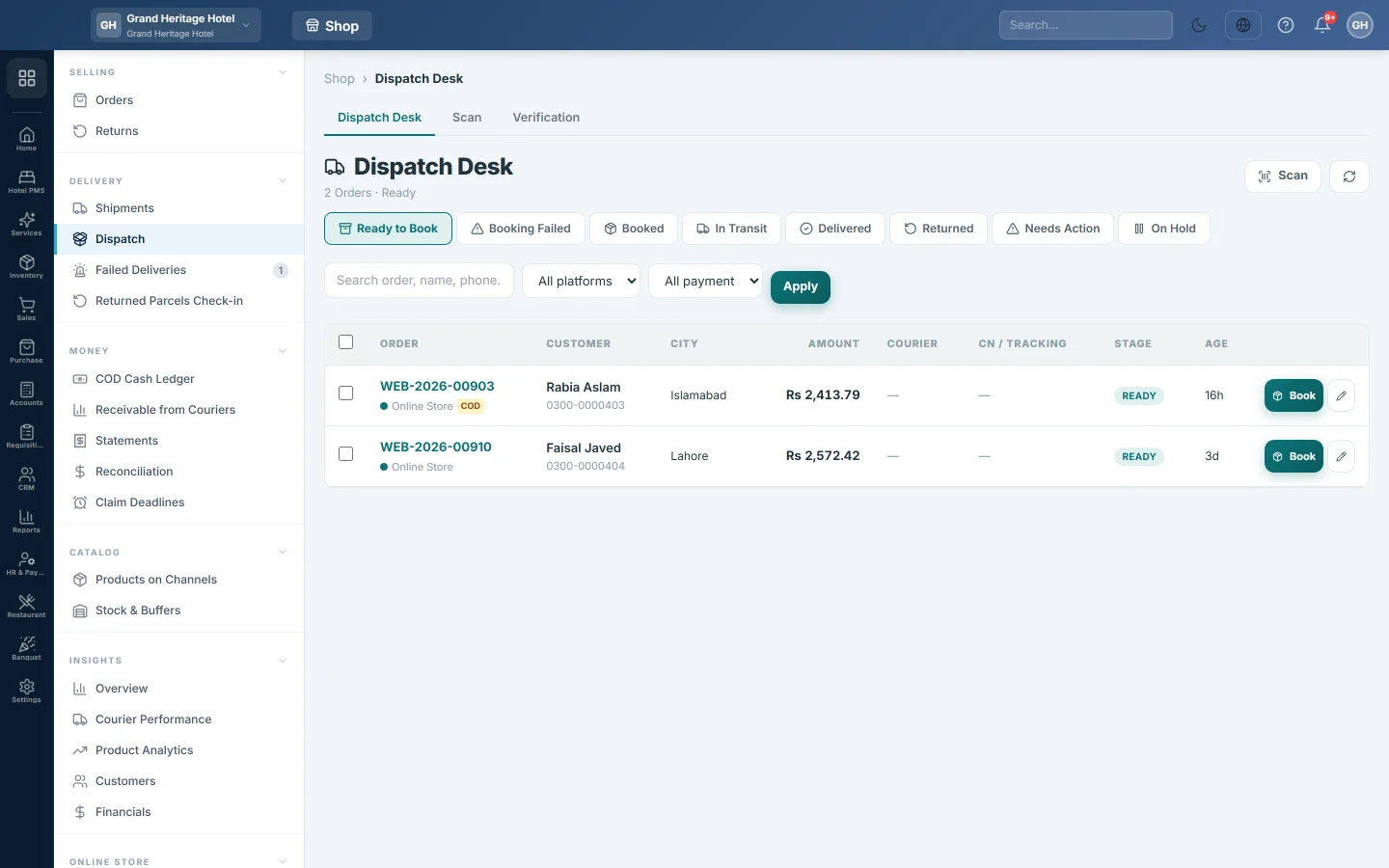
Dispatch is the packing-room desk for online orders. It has three tabs: Dispatch Desk to book orders with a courier, Scan to scan parcels out and back in, and Verification to confirm COD orders before you ship them.
Before you begin
- A courier with live booking is set up on Courier Accounts. Only couriers with live booking appear in the booking lists.
- Orders have a city, an 11-digit phone number, a full address and a weight, or the courier has a default weight.
- To send confirmation links by message, an active WhatsApp, SMS or email channel is set up on Notification Channels, with an active verification template.
Where to find it
Open Online shop → Delivery → Dispatch. The tabs Dispatch Desk, Scan and Verification sit at the top of the page.
Confirm COD orders first
The Verification tab lists orders nobody has confirmed yet. Confirming before you ship cuts parcels that come back.
- Tick the orders.
- Click Send Confirmation. Each customer gets a link where they can Confirm My Order, correct their address or Cancel Order.
- Or click Mark Verified when you confirmed by phone.
The tabs Unverified, Link Sent, Confirmed and Cancelled show where each order stands. When no channel and template are active, Confirmation Links shows each link so you can copy it and send it yourself. See Send order confirmation links.
Read the Dispatch Desk
The stage tabs show how many orders sit at each step:
| Tab | What is in it |
|---|---|
| Ready to Book | Verified orders without a consignment. |
| Booking Failed | Orders the courier refused, with the reason. |
| Booked | Orders with a CN that have not moved yet. |
| In Transit | Parcels on the way. |
| Delivered | Delivered orders. |
| Returned | Returned or cancelled orders. |
| Needs Action | Failed bookings, parcels stuck for 4 days, delivered but unpaid, short addresses and missing weights. |
| On Hold | Orders you held. |
Search by order, name or phone, and narrow by All platforms or All payment (COD or Prepaid), then click Apply. Scan in the header finds an order by its number or CN.
Book orders in bulk
- On Ready to Book, tick the orders.
- Click Book Courier. EloERP runs a Pre-flight Check and shows how many are ready and how many will fail, with the reason for each.
- Pick the Courier, the Service (Default, Overnight, Overland or Same Day) and, if needed, a Weight (kg) for orders that have none. Changing the courier or the weight runs the check again.
- Click Fix on a failing order, correct the City, Phone, Address or Weight (kg) and click Save.
- Click Book n orders.
Booking Results lists the CN for each booked order, or why it failed. Failed orders move to Booking Failed.
Book one order
- Click Book on the row.
- Pick the Courier, the Service (Default, Overnight, Overland or Same Day) and, if needed, the Weight (kg).
- Click Book. The CN appears in the drawer. Click Done.
Fix a failed booking
- Open Booking Failed. The reason shows under each order.
- Click the pencil on the row.
- Correct the field, tick Clear booking failure and retry and click Save.
The order goes back to Ready to Book.
Hold or release orders
Tick orders and click Hold to park them, for example while a customer decides. On On Hold, tick them and click Release.
Print the load sheet
On Booked, the Load Sheet lists the parcels per courier with CN, city, COD amount and weight. Click Print and give the sheet to the rider at pickup. See Hand parcels to the courier.
Scan parcels out and in
- Open the Scan tab.
- Choose Scan out (Ship) when handing parcels to the courier, or Scan in (Receive) when returned parcels arrive.
- Scan the CN, or type it and press Enter.
A banner shows Scanned, Already done, Not found or Problem. Recent scans keeps a list, and the header counts scanned OK and need attention.
- Scan out marks the parcel Dispatched. It posts nothing. A parcel whose order has no invoice is still scanned, and the banner tells you to open the order and post it with Create Fulfillment.
- Scan in marks it returned and reverses the order: stock comes back and the receivable is reversed. Then grade the box on Returned Parcels Check-in.
- A delivered order cannot be scanned in. Use Returns for that.
Common questions
Book Courier says "No courier with API integration". None of your active couriers has live booking. Add one on Courier Accounts.
Why does an order fail with "is not in the destination list"? The courier does not deliver to that city name. Correct the city with Fix, or pick another courier.
The phone fails with "expected 11". The courier wants a local number such as 03XX XXXXXXX. Fix the phone and book again.
Where do I cancel a booking? On Shipments.
Which courier should get which city? Set it once on Courier Rules.
Gracias. Si todavía necesita ayuda, escriba a info@eloerp.net.