Take a phone or WhatsApp order
Type in an order taken on WhatsApp, by phone, on social media or at the counter, so it goes through the same courier, invoice and cash on delivery steps as your online orders.
Many orders never touch your website: a customer sends a WhatsApp message or calls. A manual order puts them on the same Orders desk, so they are verified, booked with a courier and invoiced like any online order.
Before you begin
- The products exist with a sale price. See All Products.
- To post the invoice at once for a cash on delivery order, you need a courier account. See Courier Accounts.
- For a prepaid order, the bank, wallet or gateway the customer paid into exists as a payment method. See Payment Methods.
- Your role needs the permission to create online shop orders. See Users & Roles.
Where to find it
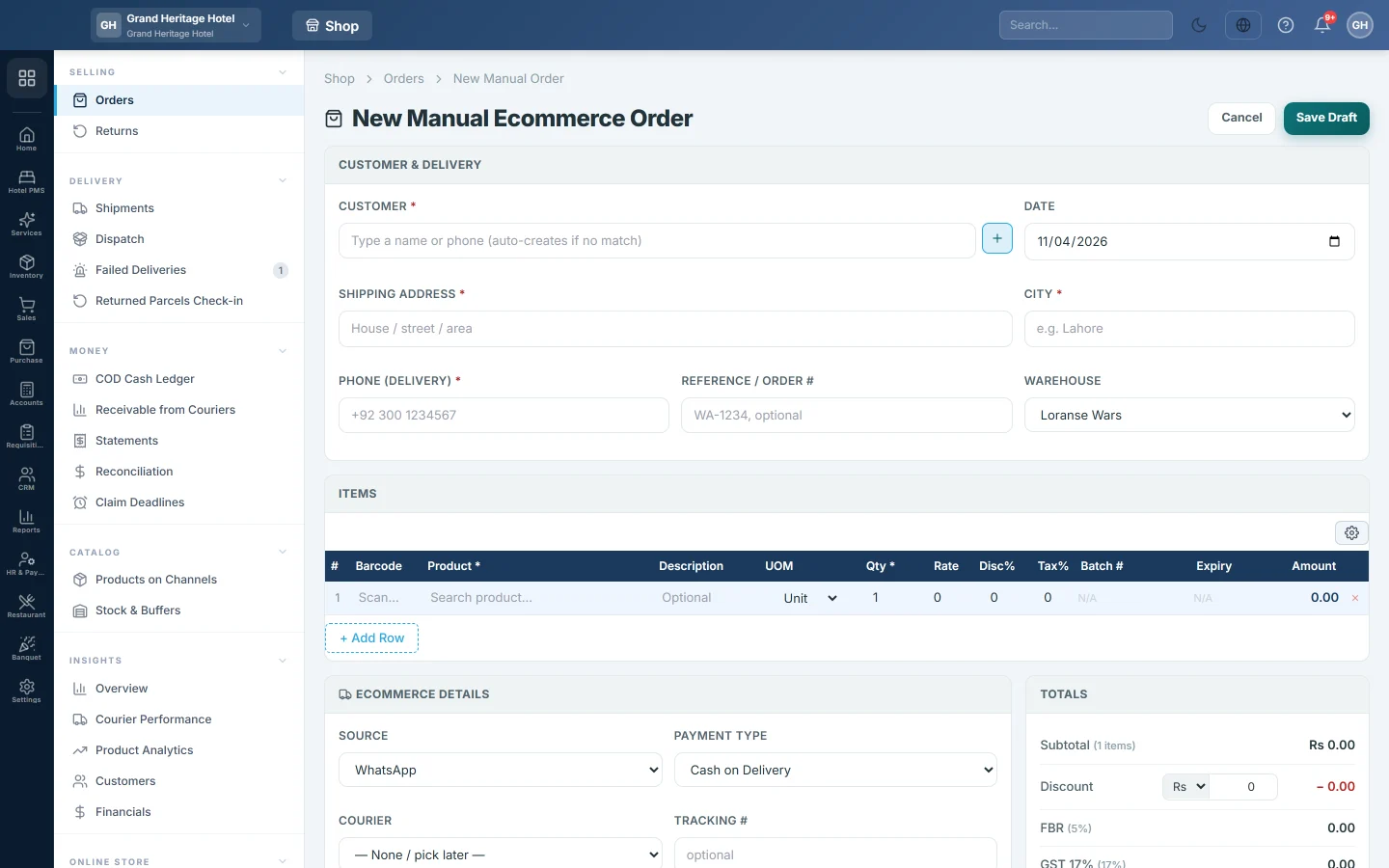
Click the New Order quick action at the bottom of the Online shop menu, or click New Order on Orders.
Enter the customer and delivery
- In Customer, type a name or phone number and pick the customer from the list. If nobody matches, the name you typed is created as a new customer when you save. The + button adds a customer with more detail.
- Check the Date.
- Fill in Shipping Address, City and Phone (delivery). All three are required, because the courier needs them to book the parcel.
- Optionally type a Reference / Order #, for example the WhatsApp chat number.
- Pick the Warehouse the goods leave from.
Add the items
- In Items, search for each product by name, code or SKU.
- Enter the quantity. The sale price fills in; change it or add a line discount if you agreed one.
- Under Totals, add an order Discount in Rs or %, and the Freight you charge the customer. Check the Grand Total.
Fill in the order details
- Under Ecommerce Details, choose the Source: WhatsApp, Phone, Walk-in, Email, Social Media or Other / Manual.
- Choose the Payment Type: Cash on Delivery, or Prepaid when the customer has already paid.
- For Prepaid, choose the Payment Method that received the money.
- Choose the Courier, or leave — None / pick later —. If you already booked the parcel on the courier's website, type its Tracking #.
- Add Order Notes for your packing team if needed.
Save or post the order
Choose one of two ways:
- Save only. Leave Post Sale Invoice + GL immediately off and click Save Draft. The order is saved, ready to book, with no invoice and no stock movement yet. Ship it later from its page; see Turn an online order into an invoice.
- Post at once. Turn Post Sale Invoice + GL immediately on and click Post Order. The sale invoice is posted and the stock is taken out straight away. A cash on delivery order needs a courier for this.
Leave Print invoice after saving on to print the invoice as soon as it is posted. The order opens after saving.
What happens in the books
Saving only posts nothing. Posting the order makes a sale invoice for the customer:
- For Cash on Delivery, the courier's COD Clearing ledger is debited with the total, because the courier collects the cash.
- For Prepaid, the invoice is marked paid and the payment method's Clearing ledger is debited.
- Sales, tax and freight are credited, and the goods leave stock at average cost, as on any sale invoice.
Common questions
I get "Delivery city is required". The courier cannot book without a city. Type the city in City before saving.
I get "Choose a courier for COD orders before posting immediately". Pick a Courier, or turn Post Sale Invoice + GL immediately off and post later.
Can I edit a manual order after saving? No. Saving again would make a duplicate, so the form refuses. Correct the city, phone or weight on the order page, or cancel the order and enter it again.
The customer is not in my list. Type their name or phone in Customer and save. A new customer is created with the delivery phone and address.
The order shows a note that dispatch failed. The order was saved, but its invoice could not be posted. Read the reason on the order's Timeline, fix it and ship the order from its page.
Teşekkür ederiz. Hâlâ yardıma ihtiyacınız varsa info@eloerp.net adresine yazın.