Take a dine-in order at the table
Seat guests at a table on the restaurant till, send their order to the kitchen, add more dishes later and settle the bill when they leave.
A dine-in order stays open while the guests eat. You send dishes to the kitchen as they are ordered, add more later, and take payment once at the end.
Before you begin
- The branch or outlet is in restaurant mode and Dine In is switched on. See Set up a branch in restaurant mode.
- Your tables exist on Floor & Tables, and Enable Table Management is on in POS Settings.
- Your dishes are set up as Menu Items with a kitchen department.
- If your user has Enable Cash Register, open your shift first. See Open and close a shift.
Where to find it
Open Restaurant → Quick Links → POS Terminal, or the Open POS quick action. Waiters can also take the order on a tablet, see Use the waiter app.
Seat the guests
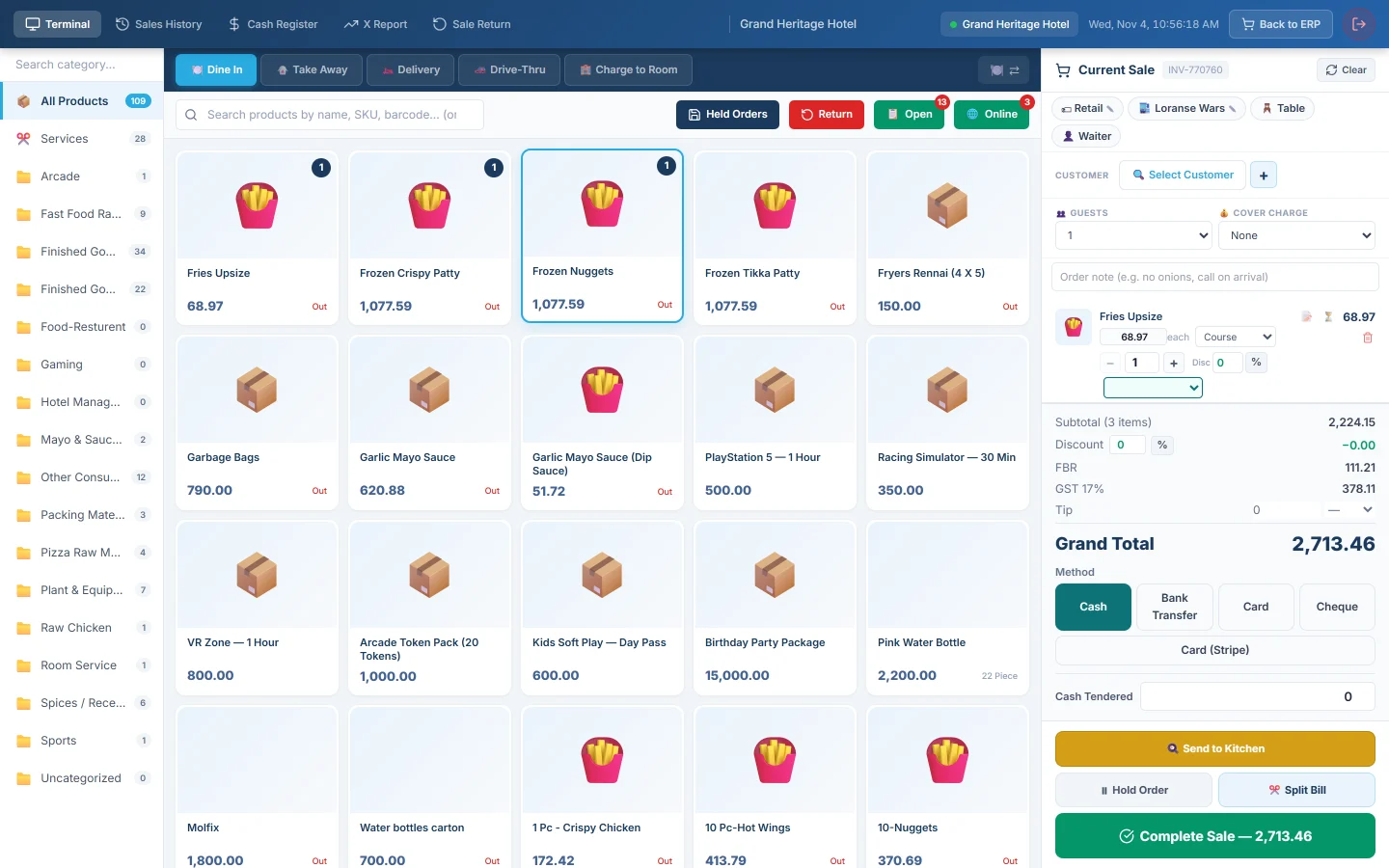
- Click 🍽️ Dine In in the bar above the products.
- Click the 🪑 Table chip at the top of the bill. Seat & Assign opens with your floor.
- Pick a free table. Occupied tables cannot be picked; a reserved one can, for a walk-in.
- Pick the waiter on the right. Each card shows how many tables the waiter has now.
- Click Confirm.
- Set 👥 Guests to the number of people.
- If you charge for the seat, choose an amount in 💰 Cover Charge. It is added once to the bill, not per guest.
Take the order
- Click each dish. A dish with sizes or add-ons opens its options first.
- To add a cooking instruction, click 📝 beside the dish. Type it, or tap a ready-made note such as No onion, and click ✓.
- To serve in courses, pick Starter, Main, Dessert, Drinks or Add-on in the Course list beside the price.
- For a note on the whole order, type it in Order note. It prints on the kitchen slip, the draft bill and the receipt.
- Click 🍳 Send to Kitchen.
The order is saved and its dishes go to the kitchen, one slip per kitchen department. The bill clears so you can serve the next guests. The order now waits under 📋 Open. See Send and reprint a KOT.
Add more dishes to a running order
- Click 📋 Open in the search bar. The badge shows how many orders are open.
- Find the order. Search by order number, table or waiter, or filter by Dine In.
- Click Open. The order comes back onto the bill with its table, waiter and guests.
- Add the new dishes.
- Click 🍳 Send to Kitchen.
Only the new dishes go to the kitchen. Dishes already sent show a kitchen status badge and are not sent twice.
Give the guest the bill
- In 📋 Open, click 🧾 (Temp Invoice) on the order.
A draft bill prints with a DRAFT mark and no payment lines. Nothing is saved or posted. When a waiter taps Request Bill in the waiter app, the 📋 Open button shows a 🔔 badge and the order is marked Bill.
Settle the bill
- Click Open on the order to load it.
- Check the totals. A service charge and tips appear here if you use them, see Tips & Service Charge.
- Pick the Method, and type Cash Tendered for cash.
- Click Complete Sale. To take two tenders, click ✂️ Split Bill instead, see Split a bill or move a table.
The sale is saved, the receipt prints with the kitchen's Order No., and the table is free again. Any dish still not sent goes to the kitchen at this point.
What happens in the books
Settling posts a sales invoice, just as at a retail till. Cash or the payment method's account is debited, Sales Revenue is credited with the food, and tax goes to its tax account. Cover charge and service charge ride on top of the tax and are not taxed. Stock items leave stock at cost; dishes with a recipe use up their ingredients instead, see Set up recipes and food cost.
Nothing is posted while the order is only open or sent to the kitchen.
Common questions
I clicked Send to Kitchen and the bill emptied. That is expected. The order is saved under 📋 Open. Click Open on it to add dishes or settle.
The table I want is greyed out. Another order is on it. Find that order in 📋 Open, or move it, see Split a bill or move a table.
Can I take a dine-in order without a table? Yes. Leave the table blank; the order is listed by its number. Tables help the kitchen and the waiter find the guests.
How do I cancel a dish already sent? Open the order in the waiter app and use Void / Comp on the line. See Use the waiter app.
Hold Order or Send to Kitchen? ⏸ Hold Order parks an order that is not ready for the kitchen; it moves to Held Orders and frees the table. Use Send to Kitchen for anything being cooked. If you hold an order that is already in the kitchen, it is parked but keeps its table until it is paid or discarded, so the guests' table is not given away.
شكرًا لك. إذا كنت لا تزال بحاجة إلى مساعدة، راسلنا على info@eloerp.net.