Floor & Tables
Add the dining areas (sections) and the tables in each, with table numbers and seats, so waiters and the till can seat guests at them.
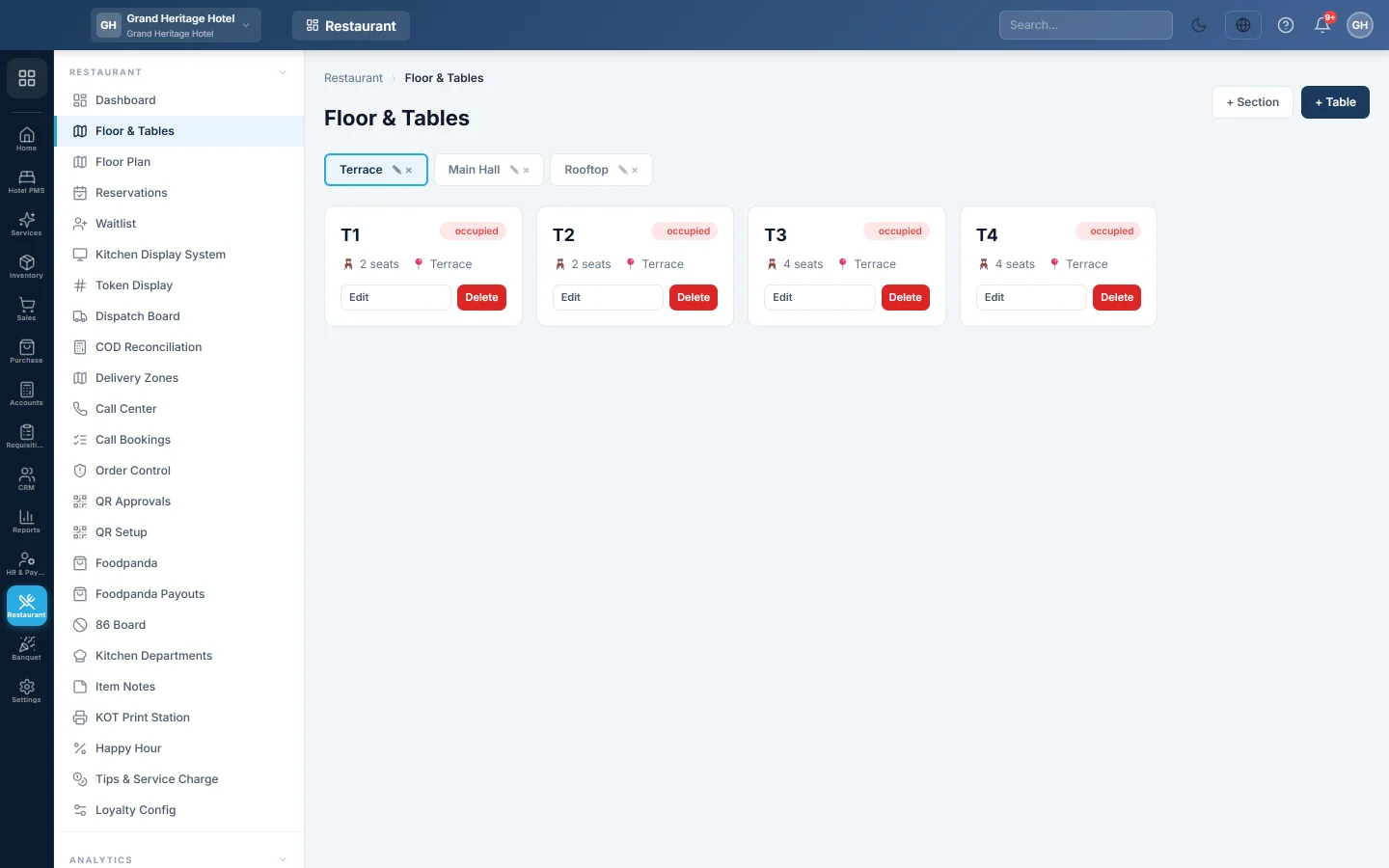
Floor & Tables is the simple list of your dining areas and their tables. Each table gets a number and a seat count; the till, the waiter app and the Floor Plan all use these tables.
Before you begin
- Switch to the right branch in the top bar first. Sections and tables belong to the branch you are in.
- To see sections and tables your role needs View Floor & Tables. To add them it needs Create Floor & Tables, to change them Edit Floor & Tables, and to remove them Delete Floor & Tables. Manage Waiter-Table Assignments covers all three. See Users & Roles.
Where to find it
Open Restaurant → Restaurant → Floor & Tables.
Add a section
A section is one dining area, for example Main Hall, Family Hall or Rooftop.
- Click + Section.
- Type the Section Name.
- Click Save.
The section appears as a tab. To rename it, click the ✎ on its tab.
Add a table
- Click the section's tab.
- Click + Table.
- Type the Table Number, for example T1. This is what waiters and the bill show.
- Optionally type a Name, for example Window booth.
- Enter the Seats, from 1 to 50.
- Check the Section.
- Click Save.
The table shows as a card with its seats, section and status. On the Floor Plan it gets its own spot, which you can then move.
Edit or delete a table
- Click Edit on the card to change its number, name, seats, section or Status.
- Click Delete and confirm to remove it. A table with an open order cannot be deleted; settle or move the order first.
The Status is set by the tills and waiters as orders open and close: Available, Reserved or Occupied. Change it here only to correct a table that is stuck.
Delete a section
Click the × on the section's tab and confirm. A section that still has tables cannot be deleted; move or delete its tables first.
Common questions
What is the difference between Floor & Tables and Floor Plan? Both edit the same tables. Floor & Tables is a quick list. Floor Plan draws the room to scale and has the live board for hosts.
I added a table but the waiter cannot see it. Check that you added it in the waiter's branch. Tables belong to the branch you were in when you added them.
Can two sections have a table with the same number? EloERP allows it, but avoid it. The kitchen and the bill show only the number, so two T1s are easy to mix up.
The section will not delete. It still has tables. Delete or move them to another section, then delete the section.
شكرًا لك. إذا كنت لا تزال بحاجة إلى مساعدة، راسلنا على info@eloerp.net.