Shifts, X and Z reports on the offline till
Open and close a shift on the offline till, read and print its X-Report without internet, and finalize its Z-Report online once the till has uploaded the shift.
The offline till runs the shift on the PC: the opening float, the sales, cash in and out, and the close with your count. The X-Report works there without internet. The Z-Report is finalized online, once the till has uploaded the whole shift.
Before you begin
- The cashier's user has Enable Cash Register ticked. See Users & Roles.
- The manager who finalizes has View Z-Report (End of Shift) and signs in to EloERP in a browser.
- The till has internet at some point after the close, so the shift can upload.
Where to find it
- On the till: the Cash Register and X Report tabs.
- Online: Sales → POS → Z-Report (End of Shift).
Open the shift
- Count the cash in the drawer.
- Sign in on the till. The Open Cash Register screen covers the till.
- Type the Opening Balance and click Open Register & Start.
This works without internet. The full steps are in Open and close a shift.
Read the X-Report on the till
- Click the X Report tab.
- Read the totals, Payment Breakdown and Cash Drawer, as in X-Report (Mid-Shift).
- To print, pick A4 or 80mm Thermal and click Print.
The figures come from the till itself, so they are complete even offline. The header shows the shift number, for example Shift #19 (till #8): the number the office sees, then the till's own count.
While the till is online it compares its figures with the server. A red note reads "This till's figures differ from the server." when they do not match. This usually means some sales are still uploading. Wait until Waiting to sync in the Manager Console is 0, then click Refresh.
Close the shift on the till
- Count the drawer.
- On the X Report tab, click Close Shift.
- In Close Shift — Cash Denomination, enter how many of each note and coin you have.
- Click Close Shift. The message reads "Shift closed. Open Z-Report to finalize."
You can also close from the Cash Register tab with Close Register and Actual Cash Counted.
The close waits in the till's queue like a sale. Leave the till on and online until the Manager Console shows Waiting to sync at 0.
Finalize the Z-Report online
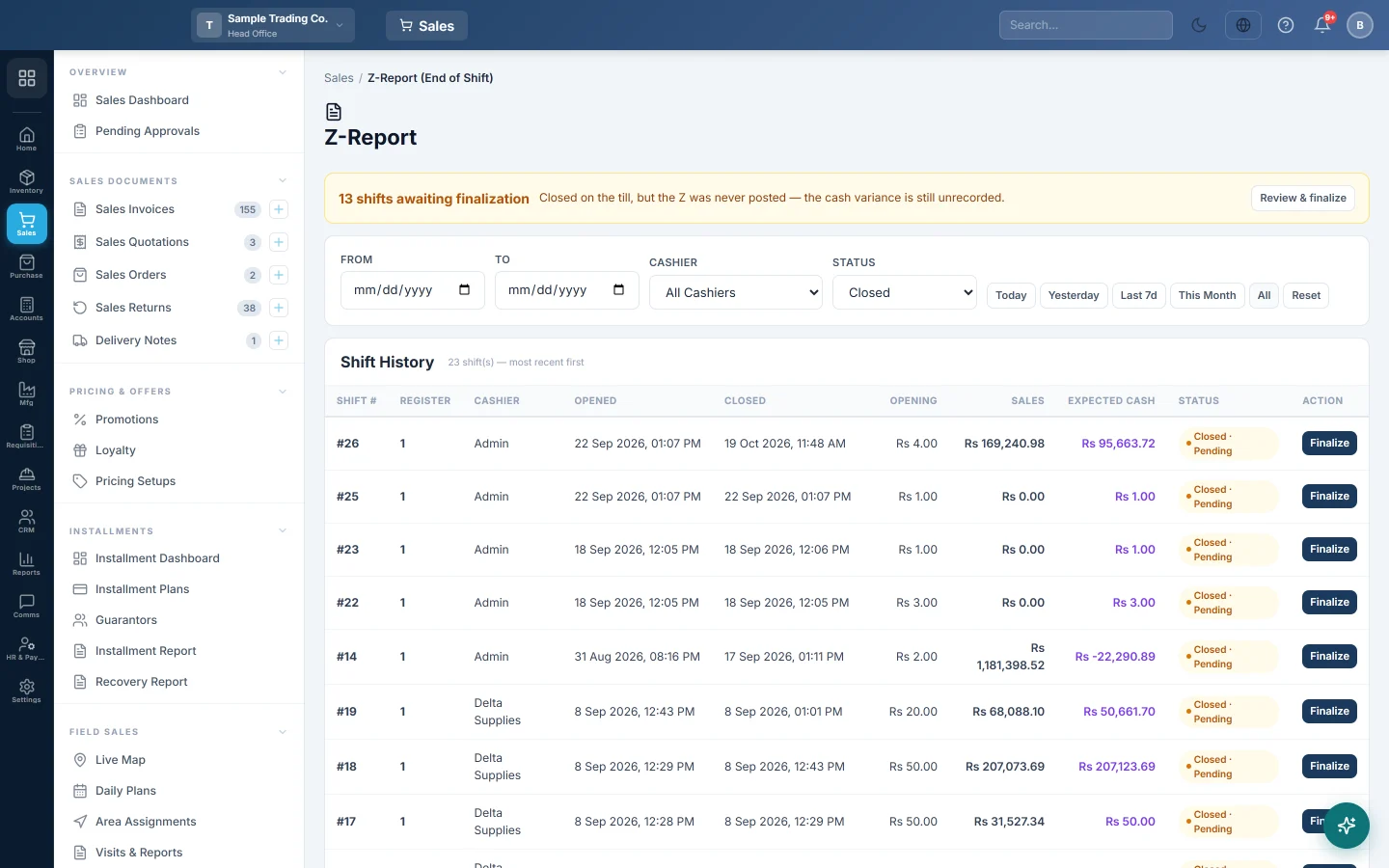
- In a browser, open Sales → POS → Z-Report (End of Shift).
- Find the shift. Once uploaded it shows Closed · Pending.
- Click Finalize, check the Counted Cash, choose where any difference goes, and click Finalize & Close Z-Report.
The full steps are in Z-Report (End of Shift).
If the till has not finished uploading, EloERP refuses with one of these messages:
| Message | What to do |
|---|---|
| "This offline shift has not been closed on the device yet (shift-close not synced)." | Close the shift on the till and let it sync. |
| "This offline shift is not fully synced — some transactions are still queued on the device." | Bring the till online and wait for Waiting to sync to reach 0. |
| A shift with open sync exceptions | Check and resolve them in Offline POS. |
A manager with Close Cash Register can force the Z on the data that arrived. Do this only when the till's remaining sales cannot reach EloERP.
What happens in the books
The till posts nothing itself. Each sale, return and cash movement posts when it uploads. Finalizing the Z posts only the cash shortage or overage, as described in Z-Report (End of Shift).
Common questions
Can I finalize the Z on the till? No. The Z is always finalized online, after the shift has uploaded.
What does Close shift (Z) in the Manager Console do? It closes a cashier's shift on the till with a counted amount, the same as Close Shift. The Z-Report is still finalized online.
The till's X-Report counts a credit bill as cash. Older versions of the POS app did this. Install the latest version. See Keep the offline till up to date.
Two cashiers share the PC. Whose shift is it? With Shift-Locked (Default) in POS Settings, each cashier has their own shift on the till. A manager sees both in the shift list on the X Report.
The shift number on the till differs from the office. The till counts its own shifts. The Shift # in the header is the office number once the till has been online; the till # is the till's own.
Gracias. Si todavía necesita ayuda, escriba a info@eloerp.net.