How offline sales sync, and what to do with sync problems
When the offline till uploads its sales and downloads your products, how to see what is still waiting on the PC and in the office, and what to do when a sale is held back.
The offline till keeps a queue of everything it records. While the PC is online it uploads the queue to EloERP and fetches your latest products and prices. Most records post within seconds; the few that cannot are listed for you to check.
Before you begin
- The till is paired. See Install the POS app on a PC and pair it.
- Checking from the office needs a role that can manage POS devices.
- On the PC you need the Manager PIN. See The Manager Console on the offline till.
Where to find it
- On the PC: the Manager Console, pages Overview and Sync Queue.
- In the office: Settings → Configuration → POS Devices shows each till's Last sync and Last seen.
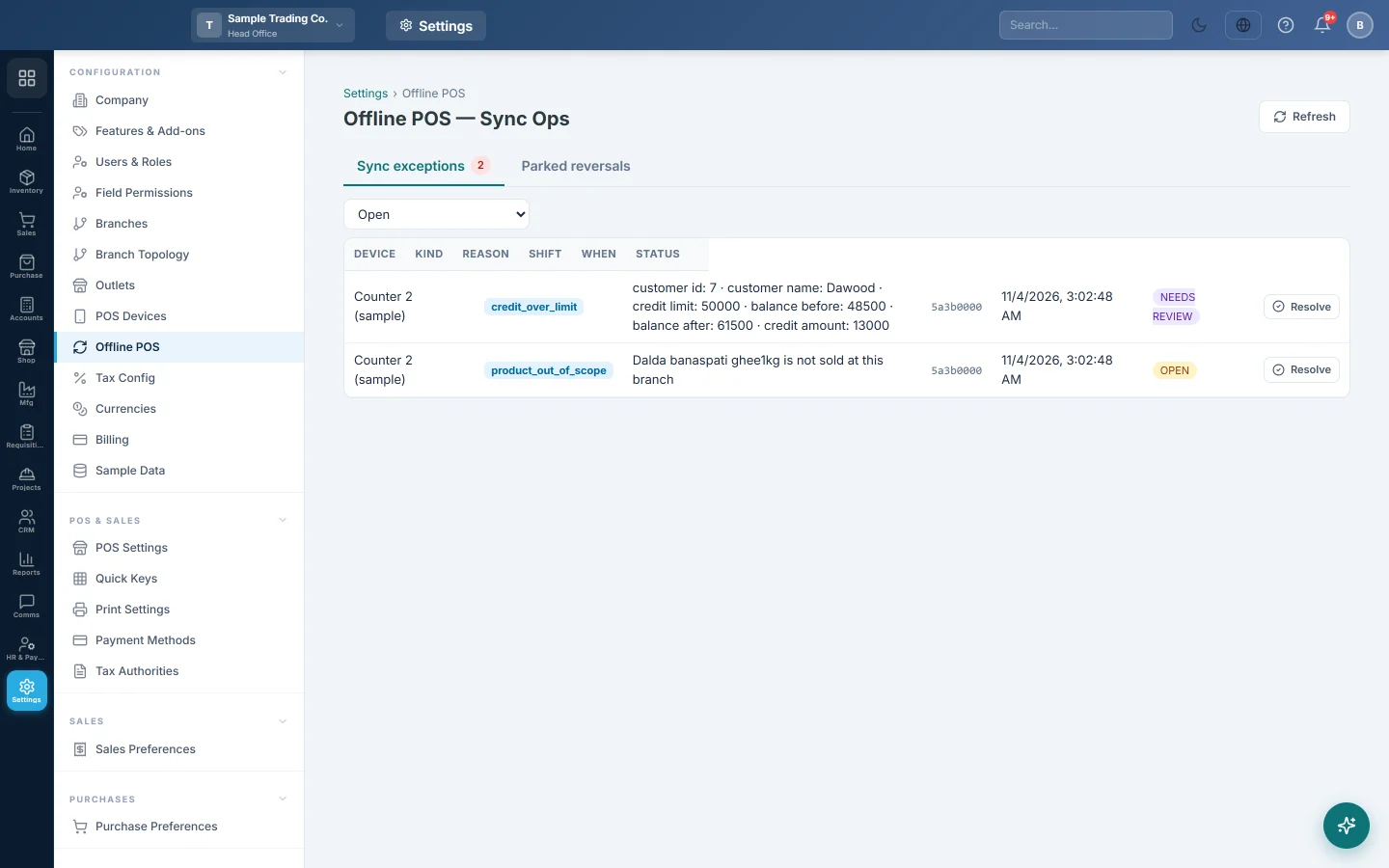
- Settings → Configuration → Offline POS lists the sales that were held back.
What syncs and when
| Direction | What | When |
|---|---|---|
| Till to EloERP | Sales, returns, voids, cash in and cash out, shift opens and closes, new customers | Every 15 seconds while online, oldest first |
| EloERP to till | Products, prices, customers, payment methods, users, taxes and POS settings | Every 10 minutes while online; the whole catalogue after pairing |
| EloERP to till | The till's screens | At start and every 6 hours. See Keep the offline till up to date |
Each uploaded sale posts as if it was rung online. It keeps the time it was rung, the cashier and the till's shift.
Check what is waiting on the PC
- Open the Manager Console on the till.
- On Overview, read Waiting to sync. The line under the buttons reads "All caught up — no unsynced records." when nothing waits.
- Click Sync now to upload at once. The message says how many items synced, or why nothing did.
- Open Sync Queue to see each waiting record: Type, Invoice, Amount, Time and Server says.
Server says gives the server's reason for a record that has not landed. When everything is up, the page reads "Nothing queued — everything is synced. ✅".
Fetch the latest products and prices
- In the Manager Console, click Pull data to fetch what changed since the last download.
- Click Full refresh to download the whole catalogue again, for example after a big import.
Last catalog sync shows when the till last downloaded.
Check from the office
- Open Settings → Configuration → POS Devices.
- Read Last sync and Last seen for the till. Last seen moves every few seconds while the till is online.
- Open Settings → Configuration → Offline POS for the sales that were held back.
When a sale is held back
A held-back sale is never thrown away. The server keeps it as a sync exception, and the till keeps it in its Sync Queue with the reason.
The Kind column on the Offline POS page names the problem. The common ones:
| Kind | What it means | What to do |
|---|---|---|
| missing_customer | The sale's customer was added on the till and has not uploaded yet. | Nothing. It clears on a later sync. |
| ingest_error | The server could not post the sale yet. Reason says why. | The till retries by itself. If the same reason stays, ask your service provider. |
| bad_cashier | The cashier's user no longer exists in your company. | Ask your service provider. |
| tracked_product_offline | A batch or serial-tracked product was sold from an older till. | Sell those products online. Ask your service provider about the held sale. |
| credit_over_limit, discount_over_limit, math_mismatch | The sale posted, but needs a look. | Check the invoice. |
Rows with the status review (ingest_error and the three flags above) show only when you choose All in the filter.
A return or void that arrives before its sale waits under Parked reversals. It applies itself when the sale arrives.
The steps for Resolve and Re-queue are in Offline POS.
Common questions
Waiting to sync does not go down. Check the PC's internet. Then click Sync now and read Server says on the Sync Queue page. If Last seen in POS Devices is old, the till is not reaching EloERP at all.
Sales arrive in the wrong branch. The till was paired with a code made in another branch. See Move, unpair or remove the offline till.
A price change has not reached the till. The till fetches every 10 minutes. Click Pull data in the Manager Console to fetch it now.
Can the Z-Report be finalized before the sync finishes? No. The shift must be fully uploaded first. See Shifts, X and Z reports on the offline till.
Over-limit credit sales do not show under Open. They post and are listed for review only. Choose All in the Sync exceptions filter to see them. See Credit sales on the offline till.
Thank you. If you still need help, write to info@eloerp.net.