Add branches and warehouses
Add each shop, office or location as a branch, and the stores inside it as warehouses, so stock and documents are kept in the right place.
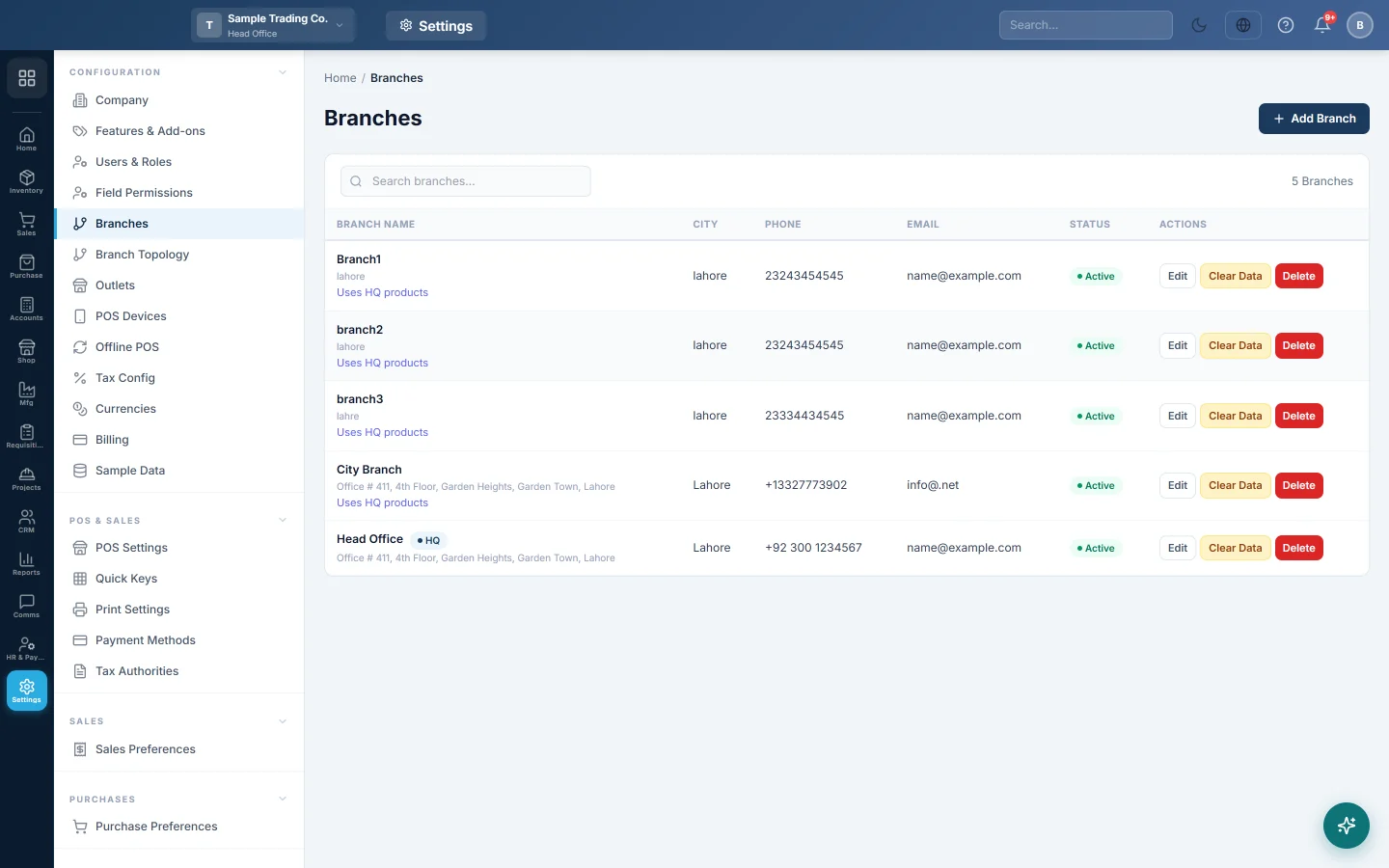
A branch is a place you do business, such as a shop, clinic or office. A warehouse is a place inside a branch where you keep stock. Every sale, purchase and payment is recorded in a branch, and every stock movement in a warehouse.
Before you begin
- Your head office branch, marked HQ, and its Main Warehouse were created at sign-up. A one-location business may need nothing more.
- How many branches you can add depends on your plan.
- You need a role that can edit branches and warehouses.
Where to find it
- Branches: Settings → Configuration → Branches.
- Warehouses: Stock → Warehouse → Warehouses, also under Settings → Inventory → Warehouses.
Add a branch
- Open Settings → Configuration → Branches and click Add Branch.
- Type the Branch Name, for example Mall Branch.
- Fill in the Address, City, Phone and Email. They print on this branch's invoices.
- Under Product Catalog, choose Own Products or Use Head Office Products.
- Choose the POS Mode: Retail POS, Restaurant POS or Both (Retail + Restaurant).
- Click Add Branch.
The new branch gets its own Main Warehouse straight away.
For the print, currency and time zone options of a branch, see Branches.
Add a warehouse
Add a warehouse for each separate place you keep stock, such as a back store or a godown.
- Open Stock → Warehouse → Warehouses and click Add Warehouse.
- Type the Warehouse Name, for example Back Store.
- At head office, choose the Branch it belongs to. In any other branch, it goes to your own branch.
- Type the Location / Address if you like.
- Click Create Warehouse.
See Warehouses for shared warehouses and moving stock between them.
Work in another branch
- Click the company and branch name at the left of the top bar.
- Choose the branch.
Everything you enter from then on is recorded in that branch. Users only see the branches they are given; see Add users and give them roles.
Common questions
The page says the branch limit is reached. Your plan allows a set number of branches. Ask your service provider to raise the limit.
Do I need a warehouse for a branch that sells only services? No extra one. The Main Warehouse created with the branch is enough.
Does each branch need its own accounts? No. The chart of accounts is shared by the company, and each entry records its branch, so you can report per branch.
Can I delete a branch I added by mistake? Yes, if it has no invoices, vouchers or stock yet. Otherwise set its Status to Inactive.
Obrigado. Se ainda precisar de ajuda, escreva para info@eloerp.net.