Menu Items
Set up your dishes and drinks as products for the restaurant till, choose which kitchen department cooks each one, and add options, combos and recipes.
Your menu is made of products: each dish or drink is a product with a sale price. A few restaurant settings on the product decide how it shows on the till and which kitchen cooks it.
Before you begin
- Make categories for your menu, such as Starters, BBQ and Drinks. They become the category list on the till. See Categories.
- Add your kitchen departments first, see Kitchen Departments.
- Your role needs to add and edit products. Options, combos and recipes each need their own permission: Manage Menu Modifiers, Manage Menu Combos and Manage Menu Recipes (Ingredients / BOM). See Users & Roles.
Where to find it
Open Restaurant → Quick Links → Menu Items. It opens the Products list, the same as Inventory → Products. See All Products.
Add a dish
- Click Add Product.
- Type the Product Name, for example Chicken Karahi (Half), and pick the Category.
- Type the Sale Price.
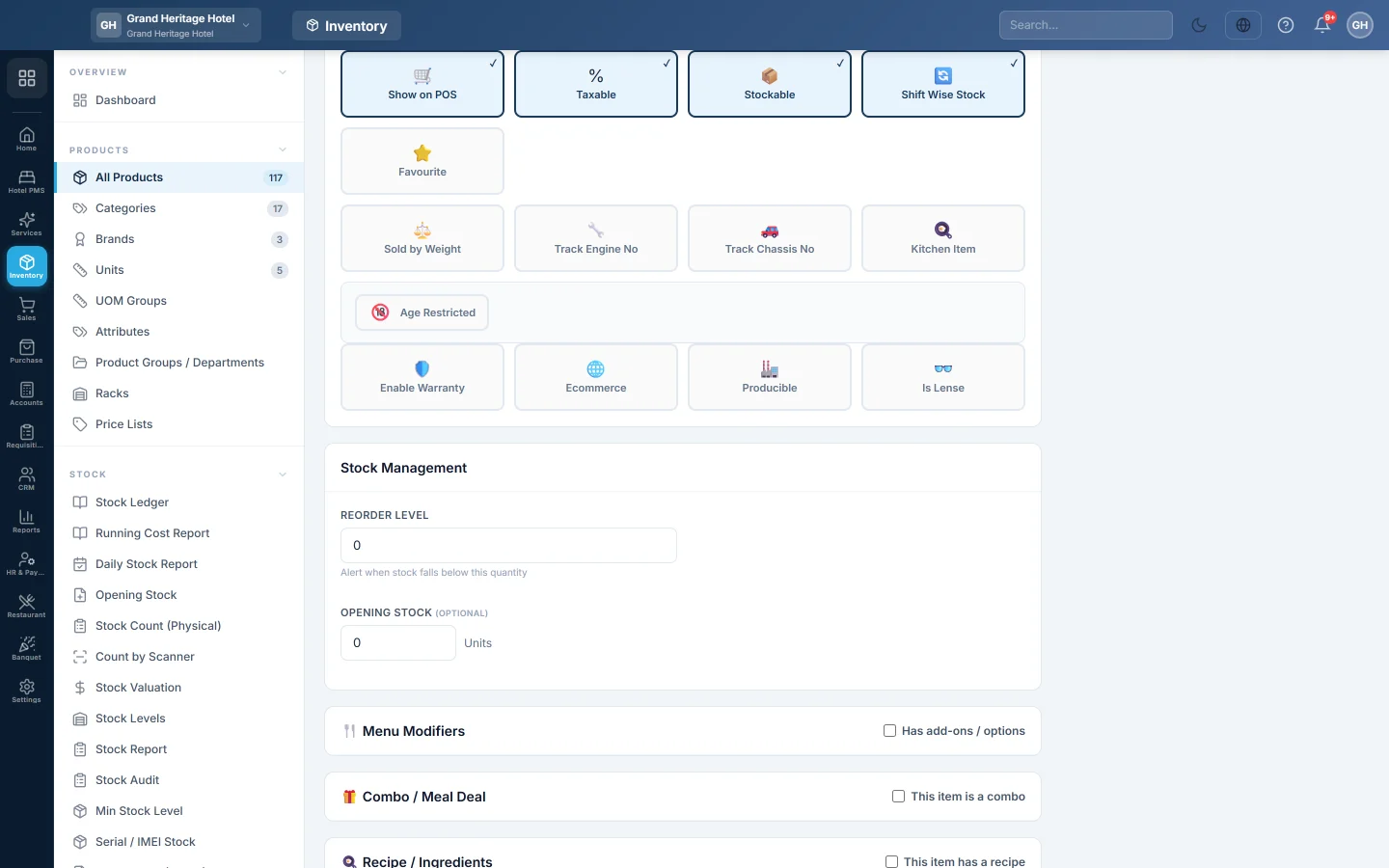
- Under Product Settings, leave Show on POS ticked, so the dish appears on the till.
- Tick Kitchen Item for anything the kitchen prepares.
- Under Kitchen Department (per branch), pick the department that cooks it at each branch, for example Main Kitchen.
- Untick Stockable for a dish made to order, unless you count it in stock like a bottled drink.
- Click Save & Publish. Save Draft keeps it off the till until you publish it.
Leave a branch on Auto (category / default department) and the dish goes to the item's main department, or to that branch's default department. Auto routing stays within the branch: another branch's department is used only when the branch has none of its own.
What Kitchen Item does
- When an order is sent with Send to Kitchen, every new line goes to the kitchen, split by department.
- When a sale is paid straight away, without sending it first, only Kitchen Item lines get a KOT. Drinks and packaged goods do not.
- The Kitchen Department choice appears only when Kitchen Item is ticked.
To change many dishes at once, use Bulk Edit on the Products list. It has Kitchen and Kitchen Dept columns.
Options, combos and recipes
Restaurant companies get three more sections at the bottom of the product form:
- Menu Modifiers: sizes, add-ons and choices the cashier picks when adding the dish. See Add options and add-ons to a menu item.
- Combo / Meal Deal: a deal that includes several items at one price. See Make a combo or meal deal.
- Recipe / Ingredients: the raw ingredients one portion uses. When the dish is sold, they are taken out of stock and booked as food cost. The form shows the Theoretical plate cost and the food cost %.
Common questions
A dish does not show on the till. Check it is active, Show on POS is ticked and it has a sale price. If it is sold out, check the 86 Board.
A dish went to the wrong kitchen. Open the dish and check its Kitchen Department for that branch. The change applies to the next KOT.
Should drinks be Kitchen Items? Only if someone prepares them, for example a juice bar. Then pick the Bar / Drinks department for them.
How do I add a cooking note such as No onion? Notes are added on the bill, not on the product. See Item Notes.
Gracias. Si todavía necesita ayuda, escriba a info@eloerp.net.