Kitchen Display System
The kitchen screen that shows every KOT sent from the till, the waiter app and the call centre, so cooks can start, finish and serve each order and reprint its slip.
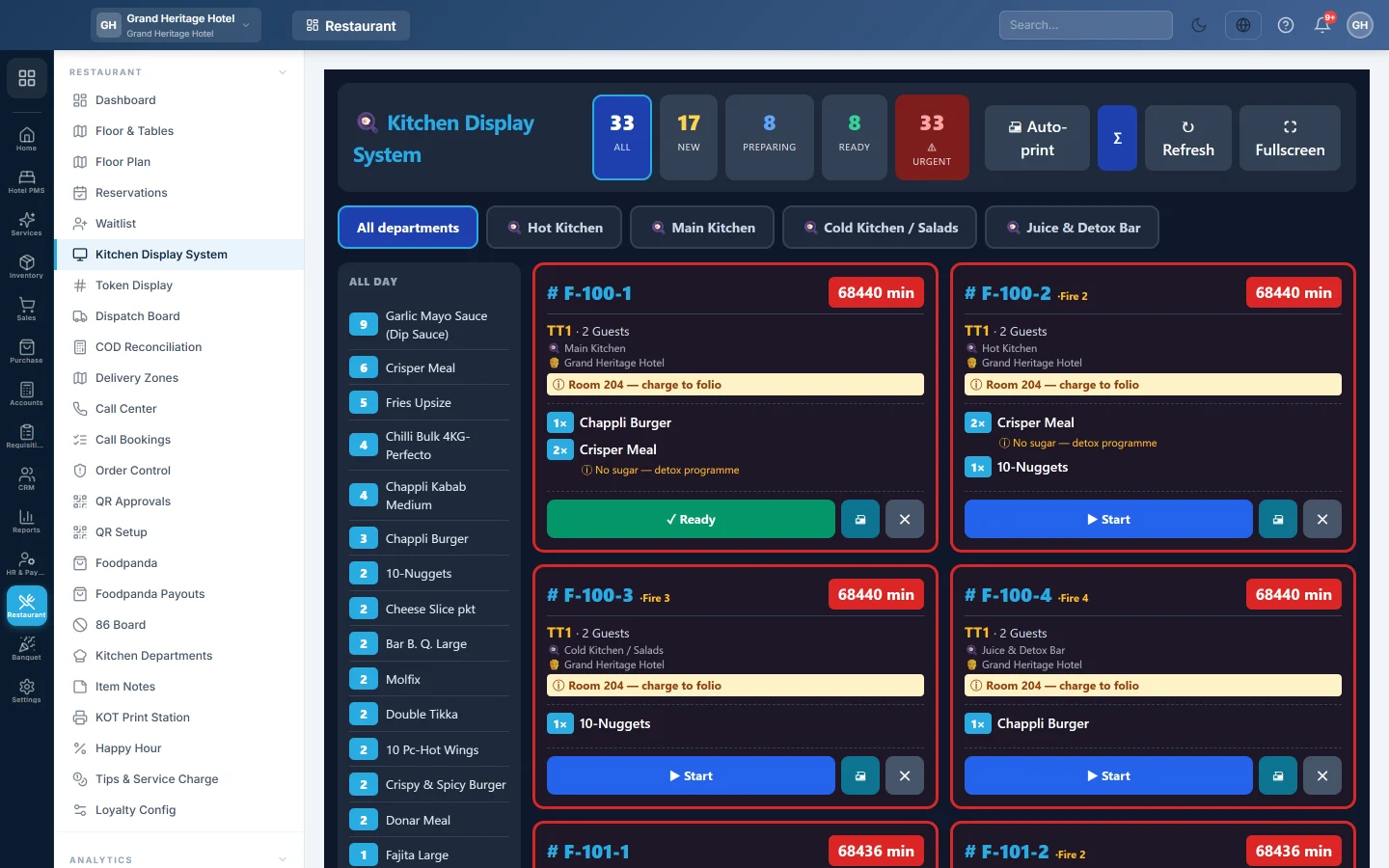
The Kitchen Display System (KDS) shows the kitchen order tickets (KOTs) that are waiting to be cooked. Cooks move each ticket from Start to Ready to Served, and the till and waiters see the progress.
Before you begin
- Set up your kitchen departments, such as Main Kitchen or Bar, on Kitchen Departments. Each ticket goes to one department.
- Tell EloERP which department cooks each dish, see Menu Items.
- The cook's role needs View KDS Tickets to see the board, Bump KDS Tickets to move tickets on and Recall KDS Tickets to pull a ticket back. The Kitchen / KDS role has these. See Users & Roles.
- The board shows the branch you are signed in to. Switch branch in the top bar if you see the wrong kitchen.
Where to find it
Open Restaurant → Restaurant → Kitchen Display System. The board opens full screen. A user assigned to a department lands on this board after signing in.
Read the board
| Part | What it shows |
|---|---|
| All, New, Preparing, Ready | How many tickets are in each state. Click one to show only those tickets. |
| ⚠ Urgent | Tickets older than their department's prep time. It appears only when there are some. |
| Department tabs | All departments (or My departments) and one tab per department. They appear only when you can see more than one. |
| All Day | Down the left: the total of each dish across all open tickets, so the grill knows it needs 12 burgers in all. Σ shows or hides it. |
| Ticket | The KOT number, the minutes since it was sent, the table and guests, the department, the waiter, the customer, the order note and each dish with its options and notes. |
The minutes on a ticket turn amber at three quarters of the department's Prep SLA, and red once it is passed. Without a prep time, EloERP uses 15 minutes.
A second round of dishes for the same order shows as · Fire 2. A call-centre order with a promised time shows Due in 10 min, Due now or Late 5 min.
Cook an order
- When a ticket appears, click ▶ Start. It moves to Preparing.
- When the food is ready at the pass, click ✓ Ready. The till and the waiter app show the dish as ready.
- When it has left the kitchen, click ✓✓ Served. The ticket leaves the board.
When every ticket of an order is served, the order itself is marked served.
Recall or cancel a ticket
- Recall: on a Ready ticket, click ↩ to send it back to Preparing, for example when it was bumped by mistake.
- Cancel: click ✕ (or press X) and confirm to take a ticket off the board. Use it only for a ticket that will not be cooked. A cancelled ticket cannot be brought back from this screen. To remove one dish from an order, void it on the till instead.
Print kitchen slips
- Click 🖨 on a ticket to print its KOT again.
- Click 🖨 Auto-print to print each new ticket once, as it arrives, on this computer's printer. The setting is kept on this computer only. Tickets already on the board when you turn it on are not printed.
- The number of copies comes from Number of KOT Prints in POS Settings.
A department with a printer but no screen can use the KOT Print Station instead.
Common questions
Why do I see only some departments? Your user is assigned to those departments on Kitchen Departments. Assigned users see only their own tickets. A user with no assignment sees every department.
A dish went to the wrong department. The department comes from the menu item, see Menu Items. Changing it affects the next tickets only.
Why is the KOT number like O-105-2? O-105 is the order's KOT number, and -2 is the department. The guest's bill shows O-105. Tickets from the offline till start with F-.
The board does not change. It refreshes by itself every few seconds. Click ↻ Refresh to load it now. Check that you are signed in to the right branch.
Every slip opens the print window. A browser asks before each print. On the offline POS the hub can print to the kitchen printer without asking; otherwise ask your service provider to set the kitchen PC to print silently.
Where are finished tickets? On KOT History.
Gracias. Si todavía necesita ayuda, escriba a info@eloerp.net.