QR Setup
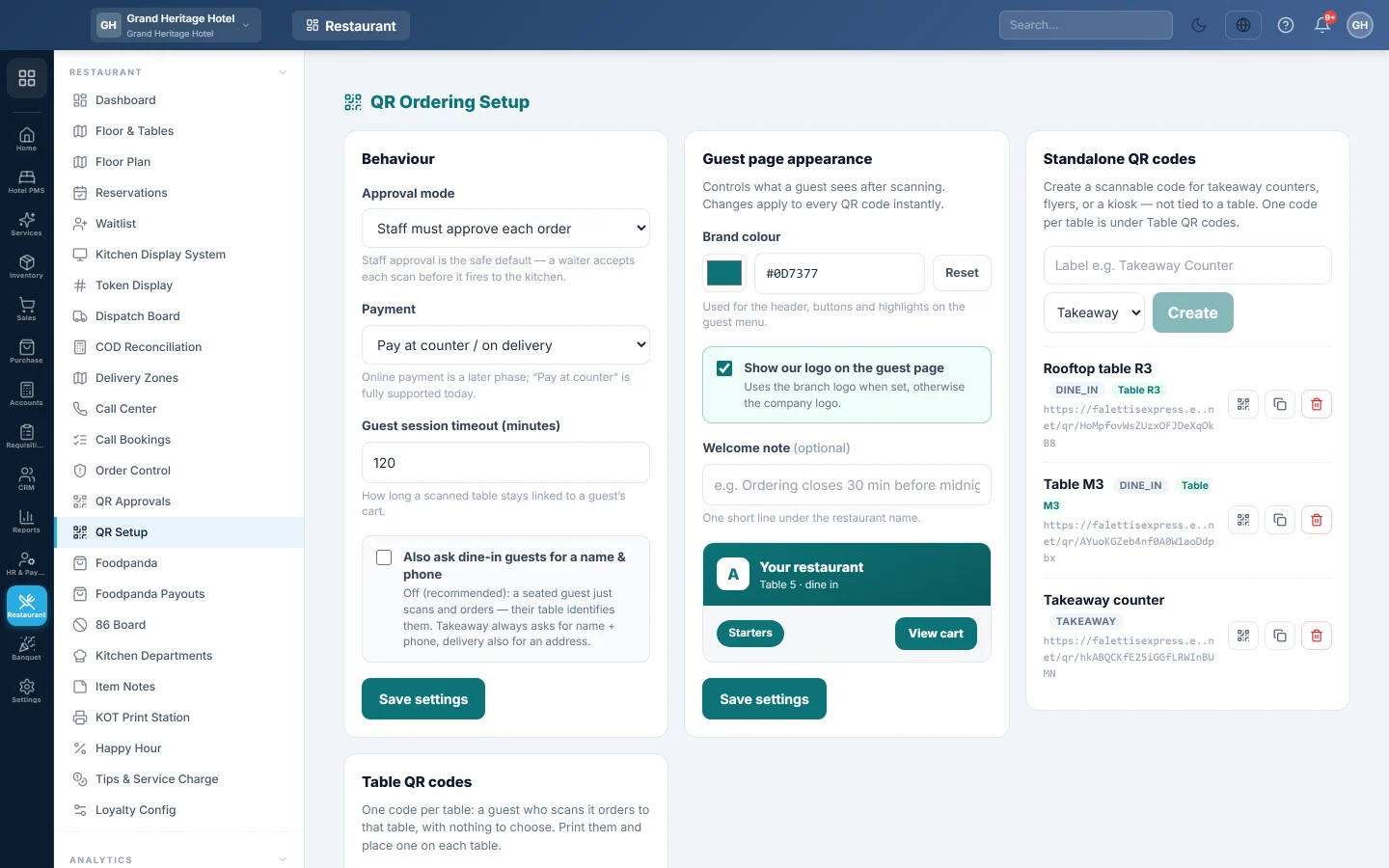
Decide how QR guest orders reach the kitchen, brand the guest menu page, and create QR codes for tables, takeaway counters and flyers.
QR ordering lets guests scan a code, browse your menu on their phone and send an order. On this screen you choose whether staff approve each order, set the look of the guest page, and create the codes.
Before you begin
- QR ordering must be switched on for your company. Your service provider turns on QR table ordering. Until then the QR menu items are hidden. If this screen shows the yellow banner Guest ordering is switched off for this account., you can prepare codes, but guests who scan see "Menu unavailable".
- Your role needs Manage QR Tokens & Menus. See Users & Roles.
- Your menu items are set up, active and shown on the POS. See Menu Items.
- For dine-in codes, your tables exist. See Floor & Tables.
- For the logo on the guest page, upload one in Company or on the branch.
Where to find it
Open Restaurant → Restaurant → QR Setup.
Choose how orders reach the kitchen
- Under Behaviour, pick the Approval mode:
- Staff must approve each order: each order waits on QR Approvals until a waiter accepts it. This is the safe default.
- Auto-send to kitchen (no approval): the order goes to the kitchen as soon as the guest places it.
- Leave Payment on Pay at counter / on delivery. Online payment is not available yet.
- Set Guest session timeout (minutes), from 15 to 1440. This is how long a phone stays linked to the guest's order after scanning. The default is 120.
- Tick Also ask dine-in guests for a name & phone only if you want contact details from seated guests. Takeaway always asks for a name and phone; delivery also asks for an address.
- Click Save settings.
Brand the guest page
- Under Guest page appearance, pick a Brand colour, or type a hex value such as #0D7377. Reset goes back to the default.
- Tick Show our logo on the guest page. The branch logo is used when the branch has one, otherwise the company logo.
- Type a short Welcome note, for example Kitchen closes at 11 pm.
- Check the small preview and click Save settings.
Changes apply to every QR code at once.
Print a code for each table
A table code sends the guest straight to that table's order, with nothing to choose.
- Under Table QR codes, find the table in the list. It shows every table in this branch.
- Click the QR button (Show QR code) on its row. The code opens with its link.
- Click Print to print that one code, or Copy link to copy its link.
- Click Close.
To print every table's code in one go, click Print all table codes. Allow pop-ups if the browser blocks the print window.
Create a standalone QR code
Use a standalone code for a takeaway counter, a flyer or a kiosk, or for a dine-in code where the guest picks the table.
- Under Standalone QR codes, type a label, for example Takeaway Counter.
- Choose the order type: Takeaway, Dine-in or Delivery.
- For Dine-in, pick the table, for example Table 5. With Guest picks the table, the guest must choose their table before they can order.
- Click Create.
The code appears in the list with its link. Click the QR button (Show QR code) to see and Print it, or the copy button (Copy link) to copy the link.
To stop a code working, click its delete button and confirm. Anyone who scans it afterwards sees an error.
Give guests one ordering address
The Public ordering page panel turns one takeaway or delivery code into an easy address, your own address followed by /menu, for your social pages and map listing. It is off until you choose a code under Menu shown at this address. The same panel sets Take orders only during opening hours and a Minimum order for delivery, which apply to that address only. See Your online ordering link (/menu).
When your company has the customer portal, takeaway and delivery guests can also sign in with a code to their phone, keep their delivery addresses and order again. Guests at a table never see it.
What the guest sees
- The guest scans the code. The menu opens with your name, logo, colour and welcome note, and the table number for a dine-in code.
- They search or browse categories, tap a dish, choose options and add it to the cart.
- In the cart they see the Subtotal, any Happy hour saving, the taxes and the service charge, worked out by EloERP.
- They fill in their name and phone, or address, when asked, and press Place order.
- The tracking page shows each item as pending, ready, served or removed.
- From there they can + Add more items, press 🔔 Call waiter or 🧾 Request bill, and rate their visit. Ratings go to Feedback.
Items that are sold out on the 86 Board, hidden from the POS, or outside their serving hours do not show on the guest menu.
Common questions
A guest sees "Menu unavailable". QR ordering is off for your company, or the code was deleted. Ask your service provider to turn on QR table ordering.
Can guests at one table each scan and order? Yes. All orders from one table join the table's running order, so the table gets one bill.
Does the guest pay on their phone? Not yet. Pay at counter / on delivery is the only working payment option today.
Why are prices on the guest page different from the menu card? A happy-hour rule is running. See Happy Hour.
Does the delivery fee show to the guest? No. The cart says the delivery fee is confirmed by the restaurant.
Teşekkür ederiz. Hâlâ yardıma ihtiyacınız varsa info@eloerp.net adresine yazın.