Order Control
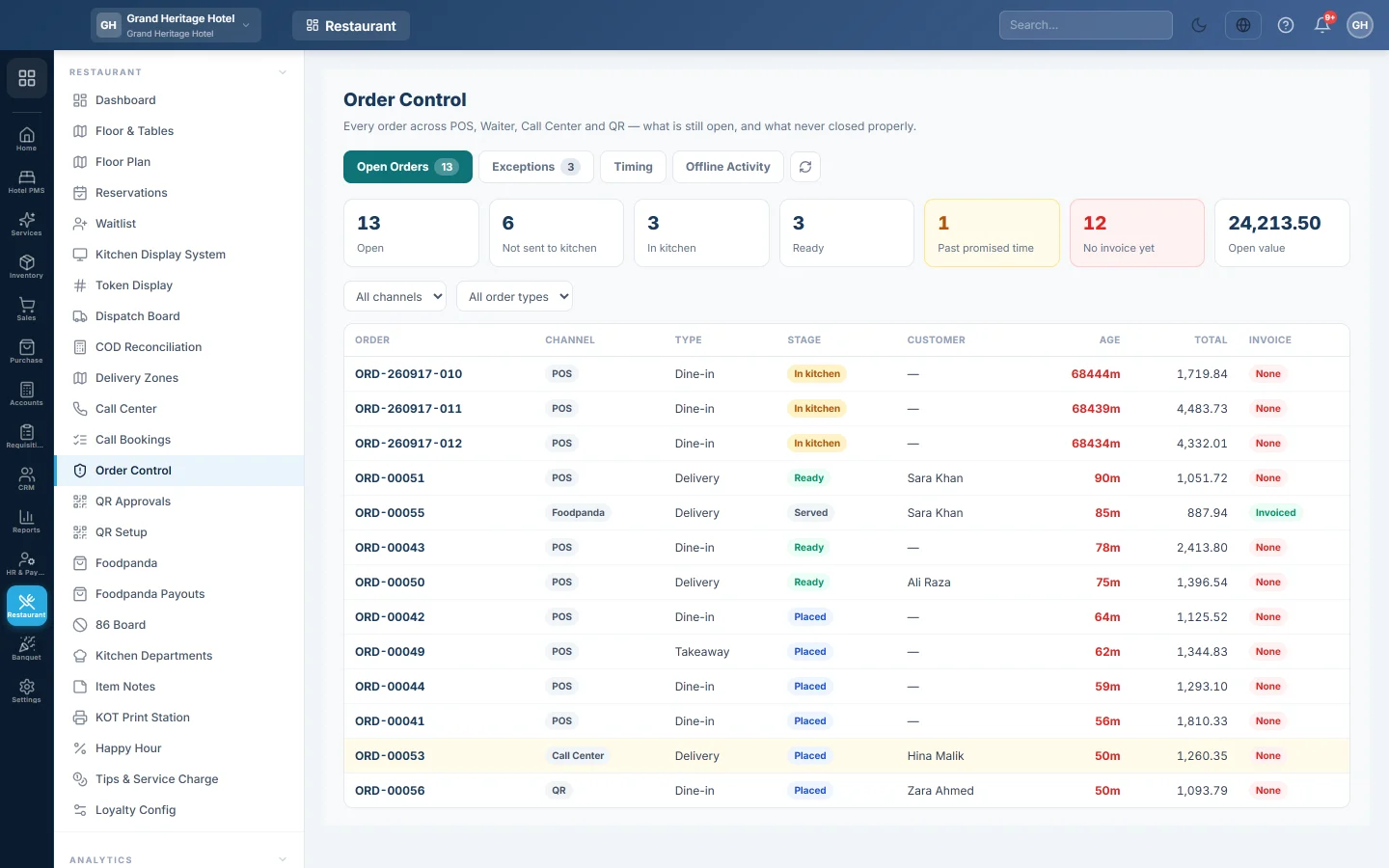
A manager's control screen over every restaurant order from the till, waiters, call centre, QR and Foodpanda, showing what is still open, what was cooked or served but never billed, what ran late, and what the offline tills did.
Order Control is a read-only screen for managers. It shows every order of the branch, from every channel, and flags the ones that never closed properly, such as food served but never billed.
Before you begin
- Your role needs View Restaurant Reports. See Users & Roles.
- The screen shows the branch selected in the top bar.
Where to find it
Open Restaurant → Restaurant → Order Control. Four tabs sit at the top right: Open Orders, Exceptions, Timing and Offline Activity. The round arrow reloads the tab you are on.
Open orders
Open Orders lists every order that is not closed, completed or cancelled, oldest first.
The boxes at the top count them: Open, Not sent to kitchen, In kitchen, Ready, Past promised time, No invoice yet and the Open value.
Each row shows the Channel (POS, Waiter, Call Center, QR, Drive-Thru or Foodpanda), the Type, the Stage, the customer, the Age in minutes (orange after 45 minutes), the Total and whether it has an Invoice. Rows past their promised time are highlighted. Use All channels and All order types to narrow the list.
Check the exceptions
- Click Exceptions.
- Set From and To. The last seven days are shown at first.
- Set Prep SLA (min), your target cooking time, and Stale after (min), the age after which an open order is suspicious.
- Click a bucket to list the orders behind its number. Click it again to close the list.
| Bucket | What it finds |
|---|---|
| Served, never billed | Food given to the guest with no invoice. |
| Cooked, not sold | The kitchen marked it ready, but no invoice exists. |
| Taken, not delivered | Accepted, but never served, and older than Stale after (min). |
| Late cooked | Cooking took longer than Prep SLA (min). |
| Late delivery | Served after the promised time. |
| Stale open | Still open long after Stale after (min). |
The first three are the serious ones; their total shows in red on the Exceptions tab.
See the timing per channel
- Click Timing, then click the round arrow to load it.
- Set From and To.
For each channel you see the number of Orders and the average minutes To kitchen, Prep, Ready → served and Full cycle, plus how many are Uninvoiced. Use the Prep average to choose your Prep SLA (min).
See what the offline tills did
Offline Activity lists what the offline tills recorded during an internet outage: orders placed, settled or cancelled, KOTs sent, riders assigned, delivery updates and calls. Pick an event type in All events to filter it. Each row shows the Till and the Cashier.
These orders were finished offline. They are history only and never go back to the live kitchen or dispatch screens. See Offline POS.
Common questions
Can I close or bill an order from here? No. Order Control only reports. Settle an order at the till, see POS Terminal, or cancel a booking on Call Bookings.
An order is old but still open. It was never paid or cancelled. Find it at the till or with the waiter and close it properly.
Why is the Timing tab empty? It loads when you click the round arrow or change a date.
Do Foodpanda orders show here? Yes, as channel Foodpanda. They are invoiced when they are accepted, so they rarely appear as unbilled.
Gracias. Si todavía necesita ayuda, escriba a info@eloerp.net.