Scheduled Reports
Have the Daily Business Report, Manager's Flash or Monthly MIS emailed to owners and managers every day, week or month.
Scheduled Reports emails your main hotel reports to owners and managers on a timetable, so they see the numbers without signing in. Each schedule sends one report to a list of email addresses.
Before you begin
- Your company must be able to send email. Ask your service provider if no emails arrive.
- Schedules belong to the hotel picked in the PMS Property box in the side menu.
- Your role needs the hotel reports permissions. See Users & Roles.
Where to find it
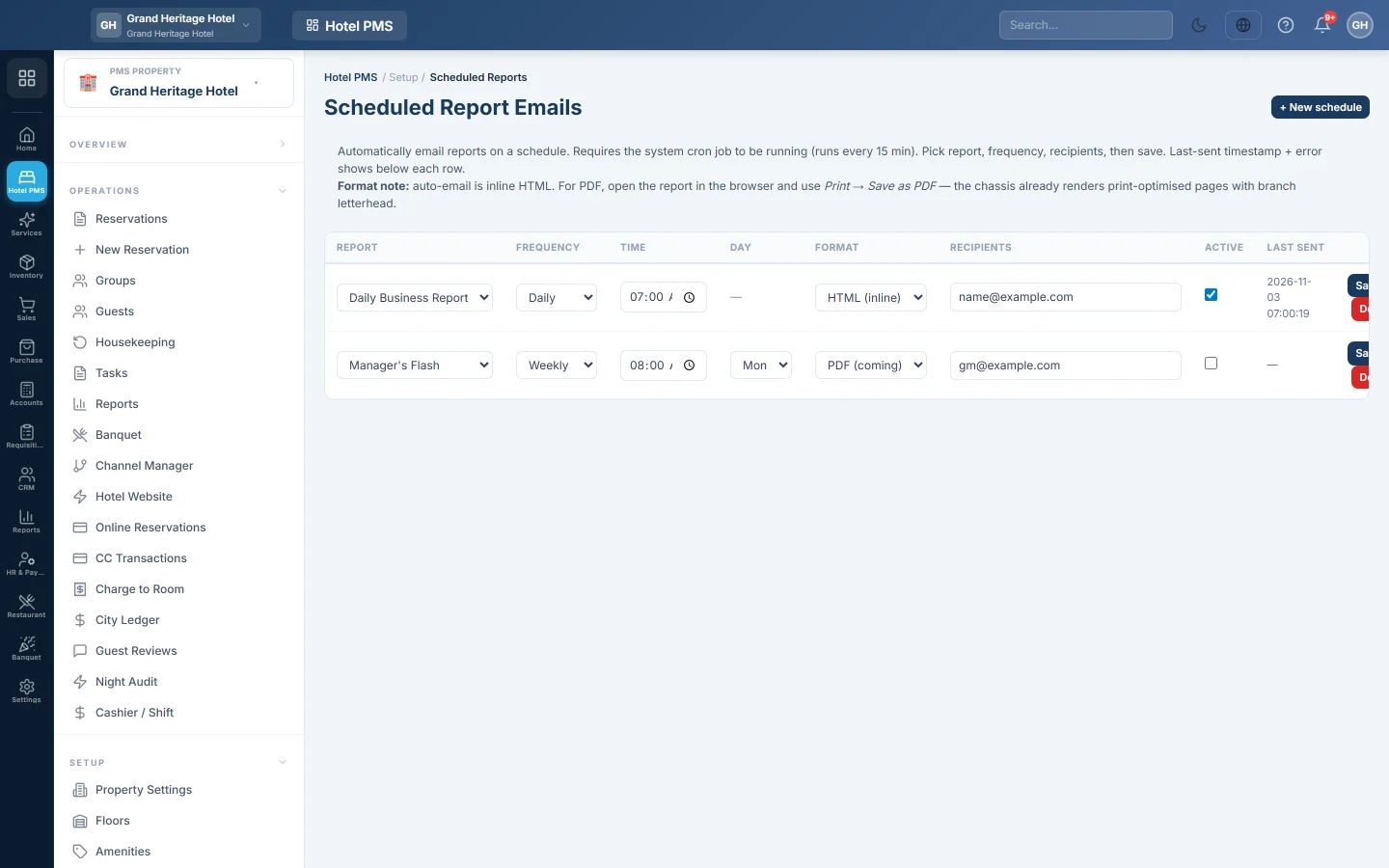
Open Hotel → Setup → Scheduled Reports. The page title is Scheduled Report Emails.
Add a schedule
- Click + New schedule. A new row appears at the top.
- Under Report, pick Daily Business Report, Manager's Flash or Monthly MIS.
- Pick the Frequency: Daily, Weekly or Monthly.
- Set the Time it should go out, in your hotel's local time.
- For Weekly, pick the Day of the week. For Monthly, type the day of the month, 1 to 31.
- In Recipients, type the email addresses, separated by commas.
- Keep Active ticked and click Save.
Schedules are checked every 15 minutes, so an email can arrive up to 15 minutes after the set time. Each schedule sends at most once a day.
Check that it was sent
Last sent shows when the report last went out. If sending failed, the error shows in red under it.
Change, pause or delete a schedule
Change the row and click Save. Clear Active and save to pause it. Click Delete and confirm to remove it.
Common questions
Can I get a PDF? Not by email. The email holds the report in the message itself. For a PDF, open the report in EloERP and print it to PDF.
Which other reports can be emailed? Only these three today. All hotel reports can be opened and printed from PMS Reports Hub.
Nobody received the email. Check Last sent and the red error under it, and check the addresses in Recipients and your spam folder.
Teşekkür ederiz. Hâlâ yardıma ihtiyacınız varsa info@eloerp.net adresine yazın.