Rooms
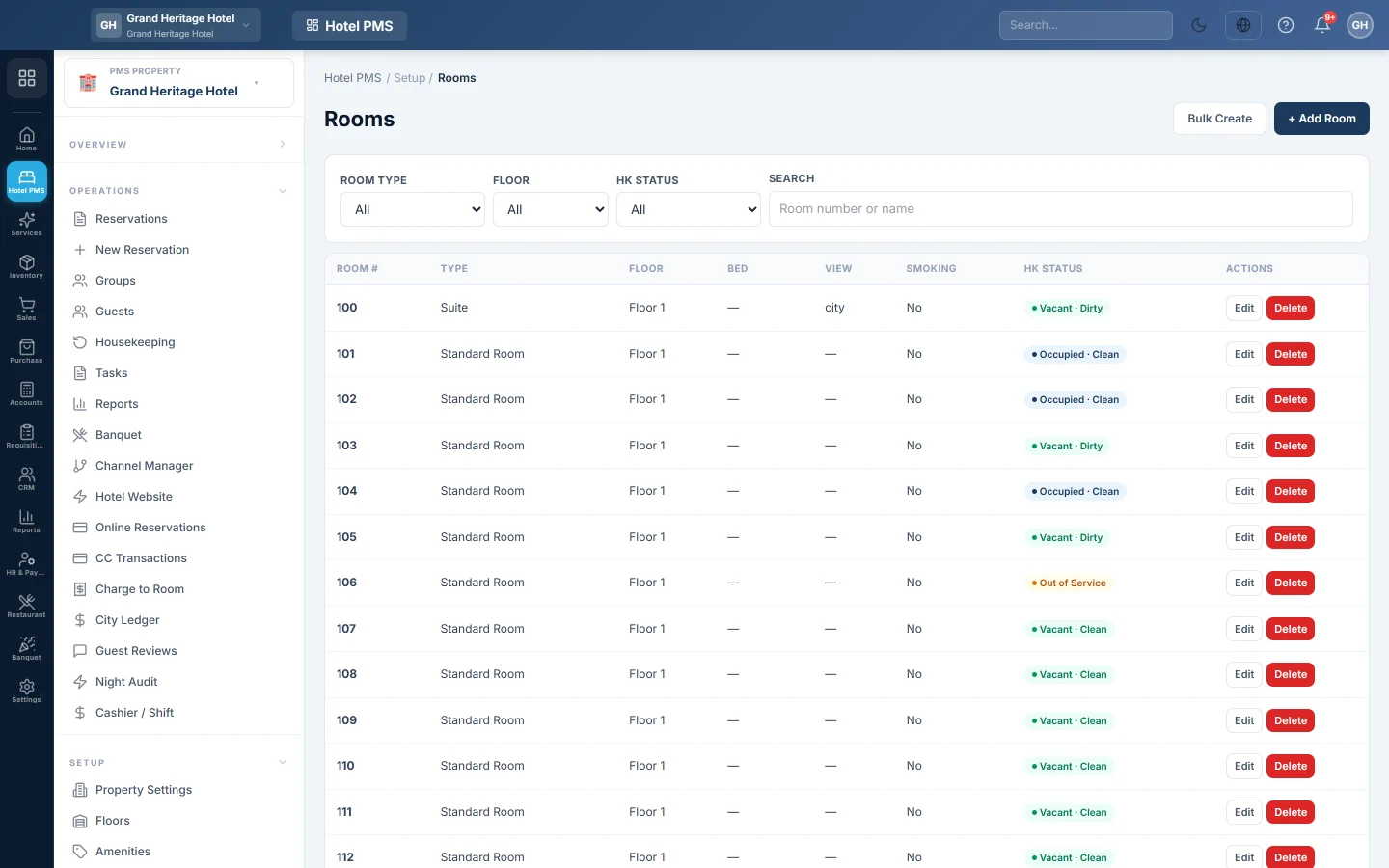
Add each physical room with its number, type and floor, create a range of rooms in one go, and mark rooms that must not be sold.
Rooms are the physical rooms of your hotel, each with its own number. The tape chart, housekeeping board and room assignment all use this list.
Before you begin
- Add your room types first, see Room Types. Floors are optional, see Floors.
- Your role needs the rooms permissions. See Users & Roles.
Where to find it
Open Hotel → Setup → Rooms.
Add one room
- Click + Add Room.
- Enter the Room Number, for example 101. It is required and must not already exist at this property.
- Optionally enter a Display Name, for example Garden Cottage.
- Pick the Room Type and the Floor.
- Change the Bed Type Override or View only when this room differs from its type. (inherit) keeps the type's bed.
- Tick Smoking allowed if guests may smoke in it.
- Leave Sellable ticked for a room you sell. Clear it for a room you keep back, such as a staff room.
- Add Notes if needed and click Save.
Add many rooms at once
- Click Bulk Create.
- Pick the Room Type and, optionally, the Floor.
- Enter a Prefix, a Start and an End number. For example prefix 1, start 1, end 10 and Zero-pad width 2 gives rooms 101 to 110.
- Optionally pick a Default View and tick Smoking allowed.
- Click Create Rooms.
A message tells you how many rooms were created. Room numbers that already exist are skipped. New rooms start as Vacant Clean and sellable.

Find a room
Use the filters at the top: Room Type, Floor, HK Status and Search by room number or name. The HK Status column shows the housekeeping state, such as Vacant Dirty or Out of Order. You change it on Housekeeping.
Edit or delete a room
- Click Edit to change the room's type, floor, bed, view or notes.
- Click Delete and confirm to remove a room. Do this only for a room that was added by mistake.
Delete is refused while the room has an open booking, current or future. The message lists the booking numbers; move them to another room on the Front Desk (Tape Chart) first. To stop selling a room, clear Sellable instead.
Common questions
A room is under repair. Should I delete it? No. Set it to Out of Order on Housekeeping, or clear Sellable.
Bulk Create made fewer rooms than I expected. Numbers that already existed were skipped. The message shows how many were created.
Can two hotels use the same room numbers? Yes. Each property has its own room list.
A message says the room number belonged to a room that was deleted. A deleted room keeps its number for the history of past stays. Use another number.
What next? Set your prices, see Seasons and Rate Plans.
谢谢。 如果仍需帮助,请发邮件至 info@eloerp.net。