Online Reservations
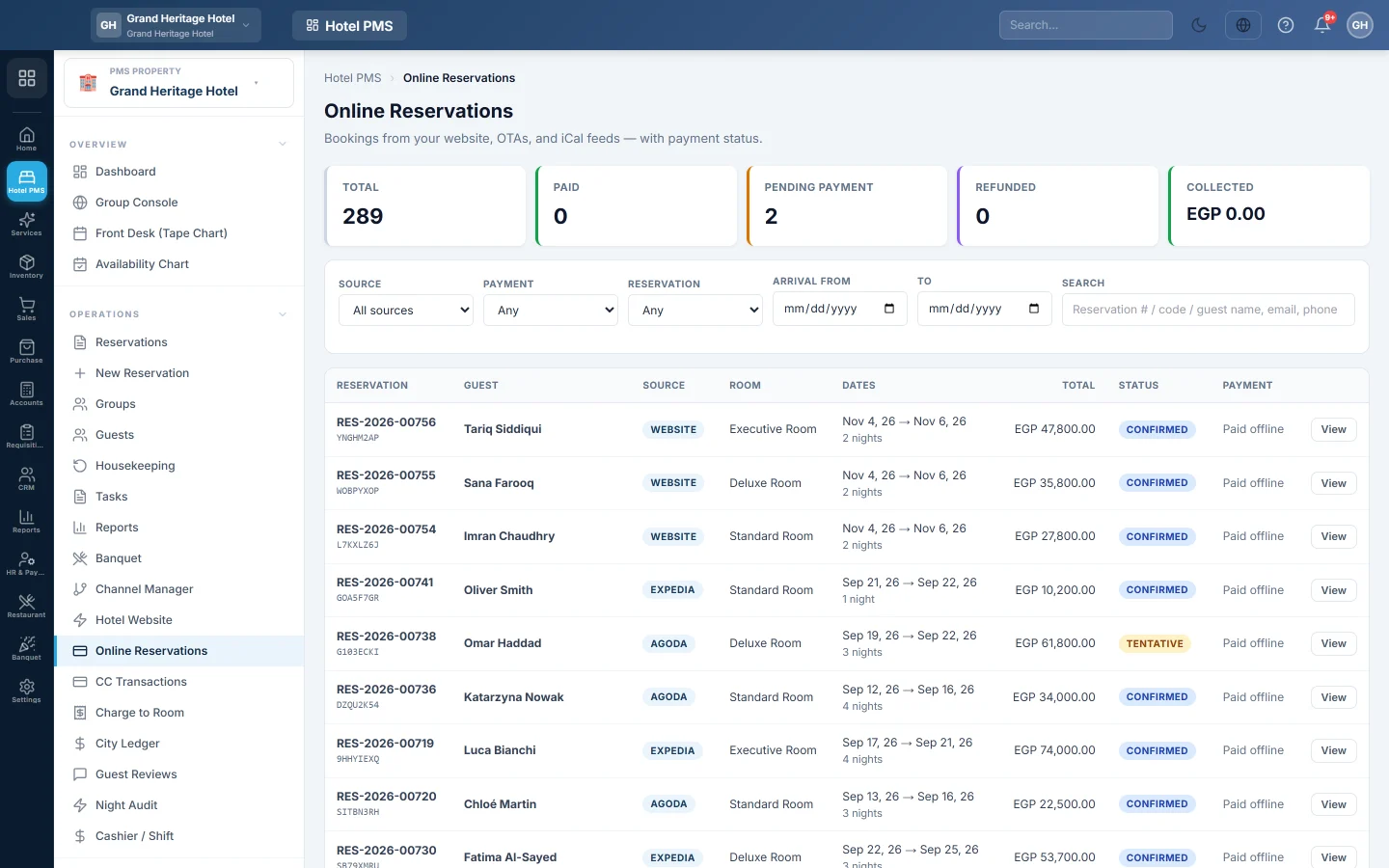
The inbox of bookings from your website, online travel agencies and calendar feeds, with each booking's online payment status and refunds.
Online Reservations lists the bookings that came in online: from your own website, from travel agencies and from calendar feeds. It shows whether each one is paid, and lets you refund an online payment.
Before you begin
- Bookings arrive from your Hotel Website and your channels, see Channel Manager.
- Your role needs the reservation permissions; refunds need the folio refund permission. See Users & Roles.
Where to find it
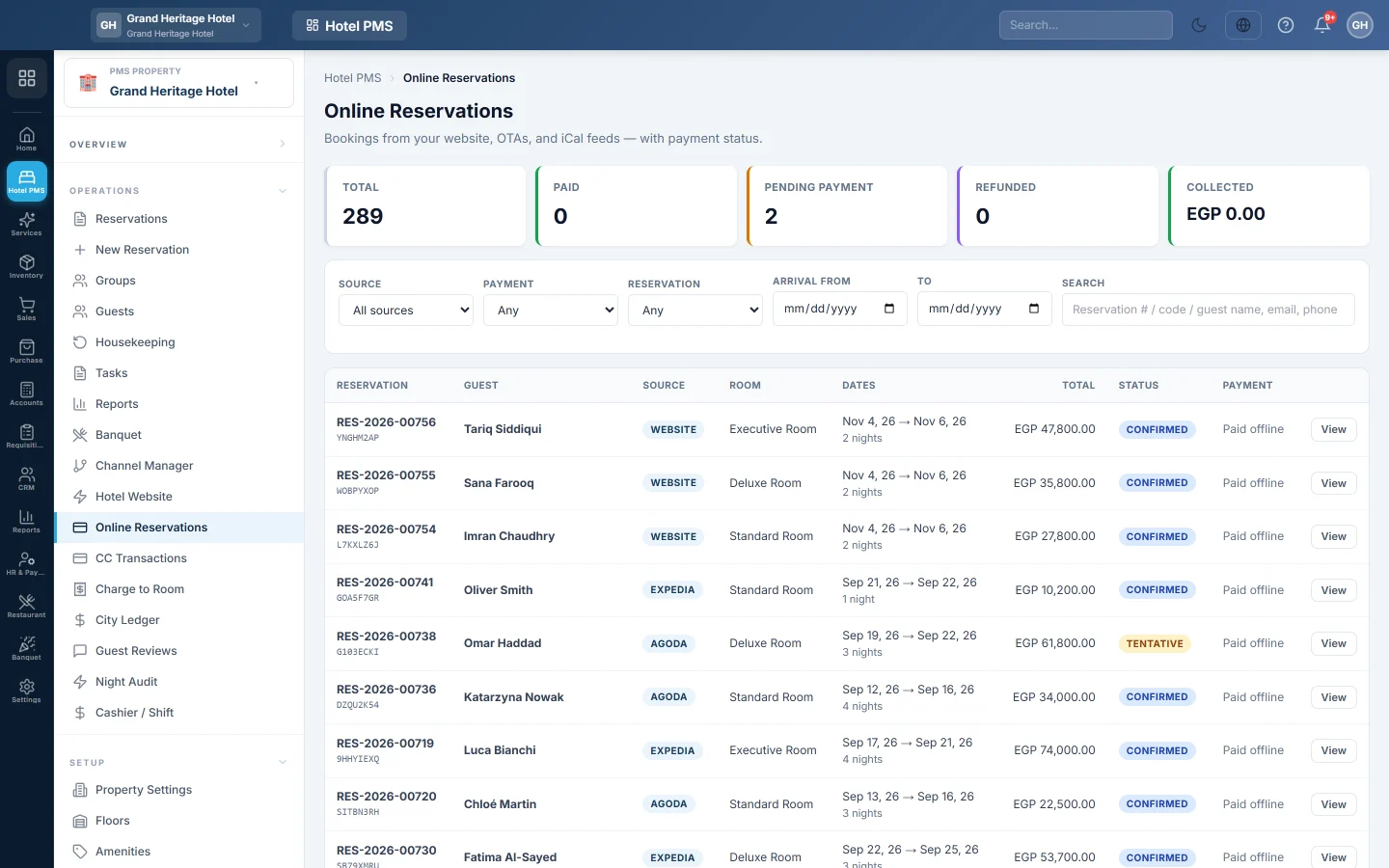
Open Hotel → Operations → Online Reservations.
Find a booking
The tiles at the top show the Total, Paid, Pending Payment, Refunded and Collected. Narrow the list with:
- Source: Website (direct), Direct Web, Expedia, Agoda, Airbnb or iCal.
- Payment: for example Paid, Pending, Failed or Partial refund.
- Reservation: Tentative, Confirmed, Checked-in, Checked-out or No-show.
- Arrival from and to, and Search by reservation number, code, guest name, email or phone.
A booking marked Paid offline has no online payment; it is settled at the front desk or by the channel.
Open a booking
Click View. The page shows the Guest, the Stay, the guest's Requests, the Amounts, each Payment transactions entry with its gateway and status, and the Folio activity. Click Open in PMS to go to the reservation itself.
Refund an online payment
- Open the booking and click Refund….
- Check Max refundable.
- Enter the Refund amount and an optional Reason (optional), for example Guest cancellation.
- Confirm the refund.
The refund goes back through the same gateway and is posted to the folio.
Common questions
A website booking is still Tentative. The guest has not paid online yet. It becomes Confirmed when the payment succeeds. If the guest will pay at the hotel, click Open in PMS, then Confirm booking.
Why is a booking missing here? Bookings made at the desk are not online bookings. Find them on Reservations.
Where are all card payments listed? On CC Transactions.
Спасибо. Если помощь всё ещё нужна, напишите на info@eloerp.net.