Tasks
Raise and track guest requests and jobs, such as an extra pillow, a broken AC or a wake-up call, by department, priority and due time, with templates for jobs that come up often.
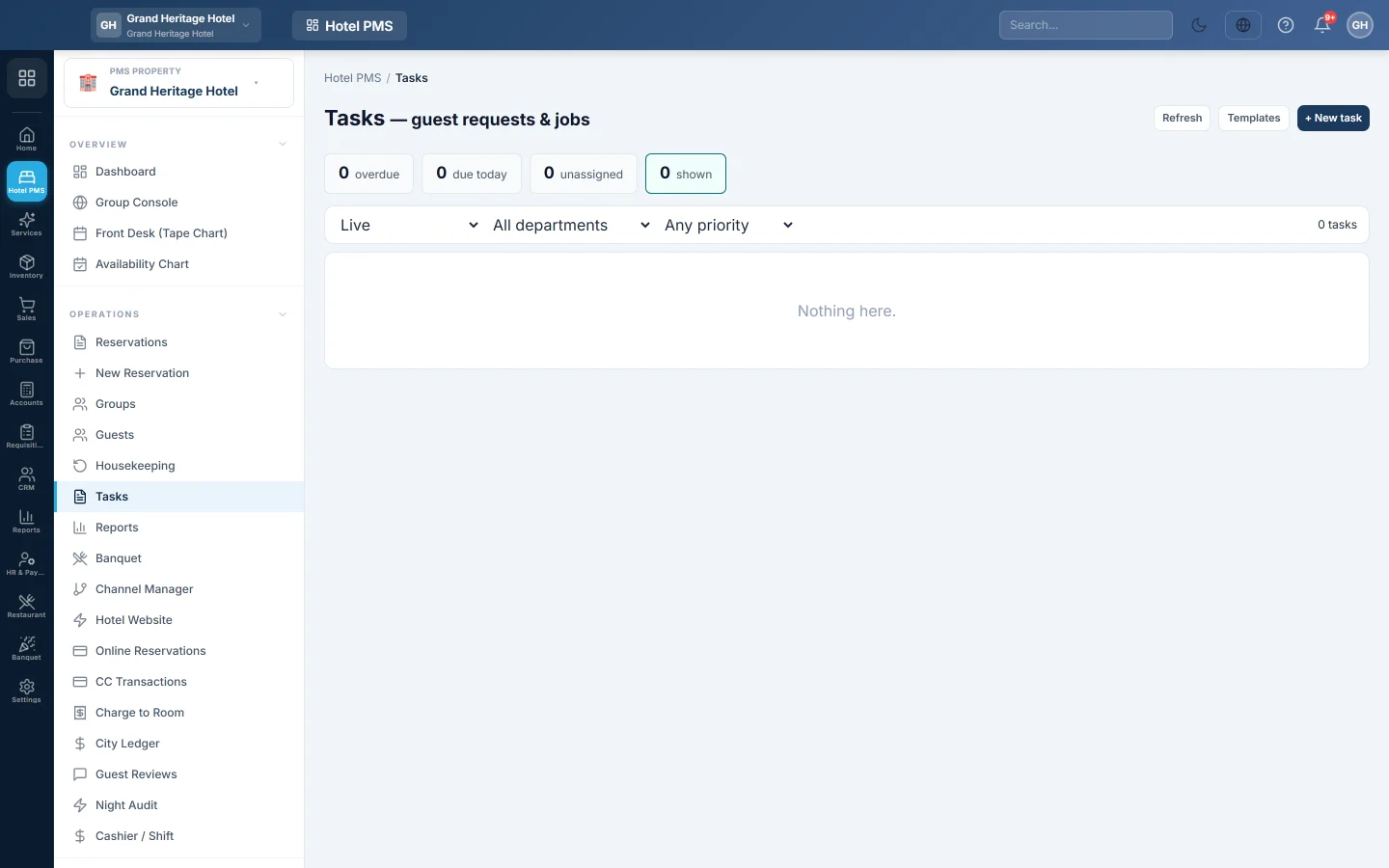
Tasks is the hotel's job list: guest requests, repairs and follow-ups. Each task has a department, a priority, a due time and the person doing it. Overdue tasks stand out here and on the hotel dashboard.
Before you begin
- The staff you assign tasks to are users of your company. See Users & Roles.
- Room cleaning is planned on the Housekeeping task board, not here.
Where to find it
Open Hotel → Operations → Tasks.
Raise a task
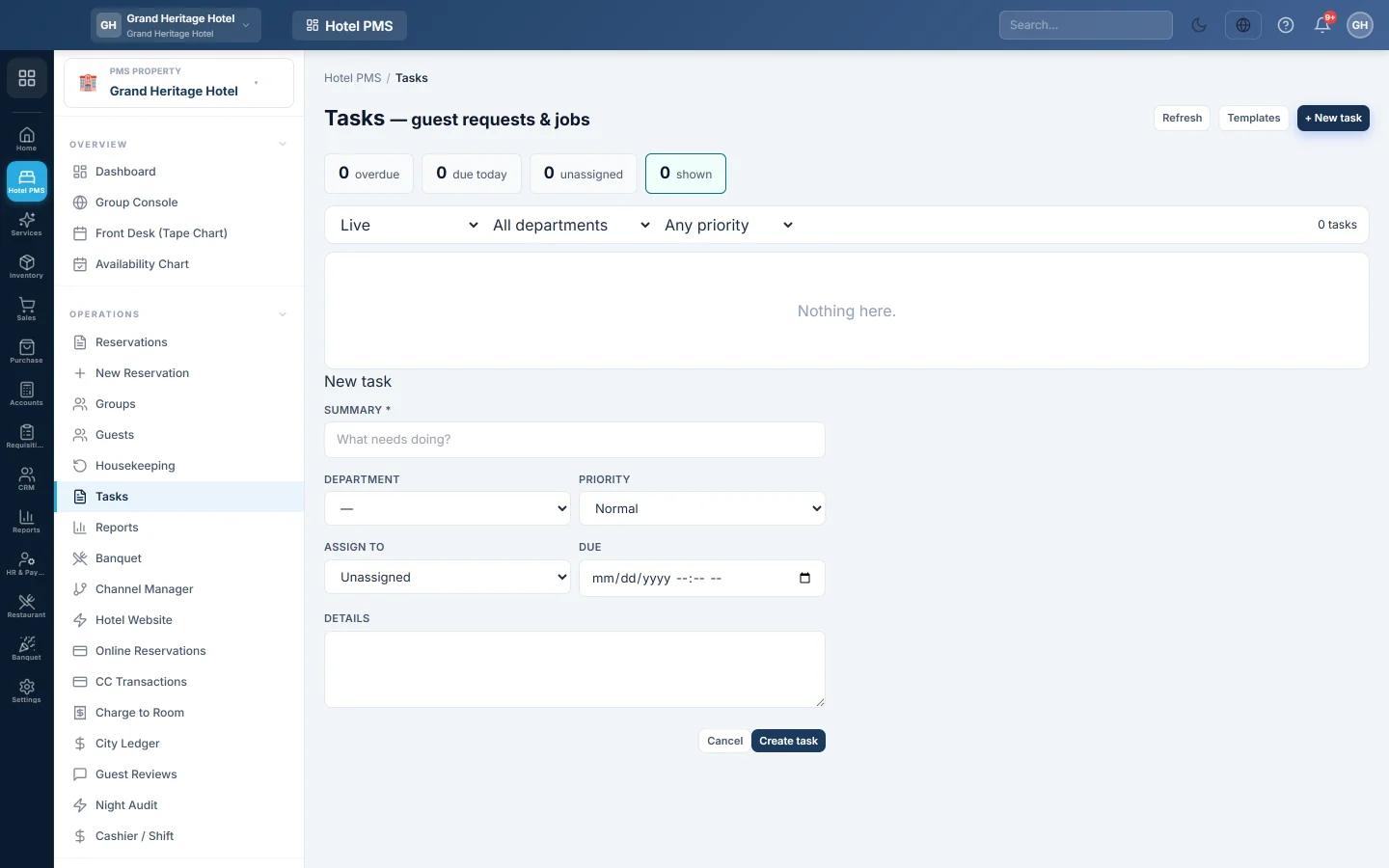
- Click + New task.
- Type the Summary, for example AC not cooling in Room 204.
- Pick the Department: Front Office, Housekeeping, Maintenance, Food & Beverage, Sales, Security or Management.
- Pick the Priority: low, normal, high or urgent.
- Pick who to Assign to, or leave it Unassigned.
- Set when it is Due and add Details.
- Click Create task.
Work the list
- The counts at the top show what is overdue, due today and unassigned. Click overdue to see only those.
- Switch between Live, Overdue, Completed and All, and filter by department and priority.
- Click Complete when the job is done and type What was done?. Click Reopen on a completed task and type Why is it being reopened?. Both notes are kept on the task.
A task that runs late is marked escalated as the hours go by, so a manager sees it.
Use templates for repeat jobs
- Click Templates, then + New template.
- Enter the Title, Department, Priority, Due within (hours) and Details.
- Keep Active ticked and click Save template.
Next time, click Raise task on the template. The new task is filled in for you.
Common questions
Who gets told about a new task? Nobody is messaged. The task shows on this list and in the dashboard's overdue banner. Assign it so the person knows it is theirs.
Can a task be linked to a room? The form has no room field, so put the room number in the Summary. A task that carries a room or reservation shows them under its summary.
Where do I see task history? Completed tasks keep their completion note. Pick Completed or All.
谢谢。 如果仍需帮助,请发邮件至 info@eloerp.net。