Availability Chart
The revenue manager's calendar of each room type by date, where you stop sales, close arrivals or departures, set minimum and maximum stays, hold rooms back and override the price for a date.
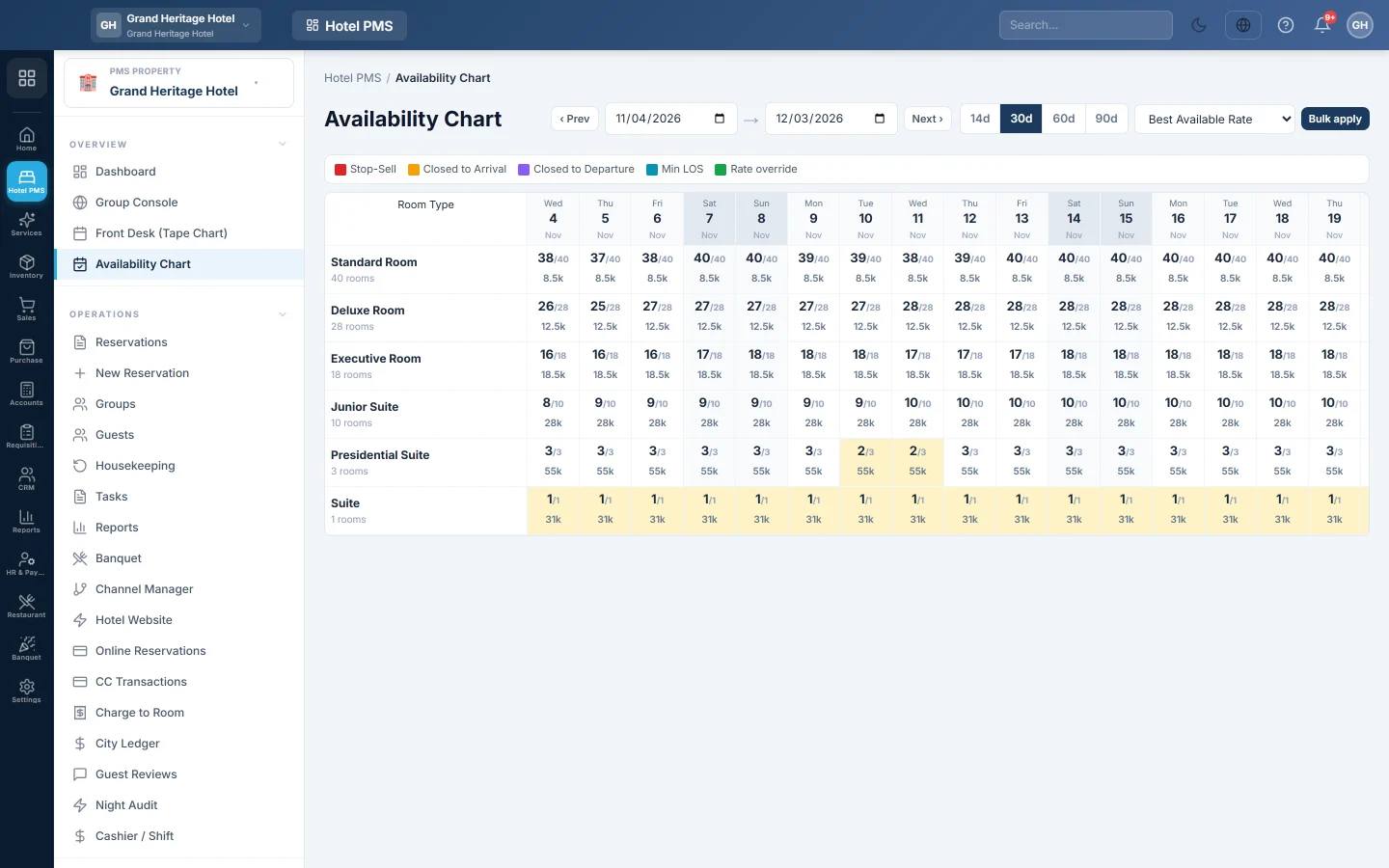
The Availability Chart shows, for each room type and date, how many rooms are booked and at what price. It is where the revenue manager sets the rules for a date: stop selling, no arrivals, a minimum stay, a cap on rooms sold, or a special price.
Before you begin
- Your room types and rate plans exist. See Room Types and Rate Plans.
- Your role needs the availability chart permission. See Users & Roles.
Where to find it
Open Hotel → Overview → Availability Chart.
Read the chart
Each row is a room type with its number of rooms; each column is a date. A cell shows the rooms booked and the price on that date. Coloured flags mark the rules, as the legend shows: Stop-Sell, Closed to Arrival, Closed to Departure, Min LOS (minimum length of stay) and Rate override.
Use Prev, Next, the date boxes and 14d, 30d, 60d or 90d to move. Pick a plan in the rate plan box to see and set rules for that plan only. — Default rate plan — shows your main plan's prices, and rules set there apply to every plan.
Set the rules for one date
- Click the cell. The window shows how many rooms are booked and the current rate.
- Fill in what you need:
- Rate override: the room price for that night, instead of the rate grid.
- Min nights and Max nights for stays that arrive on that date.
- Allotment cap: the most rooms of this type you will sell that night.
- Stop-Sell, Closed to Arrival or Closed to Departure.
- Notes, for example New Year surge or renovation.
- Click Save. Clear all restrictions removes every rule from the cell.
Set rules for many dates
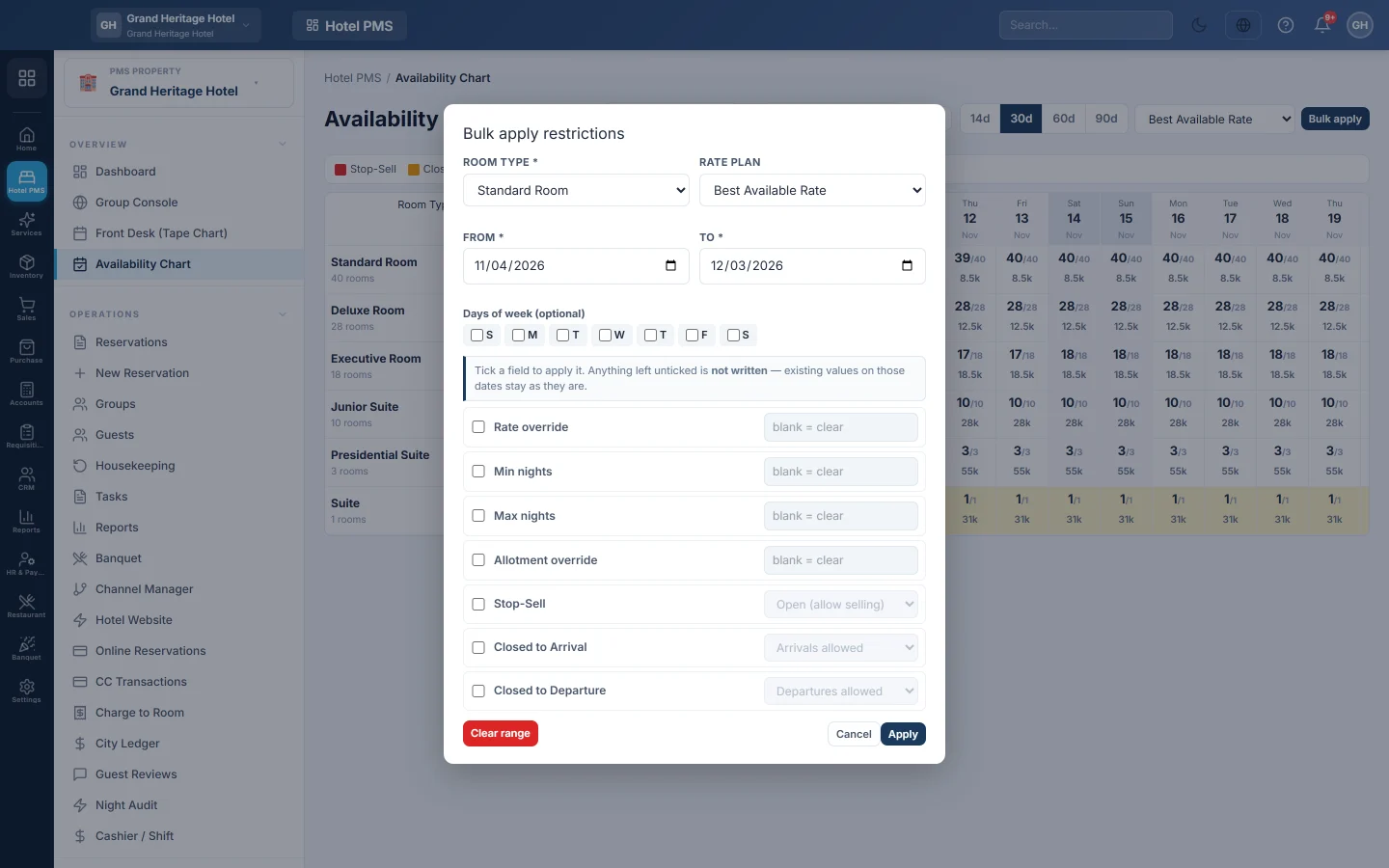
- Click Bulk apply.
- Pick the Room type (or All room types (one at a time)), the Rate plan (or All rate plans), and the From and To dates.
- Optionally tick Days of week (optional), for example only Fridays and Saturdays.
- Tick each rule you want to write (Rate override, Min nights, Max nights, Allotment override, Stop-Sell, Closed to Arrival, Closed to Departure) and set its value. A rule you leave unticked is not written, so existing values stay. A blank ticked value clears it.
- Click Apply. Clear range removes all rules in the range.
How the rules work
- Stop-Sell blocks any stay that uses that night.
- Closed to Arrival lets guests stay through the date but not arrive on it. Closed to Departure stops them leaving on it.
- Min nights and Max nights are read from the arrival date.
- An Allotment cap closes the date once that many rooms of the type are sold.
- A Rate override replaces the room price for that night; extra adult, child and bed charges are still added.
The desk sees a clear message naming the rule and the date when a booking breaks one. When your hotel is connected to online channels, the rules and prices are sent to them too. See Channel Manager.
Common questions
A booking was refused with Sales are stopped for a date. A Stop-Sell is set on one of the nights. Clear it here if the room should be sold.
I set a price but the booking still shows the old one. The override was set on another rate plan. Pick the booking's plan in the rate plan box, or set it on — Default rate plan — for all plans.
Do the rules change bookings already made? No. They apply to new bookings and to changes of dates.
Gracias. Si todavía necesita ayuda, escriba a info@eloerp.net.