Currencies
Keep your base currency and the foreign currencies you trade in, switch multi-currency on, and keep dated exchange rates and the month-end revaluation.
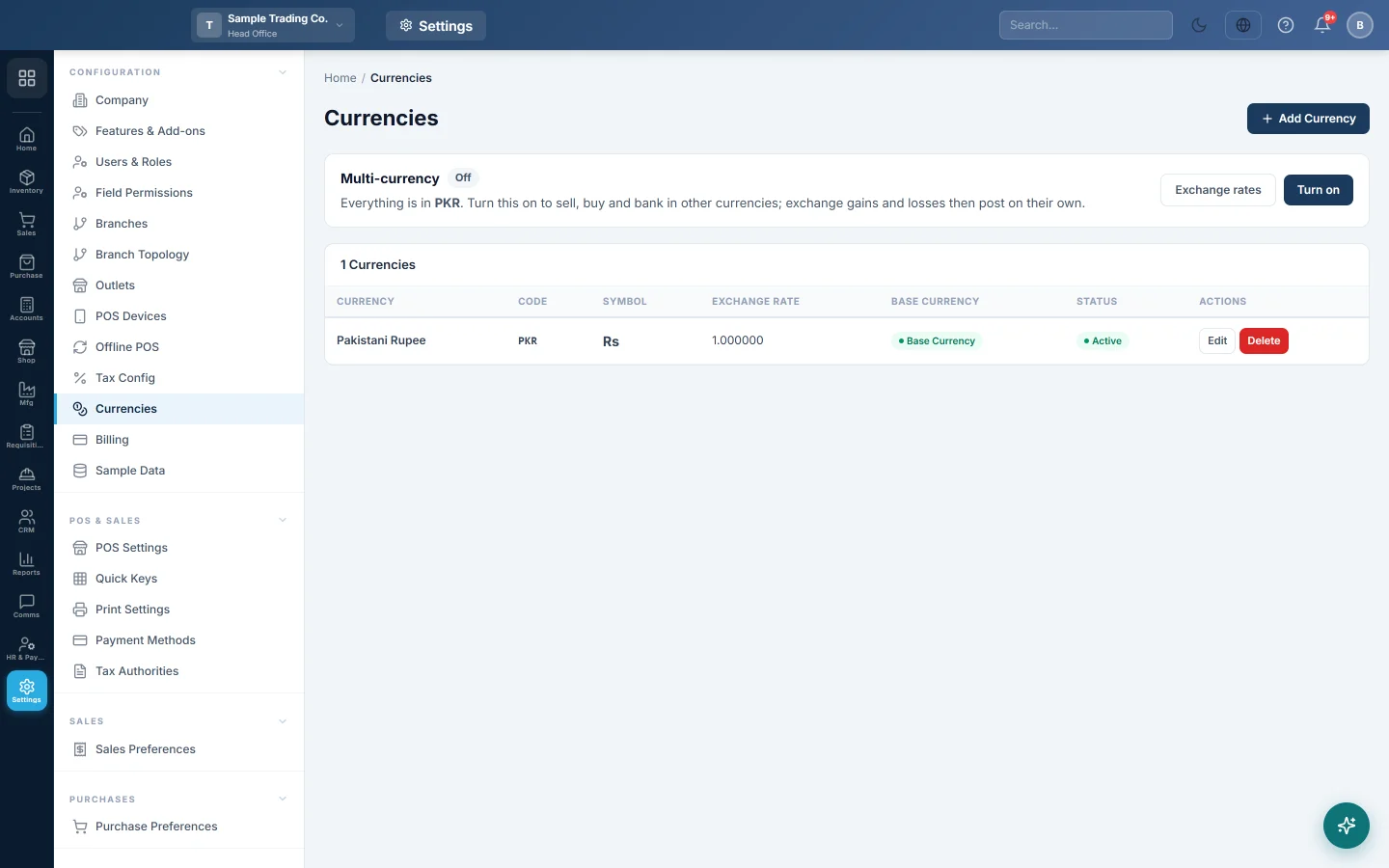
The Currencies page lists your base currency and any other currencies you deal in. It also holds the Multi-currency switch, which lets customers, suppliers, bank accounts and documents use a foreign currency while your books stay in the base currency.
Before you begin
- You need a role with Create Currencies to add a currency, Edit Currencies to change one and Delete Currencies to delete one.
- Only an administrator (a user whose role can edit users or roles) can turn Multi-currency on or off.
- Saving exchange rates needs a role with the Edit General Settings permission.
Where to find it
Open Settings → Configuration → Currencies.
Add a currency
- Click Add Currency.
- Enter the Currency Name, for example US Dollar.
- Enter the Code, for example USD, and the Symbol, for example $.
- Under Exchange Rate vs Base Currency, enter how many base-currency units one unit buys. If 1 USD costs Rs. 278.50, enter 278.50.
- Leave Active ticked.
- Click Save.
When multi-currency is on, the rate you enter is also saved as today's rate on the Exchange rates page.
Turn multi-currency on
- On the Multi-currency card, click Turn on.
- Read the message and click OK.
The card now shows On. Customers, suppliers, bank accounts and documents can use any currency in the list. The books, reports and stock stay in the base currency, and exchange gains and losses post on their own.
Keep exchange rates
A document takes the rate for its own date: that day's rate, or else the latest rate before it. A document in a currency with no rate is refused.
- On the Multi-currency card, click Exchange rates.
- Under Add a rate, choose the Currency.
- Choose the From date.
- Enter the rate in the box 1 USD = ? PKR (it shows your own currencies).
- Click Save rate.
The Today card shows the rate in force for each currency. History lists every saved rate; click Remove to delete one. Saving a rate for a date that already has one replaces it.
Revalue at month end
The Revalue month end card values every open foreign balance (customers, suppliers, bank and cash) at the month-end rate.
- On the Exchange rates page, choose the month.
- Click Preview and check the lines.
- Click Post revaluation.
The difference posts as one journal to Exchange Gain / Loss. It reverses itself on the 1st of the next month. Posting needs an administrator, or a role with Change the Exchange Rate on a Document.
Change the base currency
The base currency is the currency every posted amount is in. You can change it on a new company only, before any transaction is posted.
- Click Edit on the currency you want as the base.
- Tick Set as Base Currency.
- Click Save.
You can also choose it under Regional Settings on the Company page. Both places change the same setting.
Common questions
The base currency will not change. The company already has transactions. The base currency is locked from the first posted voucher.
An invoice in dollars was refused because there is no rate. Add a rate for USD on the Exchange rates page, dated on or before the invoice date.
Why can I not delete a currency? The Delete button is greyed out for the base currency. Make another currency the base first, if the company has no transactions yet.
Do I need multi-currency to keep rates? No. You can keep rates while it is off. They are used once multi-currency is turned on.
I see "Only the Administrator can change this." Your role cannot edit users or roles, so it cannot change the multi-currency switch. Ask your administrator.
شكرًا لك. إذا كنت لا تزال بحاجة إلى مساعدة، راسلنا على info@eloerp.net.