Transaction Ledger
Every voucher posted in your branch for a period, with its debit and credit totals and the account lines behind each one.
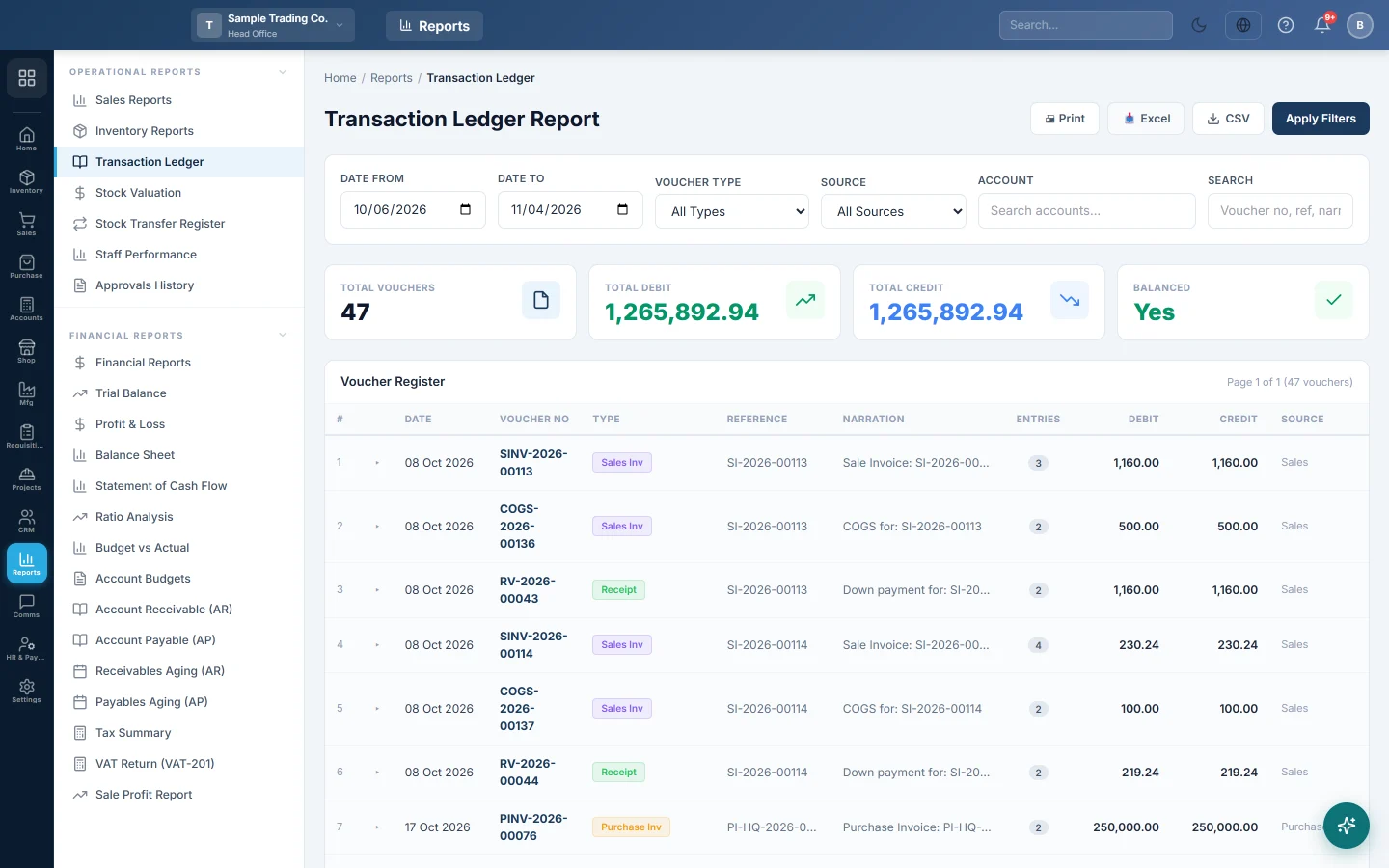
The Transaction Ledger lists every voucher posted to the books in a period: invoices, payments, receipts, journals and the automatic vouchers behind stock and POS. Open any voucher to see which accounts it debited and credited.
Before you begin
- Your role needs View Transaction Ledger Report and the voucher register right under Settings → Users & Roles. Without the second one the list stays empty.
- The report covers the branch shown in the top bar. Switch branch to see another branch's vouchers.
- The dates it opens with come from Default Report Date Range under Settings → Company.
Where to find it
Open Reports → Operational Reports → Transaction Ledger.
Find vouchers
- Set Date From and Date To.
- Choose a Voucher Type to see one kind only, such as Payment Voucher or Sales Invoice.
- Type part of a voucher number, reference or narration in Search.
- Click Apply Filters.
The list shows 50 vouchers a page. Use Prev, Next or a page number below the table to move between pages.
Read the list
| Column | What it means |
|---|---|
| Date | The voucher date. |
| Voucher No | The voucher number. Click it to open the voucher. |
| Type | Journal, Payment, Receipt, Sales Inv, Purchase Inv and so on. Automatic vouchers such as stock adjustments show their system name. |
| Reference, Narration | As entered on the voucher or its source document. |
| Entries | How many account lines the voucher has. |
| Debit, Credit | The voucher's totals. They should be equal. |
| Source | The document that created the voucher, for example a sale invoice. Blank for vouchers entered by hand. |
| Last column | A dash when the voucher balances, a red ✗ when it does not. |
See the account lines
- Click anywhere on a voucher's row. Its lines open below it: account code, account name, description, debit and credit.
- Read the line under them: ✓ Balanced, or ✗ Unbalanced with the difference.
- Click the row again to close it.
To see the lines in a window instead, click the Voucher No. The Voucher Detail window shows the Source, the Narration, each Ledger with its Code, Description, Debit and Credit, and a Total. Click Close when done.
Read the summary cards
- Total Vouchers: how many vouchers match the dates and voucher type.
- Total Debit and Total Credit: the sum of all those vouchers.
- Balanced: Yes when the two totals agree. No means at least one voucher is out of balance.
The cards ignore the Search box; they always cover the full date range and voucher type.
Print or export
- Print prints the list with the period and filters at the top, landscape.
- Excel downloads the same list as a spreadsheet.
- CSV downloads a plain comma-separated file for other software.
All three use the vouchers that match your search, on every page, not just the page on screen.
Common questions
Balanced shows No. What do I do? Look down the last column for a red ✗, open that voucher and note the difference. Send the voucher number to your accountant; an unbalanced voucher usually needs a correcting journal voucher.
A sale I made today is not listed. Check that the invoice is confirmed and that you are in the branch it was made in. Drafts and invoices awaiting approval post no voucher.
Head office does not see the branches' vouchers. This report always shows the branch in the top bar, head office included. Switch branch to see another one.
How is this different from the Voucher Register? It reads the same vouchers. The Voucher Register under Accounting has more accounting filters; this screen is the quick version in Reports.
The list is empty but I know there are vouchers. Your role may be missing the voucher register right. Ask your administrator to check Settings → Users & Roles.
شكرًا لك. إذا كنت لا تزال بحاجة إلى مساعدة، راسلنا على info@eloerp.net.