Sales Reports
Sales totals for a period, broken down by day, month or year, with your top 10 customers and top 10 products.
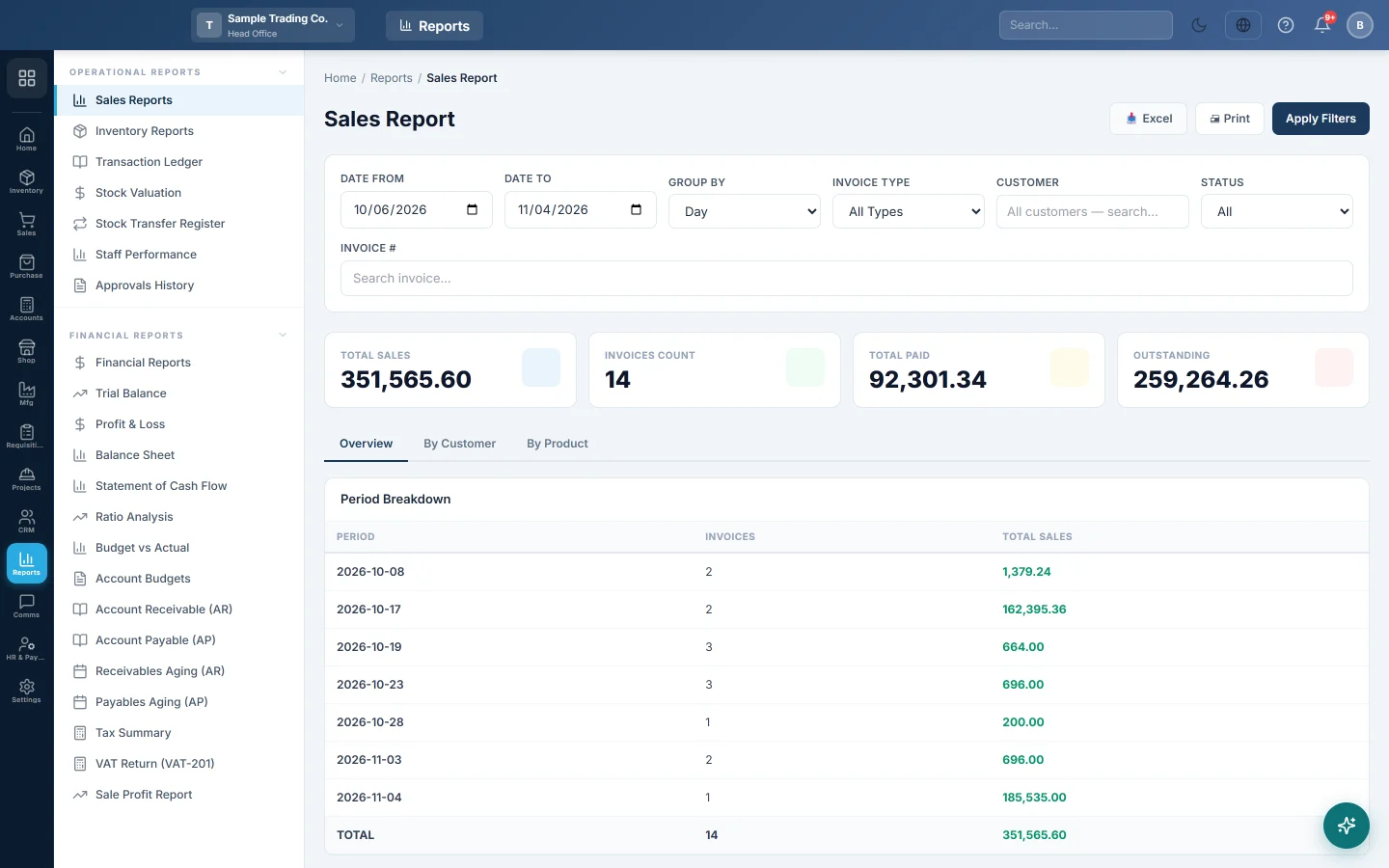
The Sales Report shows how much you sold in a period, how much of it is paid and who and what drove it. Use it for a quick daily or monthly sales figure; use the invoice-level reports in Sales when you need every invoice.
Before you begin
- Only confirmed sale invoices are counted. Drafts, cancelled invoices and invoices waiting for approval are left out.
- Your role needs View Sales Reports (Top-level) under Settings → Users & Roles.
- The dates the report opens with come from Default Report Date Range under Settings → Company. See Company.
Where to find it
Open Reports → Operational Reports → Sales Reports.
Run the report
- Set Date From and Date To.
- Choose Group By: Day, Month or Year for a sales trend, or Customer to rank customers.
- Choose an Invoice Type if you want only Cash, Credit or Installment sales.
- Pick a Customer to see one customer's sales only.
- Click Apply Filters.
Read the totals
| Card | What it shows |
|---|---|
| Total Sales | The total of the confirmed invoices in the period, tax and discounts included. |
| Invoices Count | How many invoices that is. |
| Total Paid | What has been received against those invoices so far. |
| Outstanding | Total Sales minus Total Paid: what customers still owe on these invoices. |
Invoices in a foreign currency are converted to your base currency, so all figures add up in one currency.
Use the tabs
- Overview lists each period (or customer) with its Invoices and Total Sales, and a TOTAL row at the bottom.
- By Customer shows your top 10 customers by sales, with Phone, Invoices and Total Sales.
- By Product shows your top 10 products by revenue, with SKU, Qty Sold and Revenue. Revenue is the line amount, so it includes line tax.
Print or export
- Open the tab you want.
- Click Print for a printable page, or Excel to download a spreadsheet.
The printout and the file carry the period and the filters you used, so the reader knows what they are looking at.
Common questions
Today's sales are missing. Check that Date To is today and click Apply Filters. Invoices still in draft or awaiting approval are not counted until they are confirmed.
The total differs from the Sale Invoice Report. This report counts confirmed invoices only and does not subtract sale returns. Compare with the Sale Invoice Report and the Sale Return Report.
Head office sees bigger figures than the branch. At head office the report adds up every branch. In any other branch it shows that branch only.
Choosing Week still shows one row per day. Weekly grouping is not available yet; use Day or Month.
The Status and Invoice # boxes do not change anything. This report always uses confirmed invoices and cannot look up one invoice. To find an invoice by number or by payment status, use the Sale Invoice Report.
Group By Product leaves the Invoices column empty. Use the By Product tab for product figures instead.
شكرًا لك. إذا كنت لا تزال بحاجة إلى مساعدة، راسلنا على info@eloerp.net.