Reports Library
Every hospital report in one place, operational, clinical, financial, charity and statutory, run with filters and printed in A4 or exported to CSV.
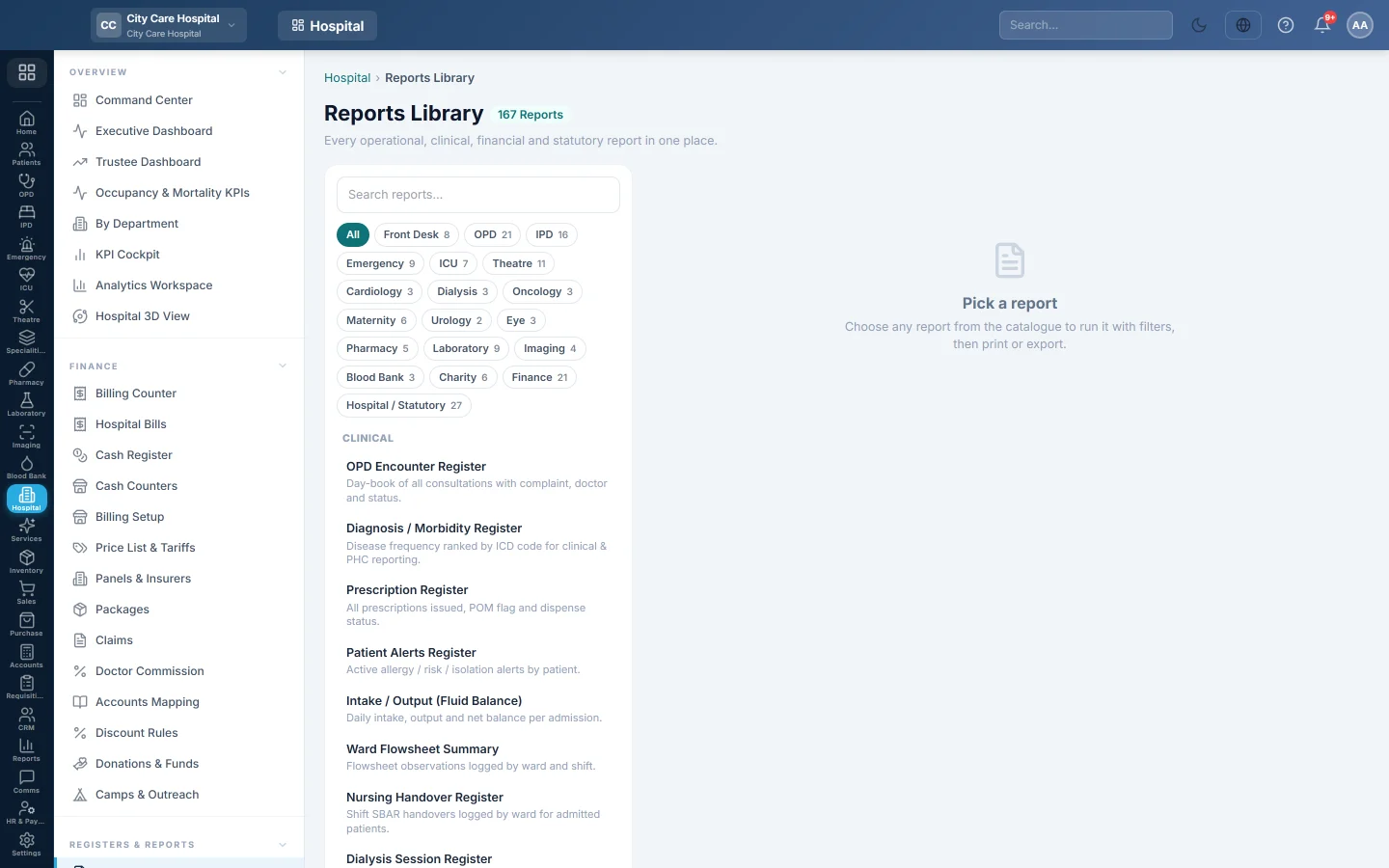
The Reports Library lists every hospital report, grouped and tagged by department. You pick a report, set its filters, run it, then print it on A4 or export it as CSV.
Before you begin
- You need the HIMS reports view right.
- Only reports for the departments your hospital has switched on are listed.
Where to find it
Open Hospital → Registers & Reports → Reports Library. Each department's menu also has a Reports item that opens the library on that department, and Records items that open one report directly.
Run a report
- Click a department chip, such as OPD, IPD, Pharmacy, Charity or Finance, or All.
- Type in Search reports… to find one by name.
- Click the report.
- Set From and To.
- Set the filters the report offers, such as Department, Doctor, Status, Payment Method or Entered By.
- Some reports have a Search box that searches all dates.
- Click Run.
The result shows the number of rows. Use the page buttons for long reports.
Print or export
- Click A4 to print the report.
- Click CSV to download it for a spreadsheet.
Department chips
The chips are Front Desk, OPD, IPD, Emergency, ICU, Theatre, the specialty clinics, Pharmacy, Laboratory, Imaging, Blood Bank, Charity, Finance and Hospital / Statutory. Each shows only when it has reports.
Common questions
A report I used to see is missing. Its department is not switched on for your hospital.
Can I get reports by email every month? Yes. Bundle them in a Report Pack.
Where are the PHC registers? On Statutory Registers, and as reports under Hospital / Statutory.
Спасибо. Если помощь всё ещё нужна, напишите на info@eloerp.net.