Admissions
The admission desk - current and discharged inpatients, doctors' advice to admit, admitting a patient to a bed with a deposit, transfers, billing and discharge.
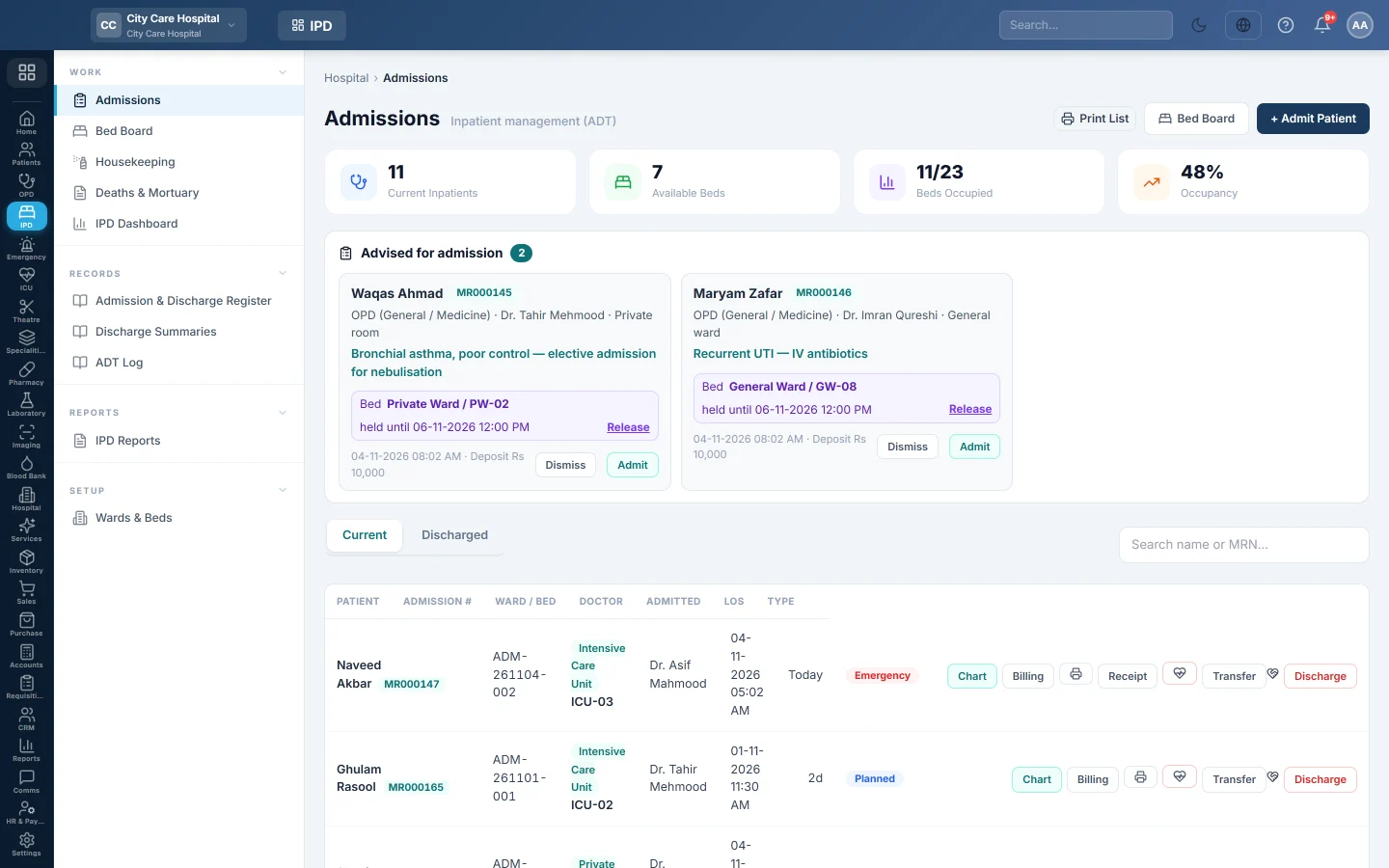
Admissions is the admission desk. It lists the patients in the wards now, the patients doctors advised to admit, and those already discharged. From each row you open the chart, the bill, a transfer or the discharge.
Before you begin
- Wards and beds are set up. See Wards & Beds.
- Admitting, transferring and discharging each need their own permission. See Users & Roles.
- Taking a deposit needs an open cash shift. See Cash Register.
Where to find it
Open Inpatients (IPD) → Work → Admissions.
Read the page
The tiles show Current Inpatients, Available Beds, Beds Occupied and the Occupancy percentage.
Advised for admission lists patients a doctor advised to admit from the consultation, with the department, ward type, diagnosis and deposit asked for. An emergency advice is marked.
The list has two tabs, Current and Discharged. Search by name or MRN. Each row shows the Admission #, Ward / Bed, Doctor, Admitted date and the LOS (length of stay).
Admit a patient
- Click + Admit Patient, or Admit on an advised patient to fill the form from the doctor's advice.
- Pick the patient, the Department and the Admitting Doctor.
- Choose the Ward and a free Bed. The bed list shows each bed's daily rate.
- Choose Planned or Emergency, and type the Advance / Deposit.
- Click Admit.
See Admit a patient for every field, welfare deposits and packages.
Work with an admitted patient
| Button | What it does |
|---|---|
| Chart | Opens the inpatient chart. See Work in the inpatient chart. |
| Billing | Opens the stay's account: charges, deposits and the final bill. |
| Printer | Prints the admission slip on the 80 mm printer. |
| Receipt | Reprints the advance receipt. |
| Heart button | Opens the ICU flowsheet, for a patient in a critical-care ward. |
| Transfer | Moves the patient to another ward or bed. |
| Discharge | Opens the discharge worksheet. See Discharge a patient. |
On the Discharged tab, Summary opens the discharge worksheet and summary.
Hold a bed for an advised patient
- On the advised patient, click Reserve bed.
- Choose the Ward and Bed, and set Hold until. If the patient is not admitted by then, the bed goes back to available.
- Click Reserve bed.
The advice then shows the bed and held until. Click Release to free it, or Dismiss to clear an advice that will not go ahead.
Transfer a patient
- Click Transfer on the row.
- Choose To Ward and To Bed.
- Click Transfer.
The old bed goes to Housekeeping with an After transfer task and becomes available when it is marked clean. The move is logged in the ADT Log. A day split between two beds is charged by the hours spent in each.
Common questions
The bed I want is not in the list. It is occupied, being cleaned, reserved or blocked. Check it on Bed Board, or mark it clean on Housekeeping.
Admit asks for a payment method. A deposit was typed. Pick how it was paid, or set the deposit to 0.
How is the stay charged? The bed's daily rate is added each day automatically. Services, medicines and tests are added to the same stay and settled on the final bill.
Can I cancel an admission made by mistake? Discharge it with the right discharge type and note why in the summary.
Спасибо. Если помощь всё ещё нужна, напишите на info@eloerp.net.