Work Orders
Plan a production run from a BOM, start it, and complete it with the quantity actually made, so raw materials leave stock and finished goods arrive at their cost.
A work order is one production run: make this many of this product, from this BOM, into this warehouse. When you complete it, EloERP takes the raw materials out of stock and adds the finished goods at their cost.
Before you begin
- The product has an active BOM. See Bill of Materials.
- You have a warehouse for the finished goods. See Warehouses.
- Workstations are optional. See Workstations.
- Your role needs the work order permissions. See Users & Roles.
Where to find it
Open Manufacturing → Manufacturing → Work Orders. The side menu also has a New Work Order quick action.
Plan a work order
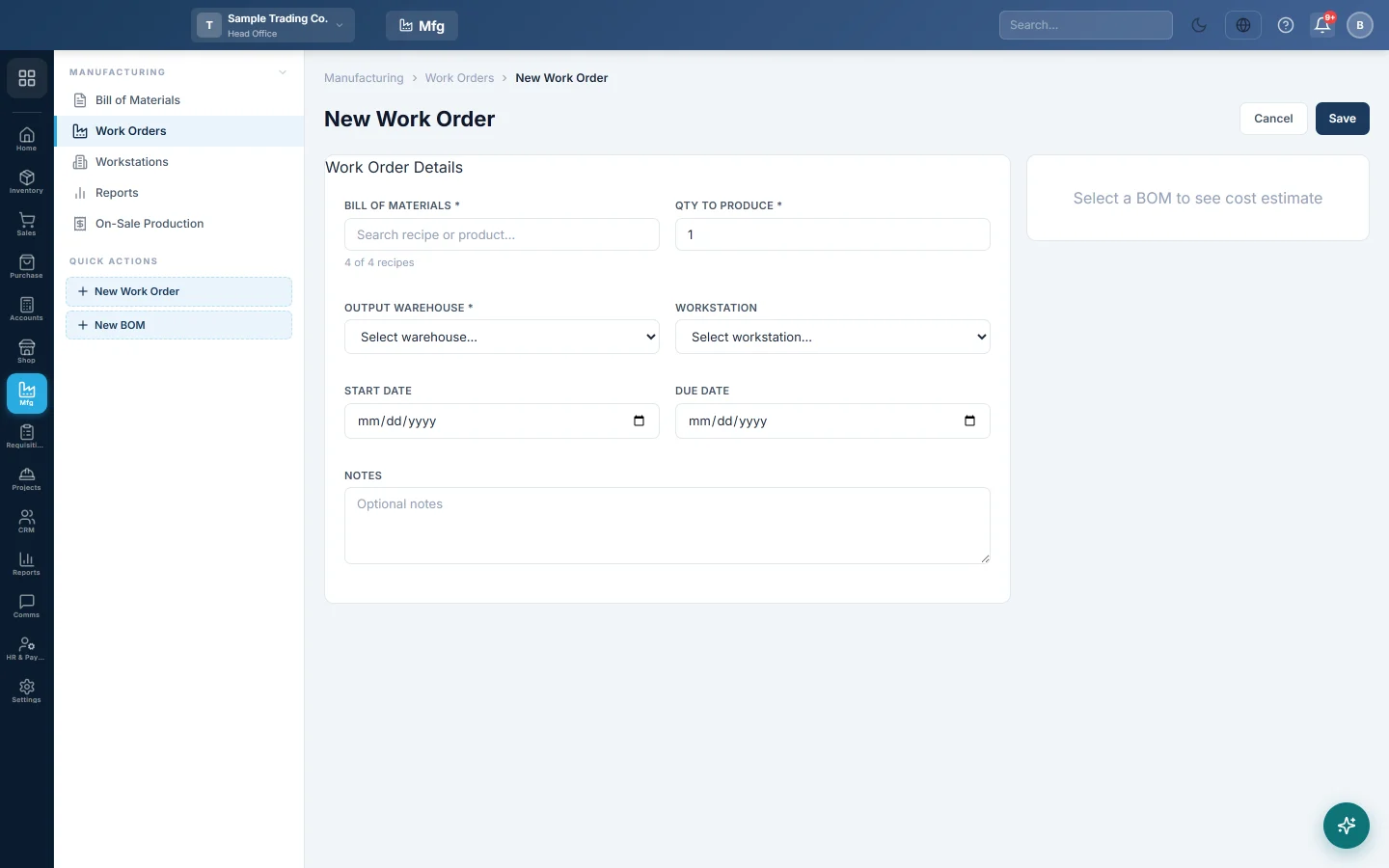
- Click New Work Order.
- Under Bill of Materials, search the recipe or product and pick it.
- Type the Qty to Produce, for example 50.
- Choose the Output Warehouse. Raw materials are taken from the same warehouse.
- Optionally pick a Workstation, and set the Start Date and Due Date.
- Check Materials Required and the Cost Estimate.
- Click Save.
The work order is saved as Draft with a number. Nothing moves in stock yet.
Start production
Click Start Production on the work order, in the list or on its page. The status becomes In Progress and the start date is today.
Once started, the recipe, quantity, warehouse and variant cannot be changed.
Complete production
- Click Complete in the list, or Complete Production on the work order.
- Type the Actual Qty Produced. It can be up to 10% more than planned.
- If the product tracks batches, type the Batch Number, or keep the suggested one. On the work order page you can also set an Expiry Date.
- Check Materials to be consumed. Low means a material's stock is short; production still goes ahead, and that stock goes negative.
- Click Complete Production (or Confirm & Complete).
The status becomes Completed. Materials are consumed for the quantity actually made: making 45 of a planned 50 uses 45/50 of the materials.
Cancel a work order
Cancel a draft or started work order that will not be made. The cancelled order stays on record.
- Click the work order's number to open it.
- Click Cancel Work Order.
- Click OK on Cancel this work order? Any materials issued to it go back to stock. This cannot be undone.
The status becomes Cancelled. Materials already issued to the order go back to the warehouse they left, as a Material Return linked to the work order.
Read a work order
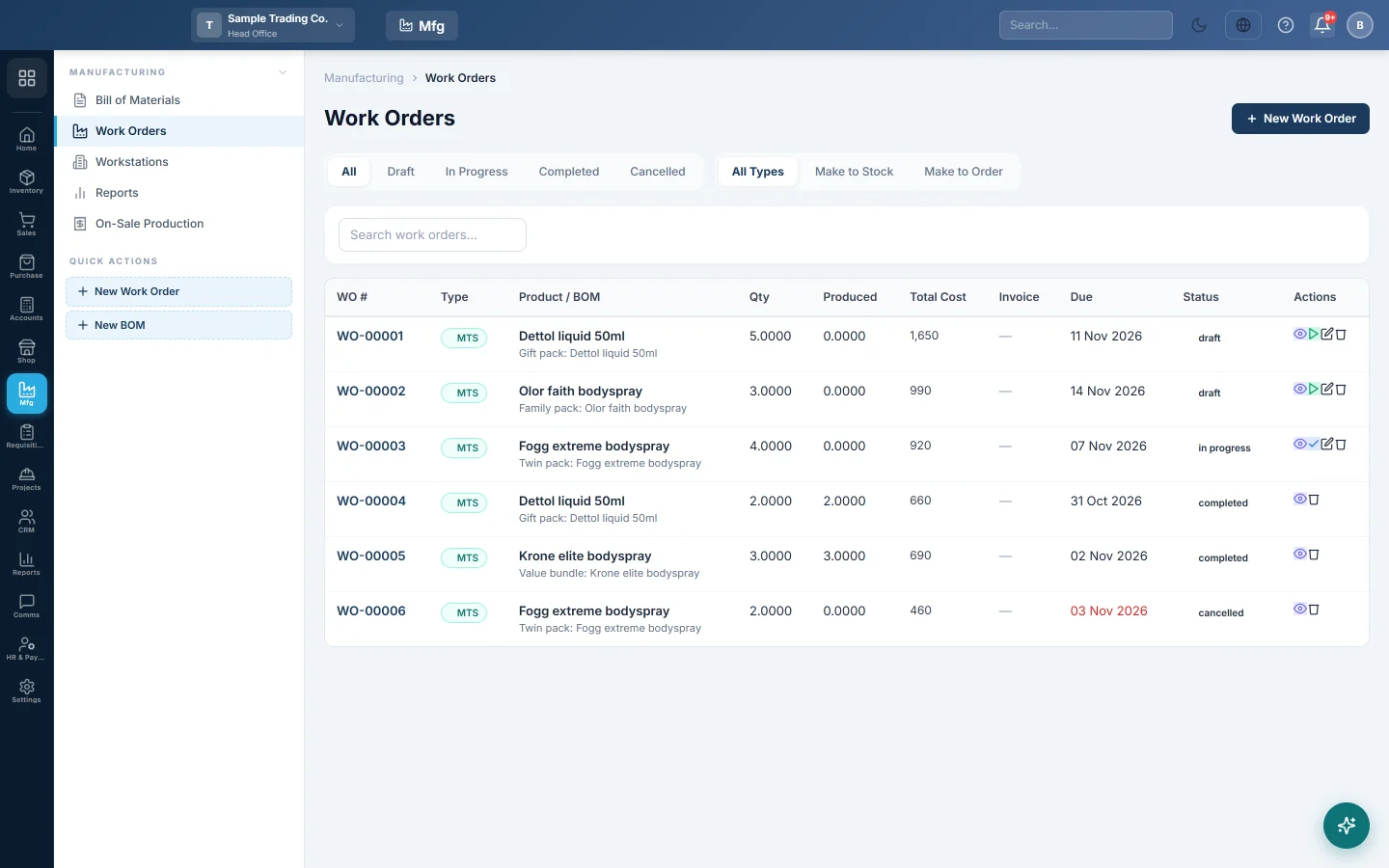
Click the number to open it. It shows Work Order Info, the Cost Summary (material, labour, overhead, total and cost per unit), the STATUS TIMELINE and the Materials table with required and actual quantities and costs.
A work order raised by a sale shows the Linked Invoice.
Find work orders
Use the status tabs (All, Draft, In Progress, Completed, Cancelled), the type tabs (Make to Stock, Make to Order) and Search work orders... for a number, BOM or product.
What happens in the books
When you complete a work order:
- Each raw material leaves its warehouse at its average cost, in the stock ledger.
- The finished goods arrive in the output warehouse. Their cost is the material cost of the run divided by the quantity made.
- No voucher is needed for this. Raw materials and finished goods are both in your Inventory account, so its total does not change.
When the finished product does not keep stock (Skip Stock), the material cost is posted as Cost of Goods Sold debited and Inventory credited, because nothing will ever be sold out of stock for it.
Labour and overhead show in the work order's cost but are not posted again. Wages and bills are already in your books when you pay them.
Common questions
Complete is refused: must be in progress. Click Start Production first.
Complete is refused: actual quantity too high. You can produce up to 10% above plan. For more, make a second work order.
Why does the cost per unit differ from the BOM? The work order uses the materials' current average cost in the warehouse, not the cost typed in the BOM.
Where are work orders raised by sales? In this list under Make to Order, and on On-Sale Production.
Can I delete a draft? Yes. Click Delete and confirm. A started work order cannot be deleted; use Cancel Work Order on it instead. A completed work order cannot be deleted.
Merci. Si vous avez encore besoin d’aide, écrivez à info@eloerp.net.