Stock & Buffers
See the stock each WooCommerce or Shopify store shows against what you hold, hold back safety stock per channel, and push stock to the stores now.
Stock & Buffers compares the stock you hold with the stock each connected store last received. Set a buffer to keep a few pieces back from a channel, so a shop sale and an online order do not both take the last one.
Before you begin
- The products must already be linked to a WooCommerce or Shopify store. Send them from Products on Channels. Your own online store reads your stock directly and is not listed here.
- On each product, Online store stock decides who owns the number. Only Use store default and Track stock from ERP are pushed. See All Products.
Where to find it
Open Online shop → Catalog → Stock & Buffers.
Read the stock levels
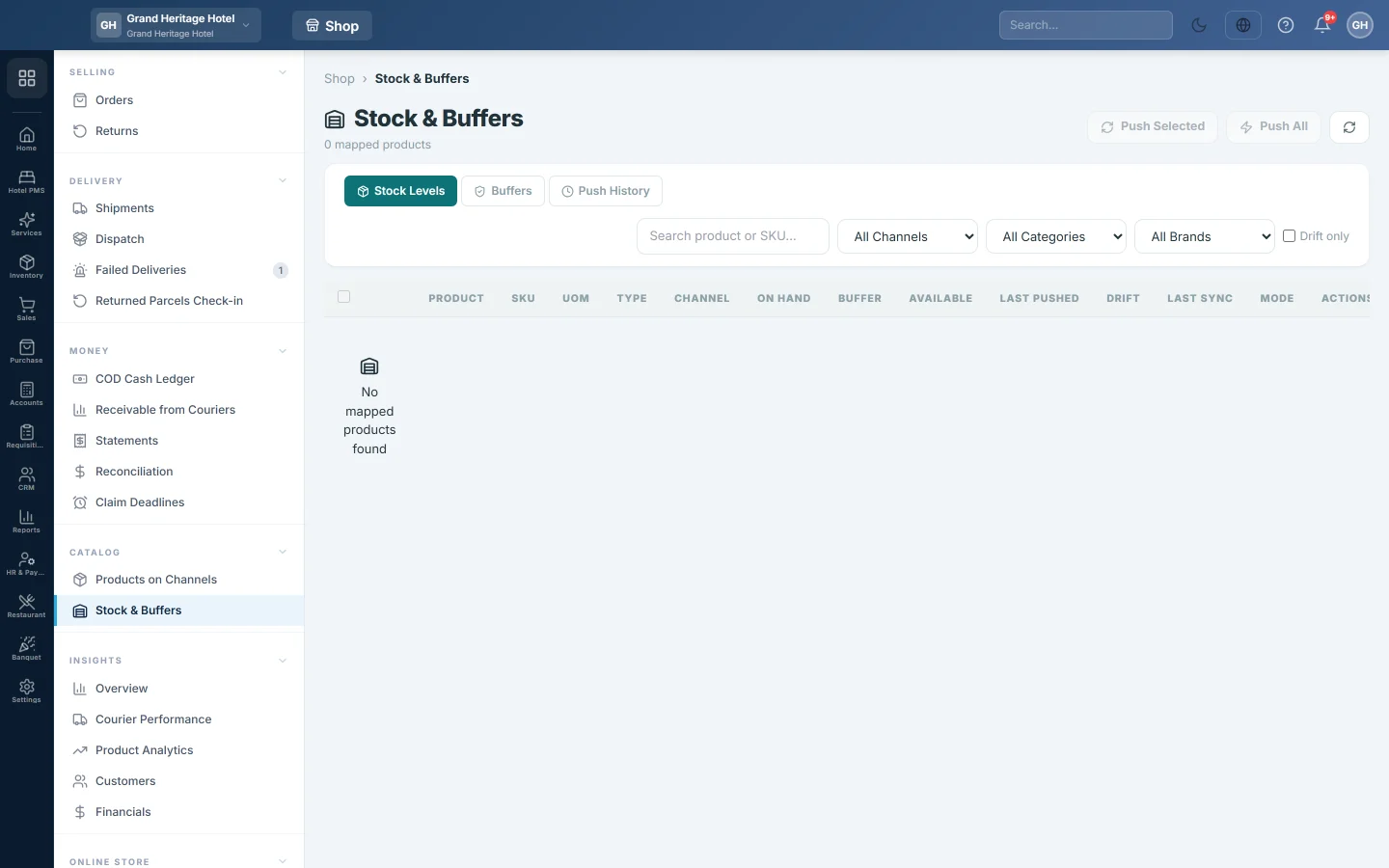
The line under the title counts the mapped products and how many are drifted, synced, never pushed or at zero stock.
| Column | What it shows |
|---|---|
| Channel | The store this row is for. A product on two stores has two rows. |
| On Hand | Your stock of the product, added up over all warehouses. |
| Buffer | Pieces held back from this channel. You can type here. |
| Available | On Hand less Buffer, never below zero. This is what the store should show. |
| Last Pushed | The quantity the store last received. |
| Drift | Available less Last Pushed. OK means the store is right; Never means it was never pushed. |
| Last Sync | When the stock was last sent. |
| Mode | The product's Online store stock setting: ERP, Website or None. |
Tick Drift only to see just the rows where the store shows the wrong number. Filter by channel, category or brand, or search by name or SKU.
Push stock now
- One product: click the push button at the end of its row.
- Several: tick the rows and click Push Selected. Tick rows of one channel at a time.
- Everything on a channel: choose the channel in All Channels, then click Push All.
Only products whose stock changed since the last push are sent. The message says how many were pushed and how many failed.
Hold back safety stock
- On Stock Levels, type the quantity in the row's Buffer box.
- Click Save Buffers. The button shows how many rows you changed.
- Push the product so the store gets the new Available number.
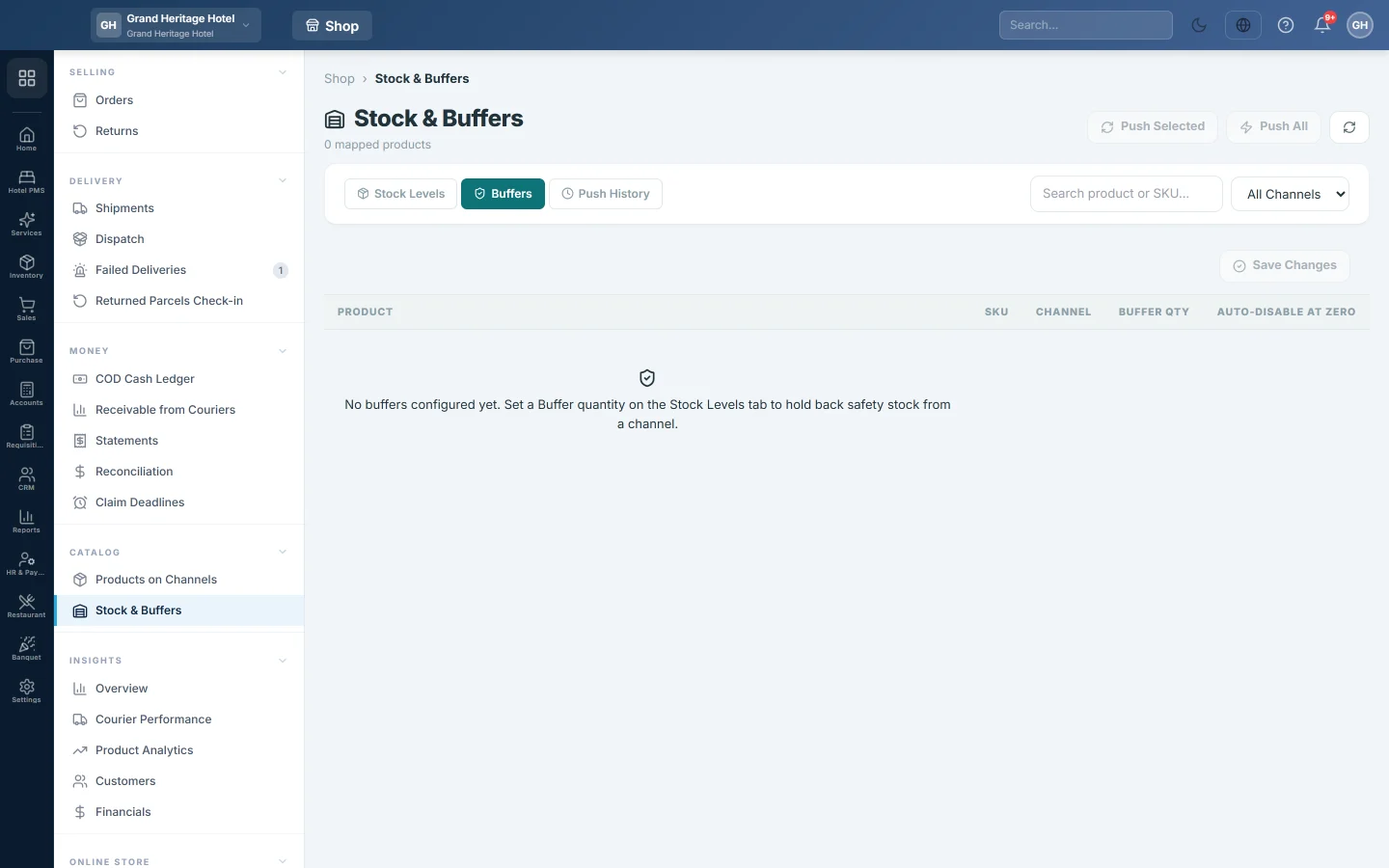
The Buffers tab lists every buffer you have set. Change the Buffer Qty there and click Save Changes.
Buffers are set on this page only. The Prices panel on Products on Channels has no buffer box; it links here instead.
Check what was sent
The Push History tab lists each push: time, channel, product, status, the message from the store and how long it took. Use it when a store still shows the wrong number after a push.
Common questions
The page says No mapped products found. No product is linked to a WooCommerce or Shopify store yet. Send products from Products on Channels first.
Why is Available lower than On Hand? A buffer is set for that channel. Available is what you let the store sell.
A row shows Mode: Website and never changes. The product is set to let the website manage its stock, so EloERP does not push it. Change Online store stock on the product to track it from EloERP.
Does a sale in my shop lower the online stock? Yes, once the stock is pushed. The sale lowers On Hand, the row shows drift, and a push sends the new number to the store.
Push All did nothing. Pick a channel in All Channels first. Products whose stock has not changed since the last push are skipped.
Teşekkür ederiz. Hâlâ yardıma ihtiyacınız varsa info@eloerp.net adresine yazın.