Voucher Register
Every voucher posted in a period with its totals and lines, where vouchers held for approval are approved.
The Voucher Register lists every voucher in a period, one row each: journals, payments, receipts, invoices, notes and opening balances. Use it to check what was posted, look inside a voucher, and approve vouchers held for approval.
Before you begin
- Your role needs the View Voucher Register permission, set under Users & Roles.
- To approve vouchers, your role also needs the permission to approve accounting vouchers.
- Approval is switched on per voucher type in Accounting Preferences, with an amount for each.
Where to find it
Open Accounting → Reports → Voucher Register.
List the vouchers
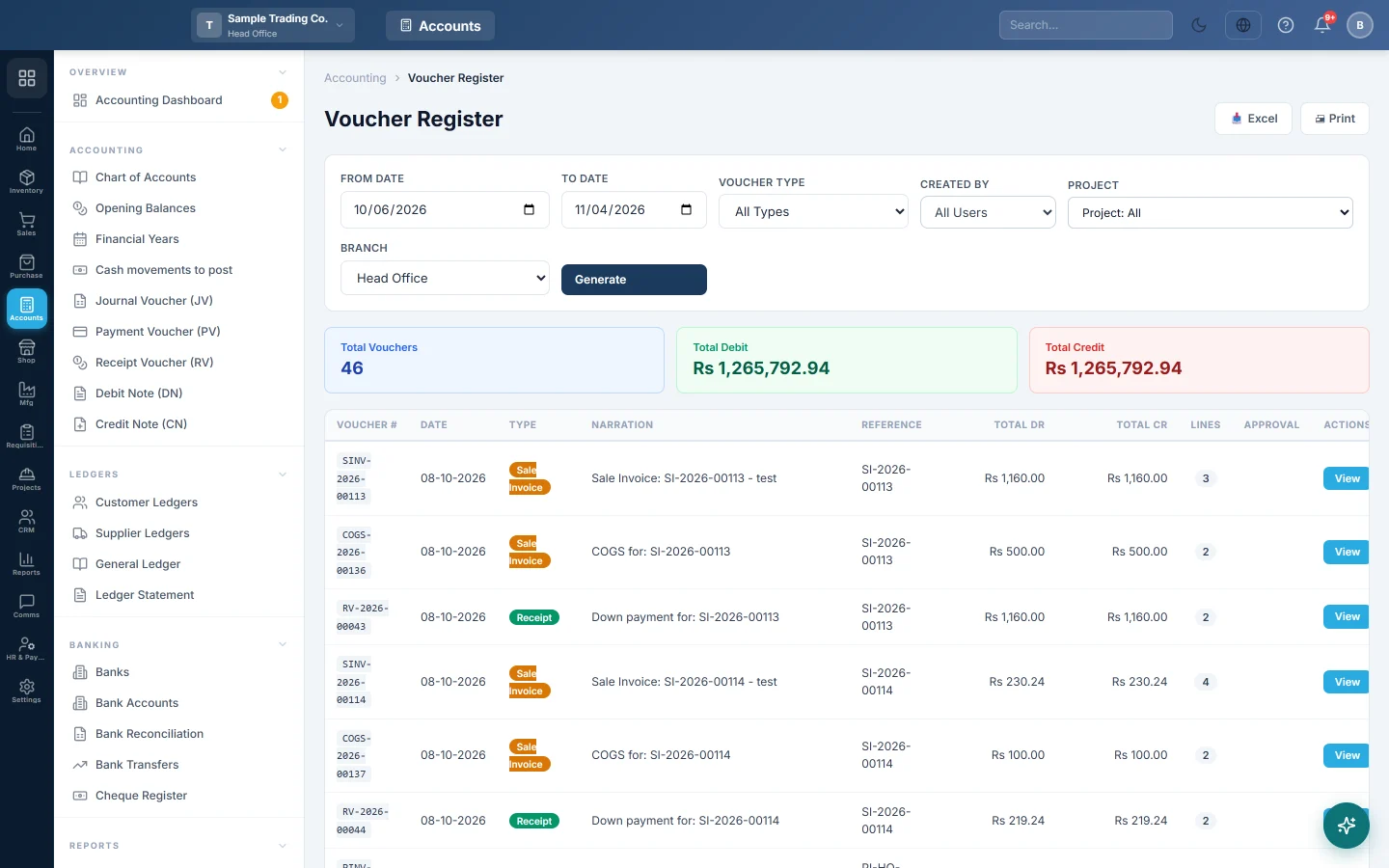
- Set From Date and To Date. The page opens in your company's default report range and loads by itself.
- Optionally pick a Voucher Type, a user in Created By, or a Project.
- Click Generate.
Each row shows Voucher #, Date, Type, Narration, Reference, Total Dr, Total Cr and Lines (how many debit and credit lines it has). The cards at the top give Total Vouchers, Total Debit and Total Credit, repeated in the TOTAL row at the foot.
Look inside a voucher
- Click View on the row.
- A window lists each line: Account Code, Account Name, Description, Debit and Credit, with the totals at the foot.
- Close it with ✕ or by clicking outside it.
Approve a voucher
A payment, receipt, journal, credit note or debit note at or above the amount set in Accounting Preferences is held. It shows Pending approval in the Approval column and is not in the books yet.
- Find the voucher. Its Total Dr, Total Cr and Lines show 0 while it waits.
- Click View if you want to check it first.
- Click ✓ Approve.
The voucher posts to the ledgers, and its badge changes to Approved.
What happens in the books
Nothing is posted from this page except approvals. Approving a held voucher writes its staged lines to the ledgers on the voucher's own date. For example, an approved payment voucher for rent posts Dr Rent Expense 50,000 and Cr Bank 50,000, and both ledgers move.
Common questions
Total Dr and Total Cr do not match. Each voucher balances on its own, so the totals match when every voucher is complete. A row with different figures is worth opening. It usually means some of its lines are in another branch.
I am at head office but see only some vouchers. The register lists the vouchers of the branch you are signed in to. Switch branch in the top bar to see another branch's vouchers.
A held voucher shows 0 lines. Its lines are staged until approval. Click View to check the narration, then approve it.
The Approve button says I cannot approve. Maker-checker is on and you created the voucher, or your role lacks the approve permission. Ask another authorised user.
A cancelled document's voucher is gone. In delete mode a cancel removes the voucher from the books. In reverse mode it stays, with a reversal voucher beside it. The mode is set in Accounting Preferences.
Where do I enter a new voucher? Use Journal Voucher (JV), Payment Voucher (PV) or Receipt Voucher (RV).
Спасибо. Если помощь всё ещё нужна, напишите на info@eloerp.net.