Cheque Register
Every cheque you receive and issue, with its maturity date and status, and the steps to deposit, clear, bounce, cancel or replace it.
The Cheque Register lists every cheque your company receives from customers and issues to suppliers, from the day it is written until it clears, bounces or is cancelled. Use it each morning to see which post-dated cheques are due and which are overdue.
Before you begin
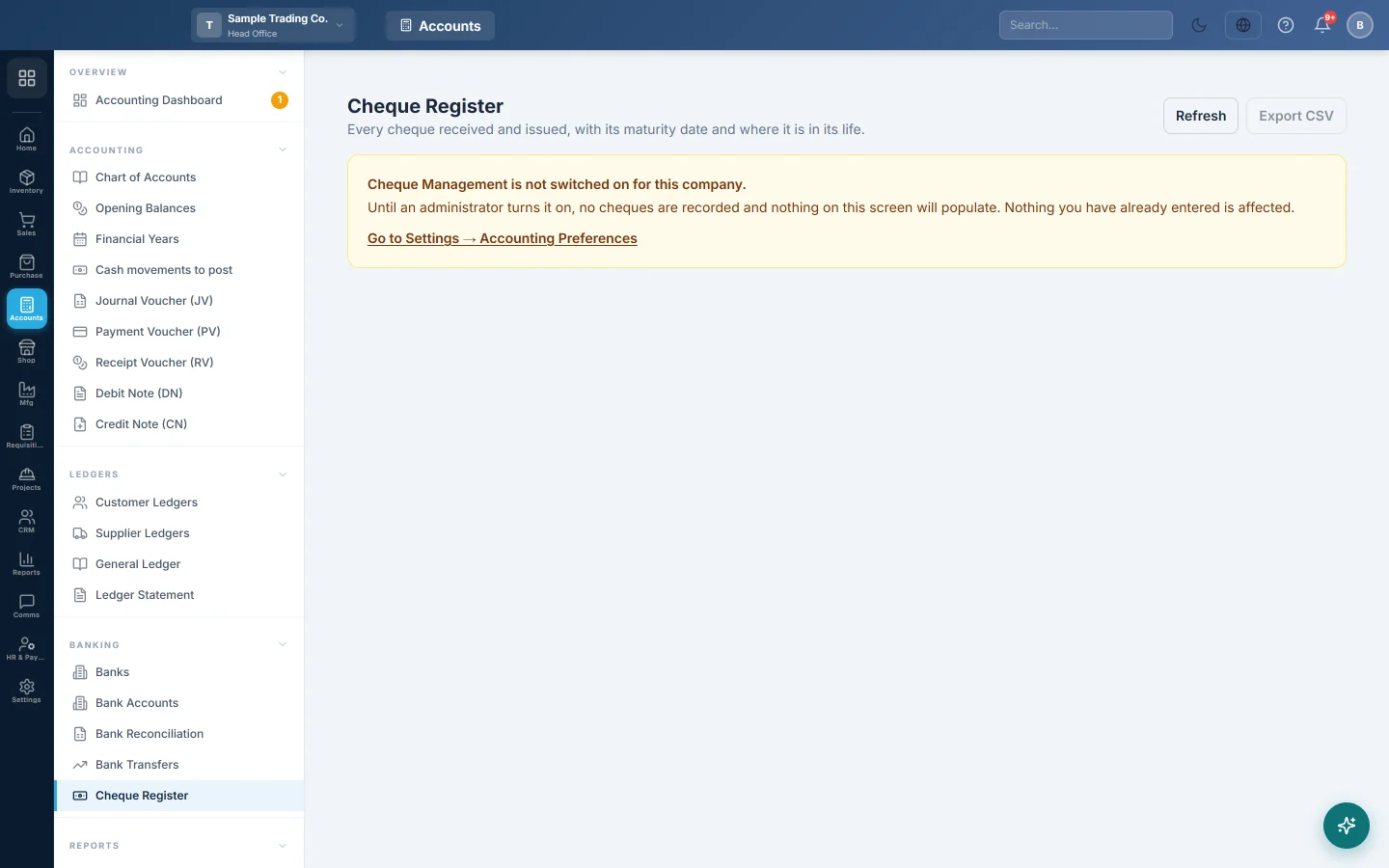
- Cheque Management is off by default. An administrator switches it on under Settings → Accounting Preferences → Cheque Management with Enable Cheque Management; see Accounting Preferences. Until then the register shows a notice and stays empty.
- On the same panel, Hold cheques in a clearing account until they clear decides whether the bank balance moves when you enter a cheque or only when it clears. See What happens in the books below.
- Warn me this many days before a cheque is due sets the "due soon" window (3 days unless you change it).
- Each action needs its own permission (view, deposit, clear, bounce, cancel, create cheques). A button you lack the permission for does not show; see Users & Roles.
- Banking screens are part of your plan. If Banking is missing from the Accounting menu, see Billing.
Where to find it
Accounting → Banking → Cheque Register.
How cheques get into the register
You do not type cheques here. They arrive from the documents that record the payment:
- A Receipt Voucher or Payment Voucher paid by a bank or cheque payment method. Fill the Cheque details panel: Cheque No, Cheque Date, Amount, Bank of Cheque and Notes.
- A cheque payment taken on a sales or purchase invoice, or on an installment plan.
Only cheques entered after Cheque Management was switched on are listed. A received cheque shows IN; an issued cheque shows OUT.
Read the register
The four cards at the top total what needs attention:
| Card | What it shows |
|---|---|
| Receivable — open | Cheques from customers not yet cleared. |
| Receivable — overdue | Customer cheques whose date has passed and are still not cleared. |
| Payable — open | Cheques you issued that the bank has not yet paid. |
| Payable — due in 3d | Your cheques maturing within the warning window. Make sure the bank has the funds. |
Use the tabs All, Receivable (in) and Payable (out), then the chips Open, Overdue, Pending, Deposited, Cleared, Bounced or Everything. Open means pending, deposited or bounced. Narrow further with Cheque no…, Party…, Bank… and the cheque date range.
Rows in red are overdue; rows in amber fall due within the warning window. Export CSV saves the rows on screen.
Deposit received cheques
When you take customer cheques to the bank:
- Click Deposit on the cheque's row. The status changes to Deposited.
- To deposit several at once, tick them in the first column, then click Deposit selected.
Only received cheques with status Pending can be deposited.
Mark a cheque cleared
When the bank statement shows the cheque paid:
- Click Cleared on the row.
- Set the Date the bank cleared it.
- Click Confirm.
The status changes to Cleared and the cheque leaves the open list. Clearing cannot be undone from this screen.
Mark a cheque bounced
- Click Bounced on the row.
- Set the Date the bank returned it.
- Type any Bank charges the bank took for the return, or leave 0.
- Type the Reason, for example insufficient funds.
- Click Confirm.
The status changes to Bounced and staff who subscribed to the bounced-cheque alert are told. A bounced cheque stays open until it is replaced.
Replace a bounced cheque
- Click Replace on the bounced cheque.
- Type the New cheque no and the New cheque date.
- Click Confirm.
The old cheque becomes Replaced and a new Pending cheque for the same party and amount appears.
Cancel or stop a cheque
- On a Pending received cheque, click Cancel. On a Pending cheque you issued, click Stop.
- Type the Reason.
- Click Confirm.
The status becomes Cancelled or Stopped.
What happens in the books
It depends on Hold cheques in a clearing account until they clear.
Switched off (the default). The voucher or invoice moves the bank balance the day you enter the cheque. The register only tracks the cheque's status and history; deposit, clear, bounce and cancel post nothing.
Switched on. A cheque waits in a clearing account and the bank only moves when it clears. Each step posts its own voucher. A Rs 50,000 cheque from Ali Traders:
| Step | Debit | Credit | Voucher |
|---|---|---|---|
| Receipt Voucher entered | Cheques in Hand Rs 50,000 | Ali Traders Rs 50,000 | RV |
| Deposit | Cheques Under Collection Rs 50,000 | Cheques in Hand Rs 50,000 | CHD |
| Cleared | City Bank Current A/C Rs 50,000 | Cheques Under Collection Rs 50,000 | CHC |
If it bounces instead, a CHB voucher debits the customer again and credits the clearing account, so the invoice is owed once more. Bank charges post as Bank Charges debit and bank credit. For a cheque you issued, payment parks in Cheques Issued (PDC Payable) and the bank is credited on Cleared. Cancel and Stop post a CHB voucher that puts the amount back on the party.
Common questions
The register says Cheque Management is not switched on. An administrator turns it on under Settings → Accounting Preferences → Cheque Management. Cheques entered before that are not added.
I recorded a cheque but it is not in the register. Check that the voucher's payment method is a bank or cheque type and that Cheque No and Cheque Date were filled. Cash payments carry no cheque.
Why is a cheque shown as overdue? Its cheque date has passed and it is still pending, deposited or bounced. Deposit it, mark it cleared, or follow it up with the party.
Can I undo a clearance or a bounce? Not from this screen. Ask your accountant to correct the voucher it posted.
Can I switch the clearing account off again? Clear or bounce every open cheque first. Amounts still waiting in Cheques in Hand or Cheques Issued would otherwise have nothing to move them out.
Where do I match cleared cheques to the bank statement? On Bank Reconciliation. The Cheque # column helps you find each one.
Vielen Dank. Wenn Sie weitere Hilfe brauchen, schreiben Sie an info@eloerp.net.