Bank Reconciliation
Tick off each bank entry in your books against the bank statement, and post bank charges or interest the statement shows.
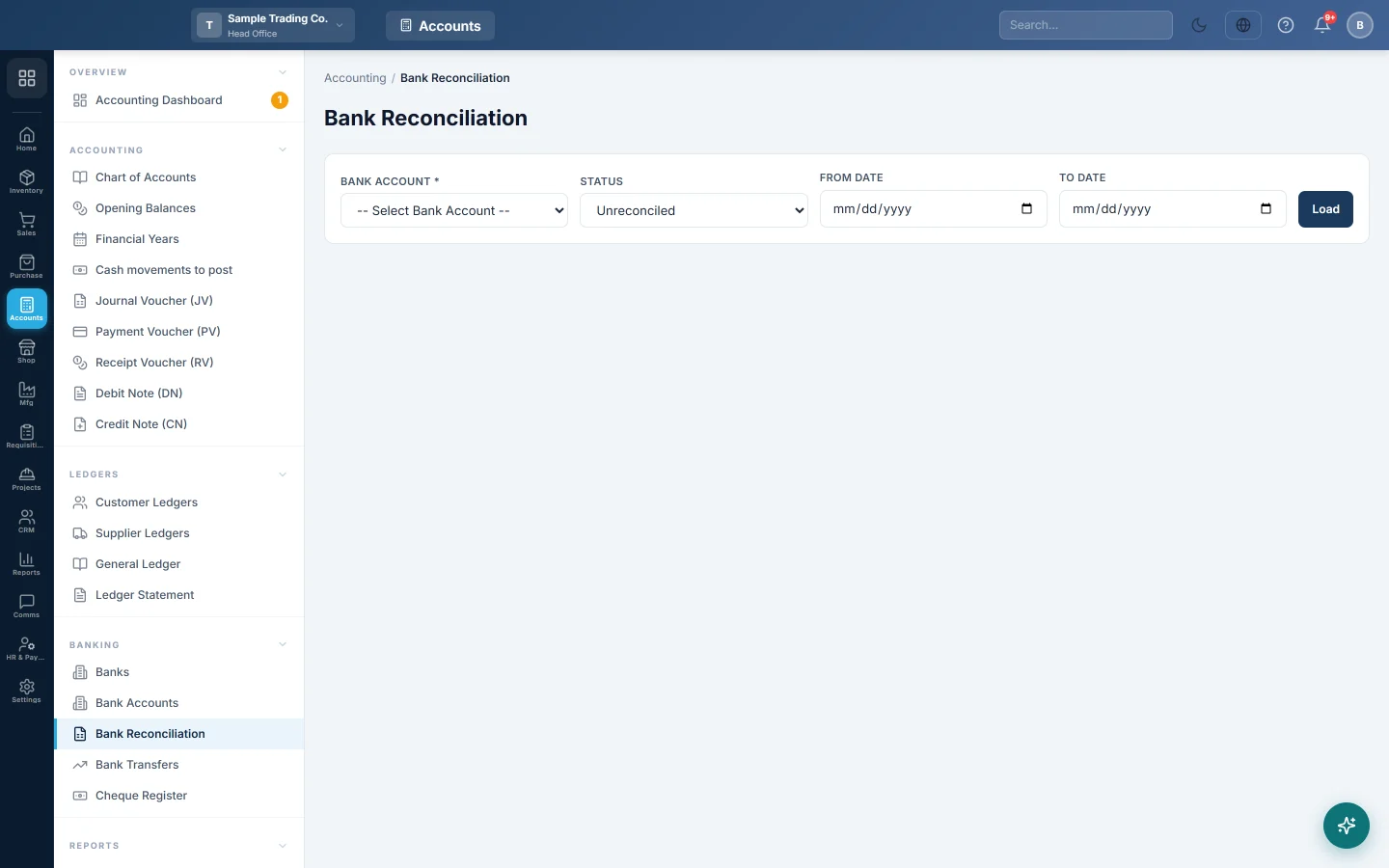
Bank Reconciliation lists every entry posted to one bank account, so you can match each one against your bank statement and record the date the bank cleared it. Entries left unmatched explain why your book balance and the statement differ.
Before you begin
- The bank account must exist on Bank Accounts.
- Have the bank statement for the period in front of you.
- Banking screens are part of your plan. If Banking is missing from the Accounting menu, see Billing.
Where to find it
Accounting → Banking → Bank Reconciliation.
Load an account
- Pick the Bank Account. Its entries load straight away.
- Leave Status on Unreconciled to see only what still needs matching, or pick All, Reconciled, Temp Reconciled or Voided.
- Set From Date and To Date to the statement period.
- Click Load.
Entries are listed newest first, up to 500 at a time. Narrow the dates if you have more.
Read the summary cards
| Card | What it shows |
|---|---|
| Book Balance | The account's balance in your books today. |
| Unreconciled Dr | Money in (receipts, deposits) not yet matched to the statement. |
| Unreconciled Cr | Money out (payments, cheques issued) not yet matched. |
| Unreconciled Items | How many entries are still pending, and how many are reconciled. |
The cards always cover the whole account. They do not follow the dates you filter on.
Reconcile an entry
- Find the entry that appears on the bank statement. Match it by Date, Cheque # and amount.
- Click Reconcile on its row.
- Enter the Clearance Date: the date the bank shows for it.
- Click Confirm.
The row turns green and shows Reconciled, with the date under Clearance.
Mark an entry as temporary
Use Temp when you believe an entry has cleared but cannot confirm it yet, for example a deposit shown on online banking but not yet on the printed statement.
- Click Temp on the row.
- Confirm the message.
The row turns yellow and shows Temp RC. You can still click Reconcile on it later.
Add bank charges or interest
When the statement shows a charge or interest you have not entered, post it from here.
- Click + Add Entry.
- Pick the Type: Bank Charge (Credit Bank) or Interest Received (Debit Bank).
- Pick the Contra Account, for example Bank Charges for a charge or Interest Income for interest.
- Type the Amount and the Date shown on the statement.
- Add a Description, for example SMS alert charges.
- Click Save Entry.
The entry is posted and arrives already reconciled, because it came from the statement.
What happens in the books
Reconcile, Temp and Void do not post anything. They only mark the row on this screen.
+ Add Entry posts a journal voucher numbered RC-. A Rs 500 bank charge looks like this:
| Account | Debit | Credit |
|---|---|---|
| Bank Charges | Rs 500 | |
| City Bank Current A/C | Rs 500 |
Interest received is the other way round: the bank account is debited and Interest Income is credited.
Common questions
An entry is on the statement but not in the list. It was never entered in EloERP. If it is a charge or interest, use + Add Entry. If it is a customer or supplier payment, enter it as a Receipt Voucher or Payment Voucher.
An entry is in the list but not on the statement. It is usually a cheque not yet presented or a deposit still in transit. Leave it unreconciled; it should appear on next month's statement.
I reconciled the wrong entry. There is no undo button on this screen. Ask your administrator to correct it.
Why does the Book Balance not change when I reconcile? Reconciling only records that the bank agrees. The balance changes only when something is posted, such as + Add Entry.
Can I see cheques that are not yet cleared? Yes. If Cheque Management is switched on, the Cheque Register lists every open cheque with its maturity date.
Vielen Dank. Wenn Sie weitere Hilfe brauchen, schreiben Sie an info@eloerp.net.