Banks
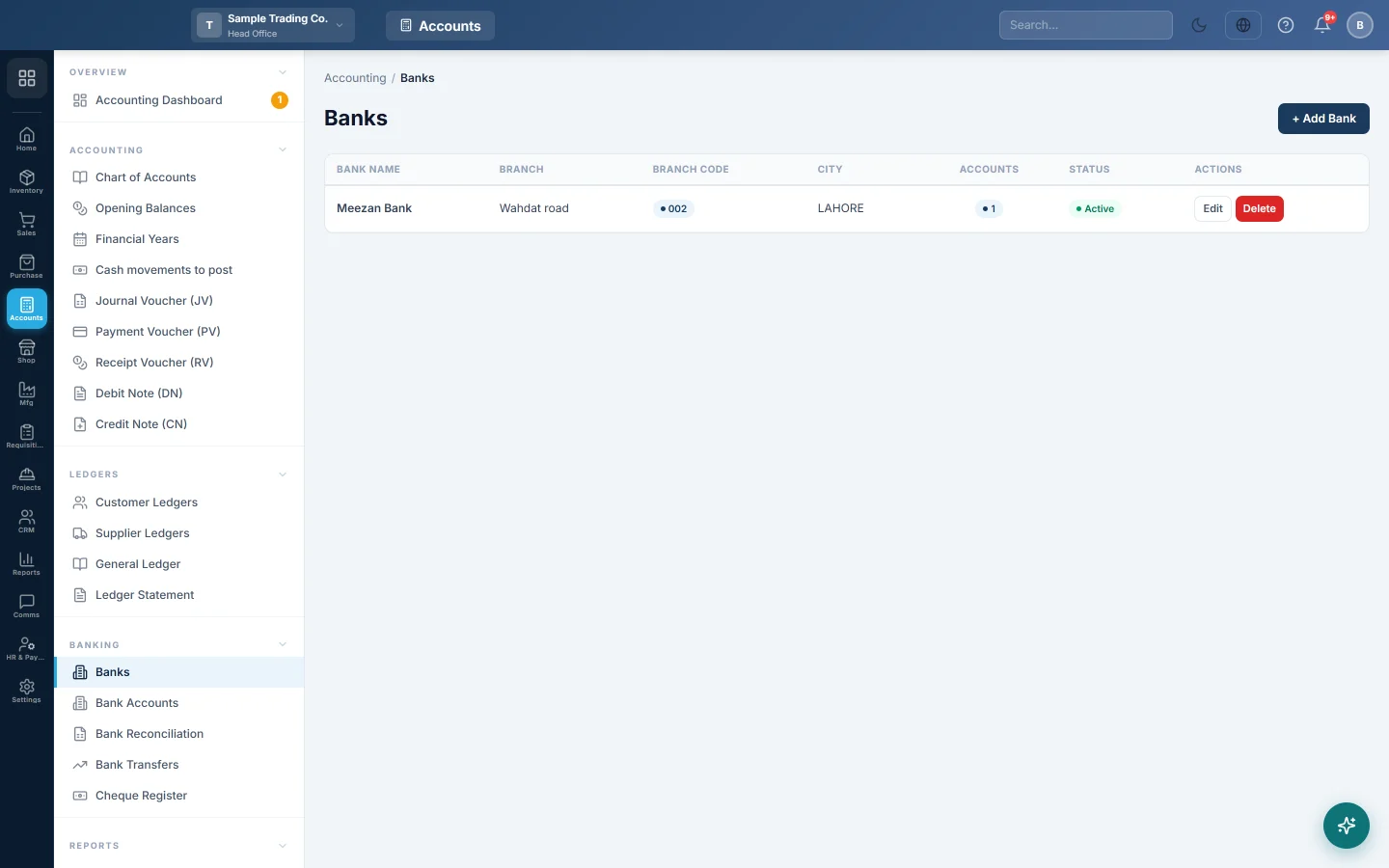
The list of banks and bank branches your company deals with, so that each bank account can be filed under its bank.
Banks is the list of banks your company holds accounts with, one row per bank branch. You add a bank here once, then open as many accounts under it as you need on Bank Accounts.
Before you begin
- Banking screens are part of your plan. If Banking is missing from the Accounting menu, your plan does not include it; see Billing.
- A bank on this screen posts nothing to the books. Money only moves through a bank account, which has its own ledger.
Where to find it
Accounting → Banking → Banks.
Add a bank
- Click + Add Bank.
- Type the Bank Name, for example City Bank.
- Type the Branch Name, for example Main Boulevard.
- Type the Branch Code. It must be different for every bank row in your company.
- Fill in City, Country, Phone 1, Phone 2 and Address if you want them on record.
- Leave Status on Active.
- Click Save.
The bank appears in the list with 0 in the Accounts column until you add an account under it.
Edit or switch off a bank
- Click Edit on the bank's row.
- Change the details, or set Status to Inactive for a bank you no longer use.
- Click Save.
Delete a bank
- Click Delete on the bank's row.
- Confirm the message.
You can only delete a bank that has no bank accounts. If it has any, remove those accounts first on Bank Accounts, or set the bank to Inactive instead.
Common questions
The save says the branch code is taken. Each row needs its own Branch Code. Look for a row with the same code; you may have added this branch already.
Why can I not delete a bank? It still has bank accounts under it. The Accounts column shows how many. Delete or keep those accounts first.
Does a bank have a balance? No. Balances belong to bank accounts. See Bank Accounts for the balance of each account and the total.
Where do I record the account number? On Bank Accounts. One bank can hold several accounts, such as a current account and a savings account.
Vielen Dank. Wenn Sie weitere Hilfe brauchen, schreiben Sie an info@eloerp.net.